

Beta
Jig Spark AI: Turn your files into interactive 3D presentations in seconds
No login required
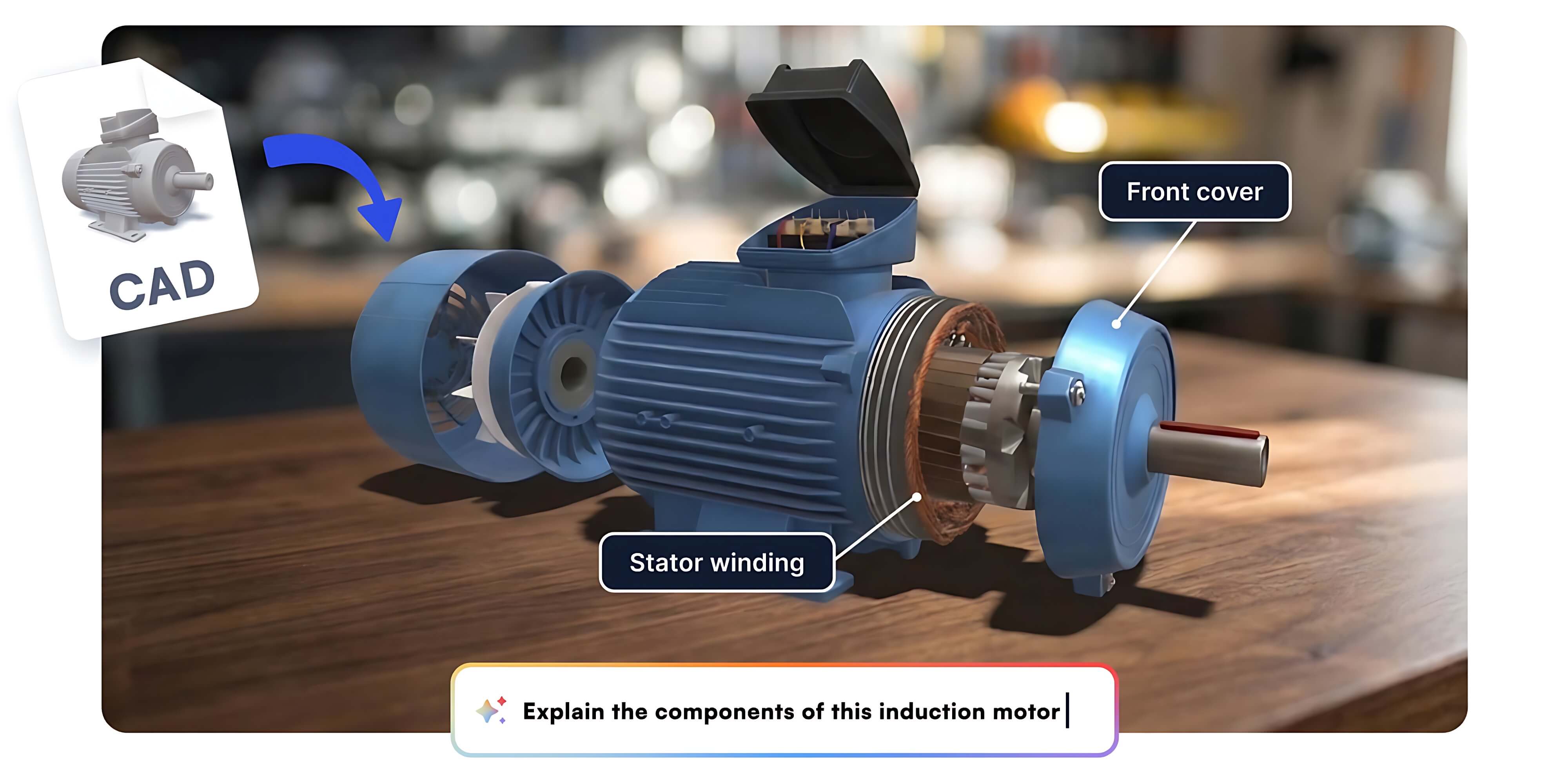
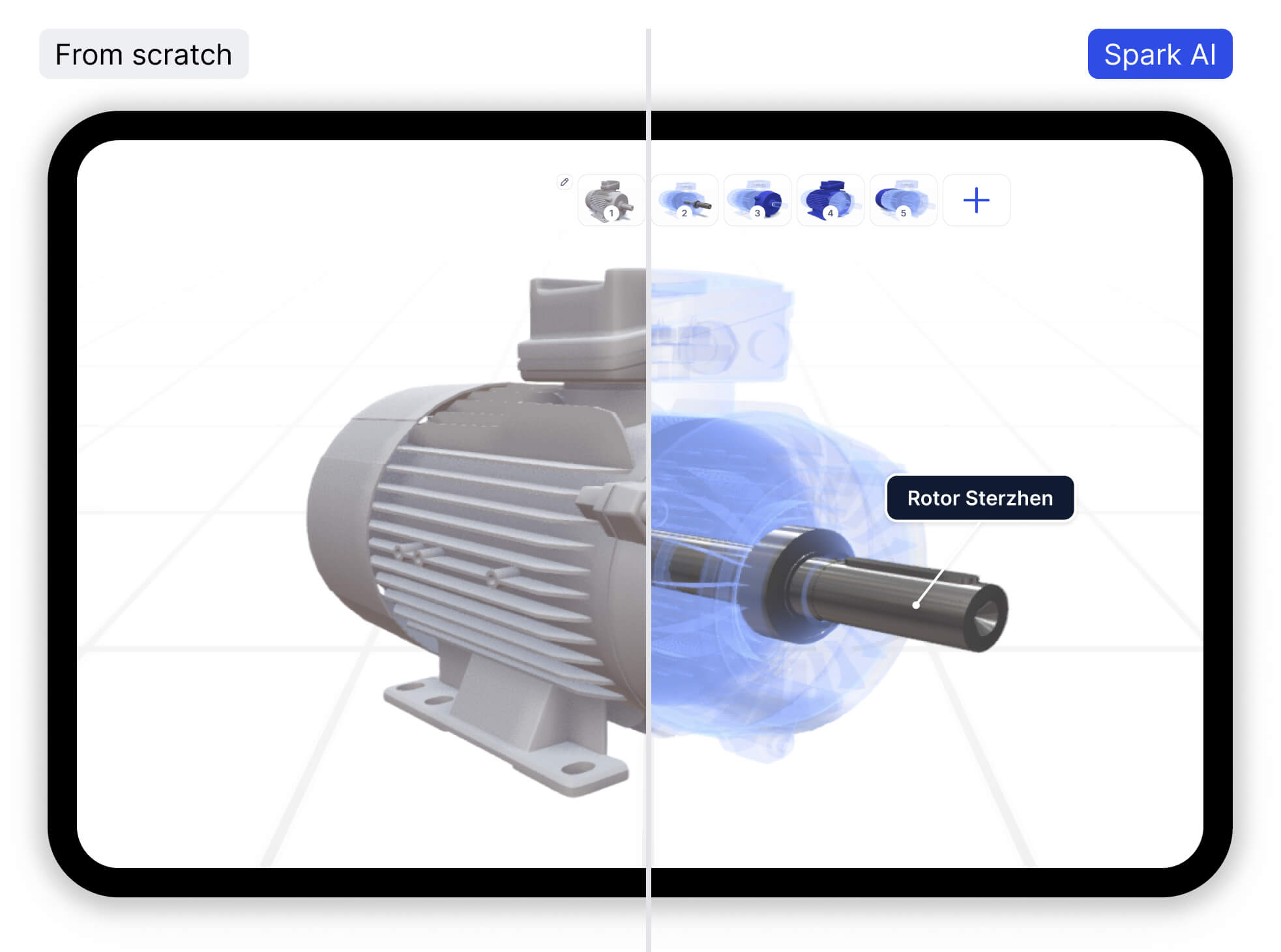
Skip the blank page
Starting a 3D presentation from scratch is the slow part. Getting your models ready, writing the steps, deciding what to highlight, and setting up each camera move can take hours before you have anything to show. Jig Spark AI does that first pass for you, so you start from a working draft instead of an empty workshop.
From file to first draft in three steps
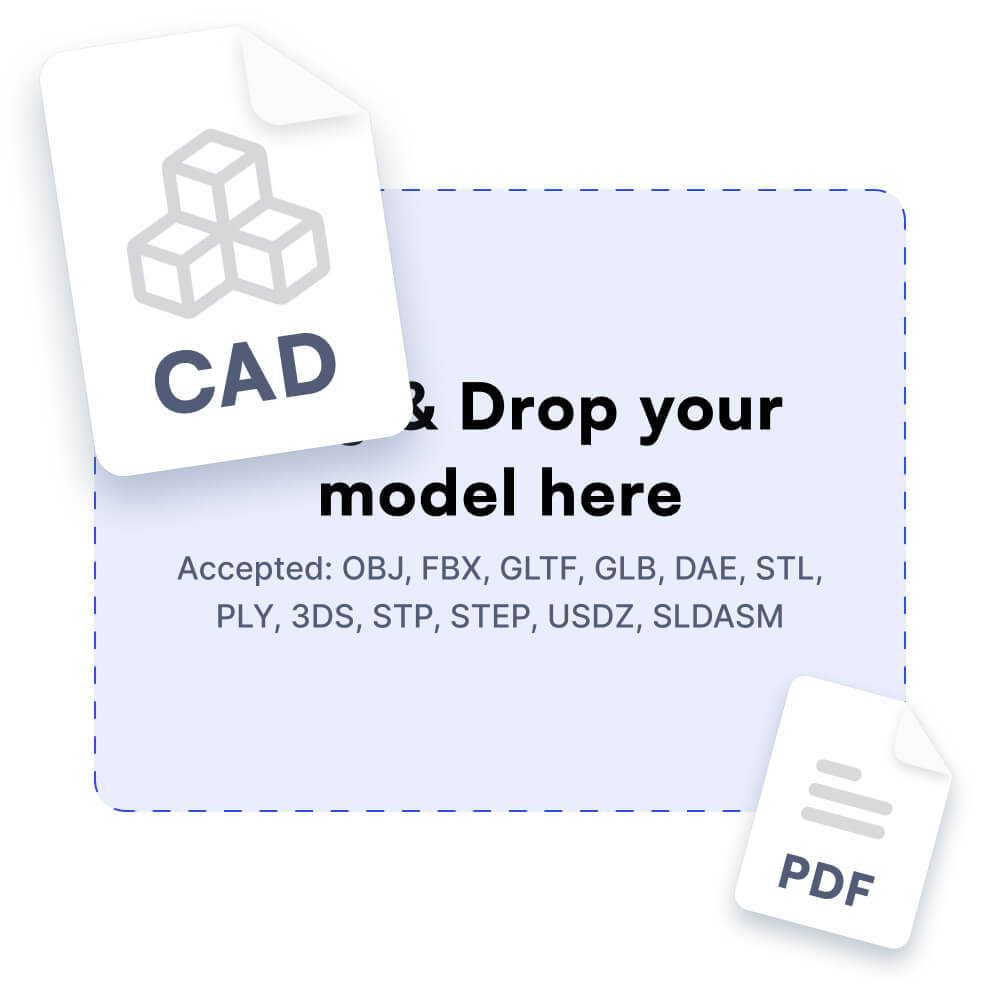
1. Add your files
Upload a CAD file in the Dashboard, or pick a model from your 3D Object library. Attach PDFs, user guides, or product pages as reference material.
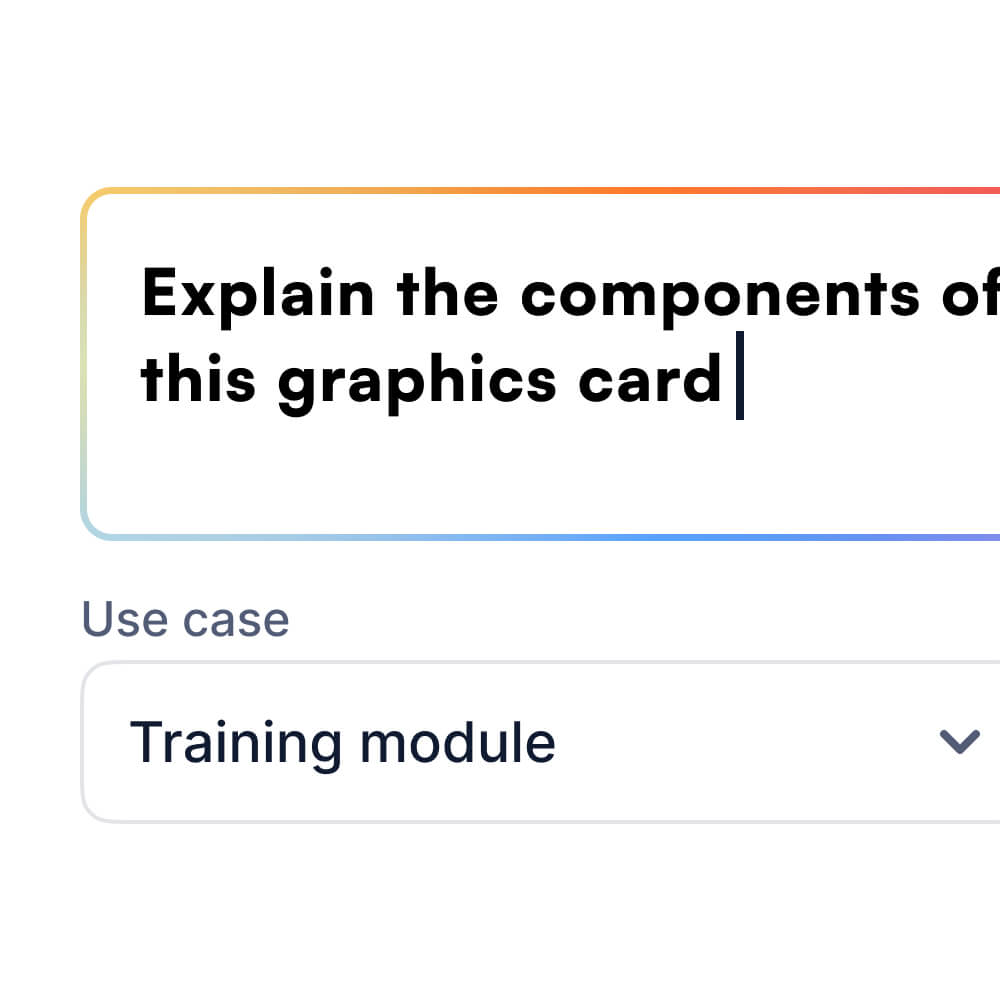
2. Describe what you want
Write a short instruction — "highlight the connection points to check during installation" — and choose a use case, like a training module.
3. Generate
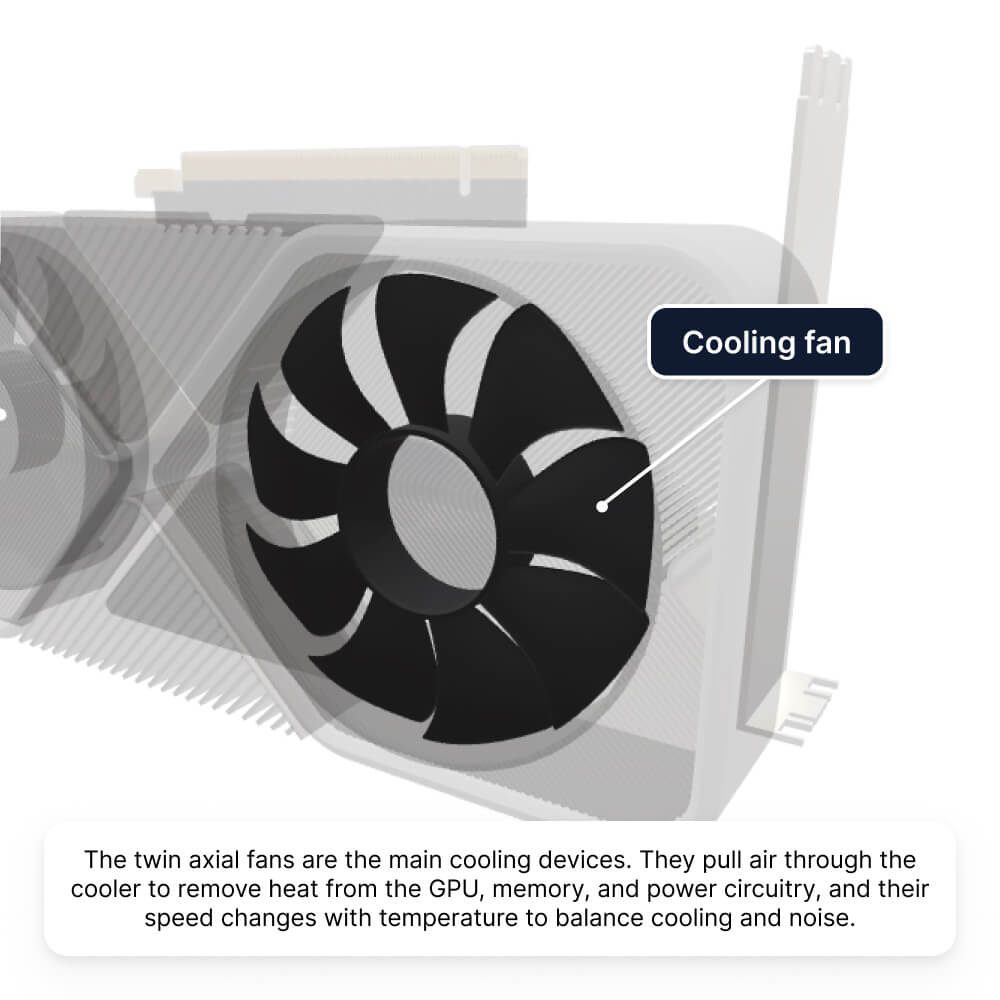
Jig Spark AI reads your documents, maps them to your model, and builds a Jig: storyboard of steps, written instructions, highlighted parts, and camera viewpoints to keep viewers engaged.
Already have an account? Use models from your
team library.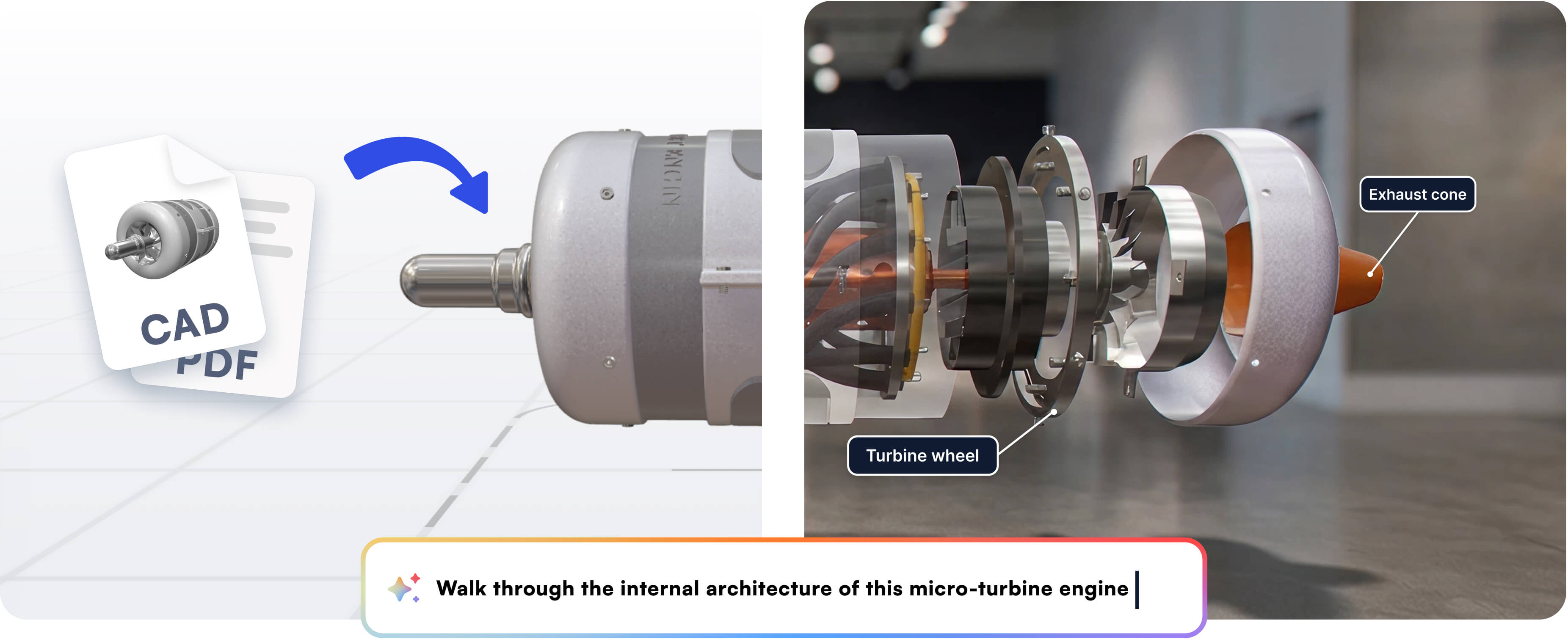

Build a Jig from your own files
Jig Spark AI combines the knowledge in your documents with your CAD files. Add a user guide PDF, a product page, and accurate part names to a model, and the draft comes back more detailed and specific to your products.

A storyboard, written for you
You get a sequence of animated steps with instructions drawn from your documents and your prompt, ready to edit.

Highlights and viewpoints, built in
Every step gets highlighted parts and a set camera viewpoint, so a static document becomes something viewers move through.

Generate from your 3D Object library
Save reference documents, descriptions, and meta data to your library models, to generate Jigs whenever you need.

Audio instructions and thumbnails
Add audio voiceover narration for your instructions from text, and generate photorealistic thumbnail previews.
You decide how it works for your team
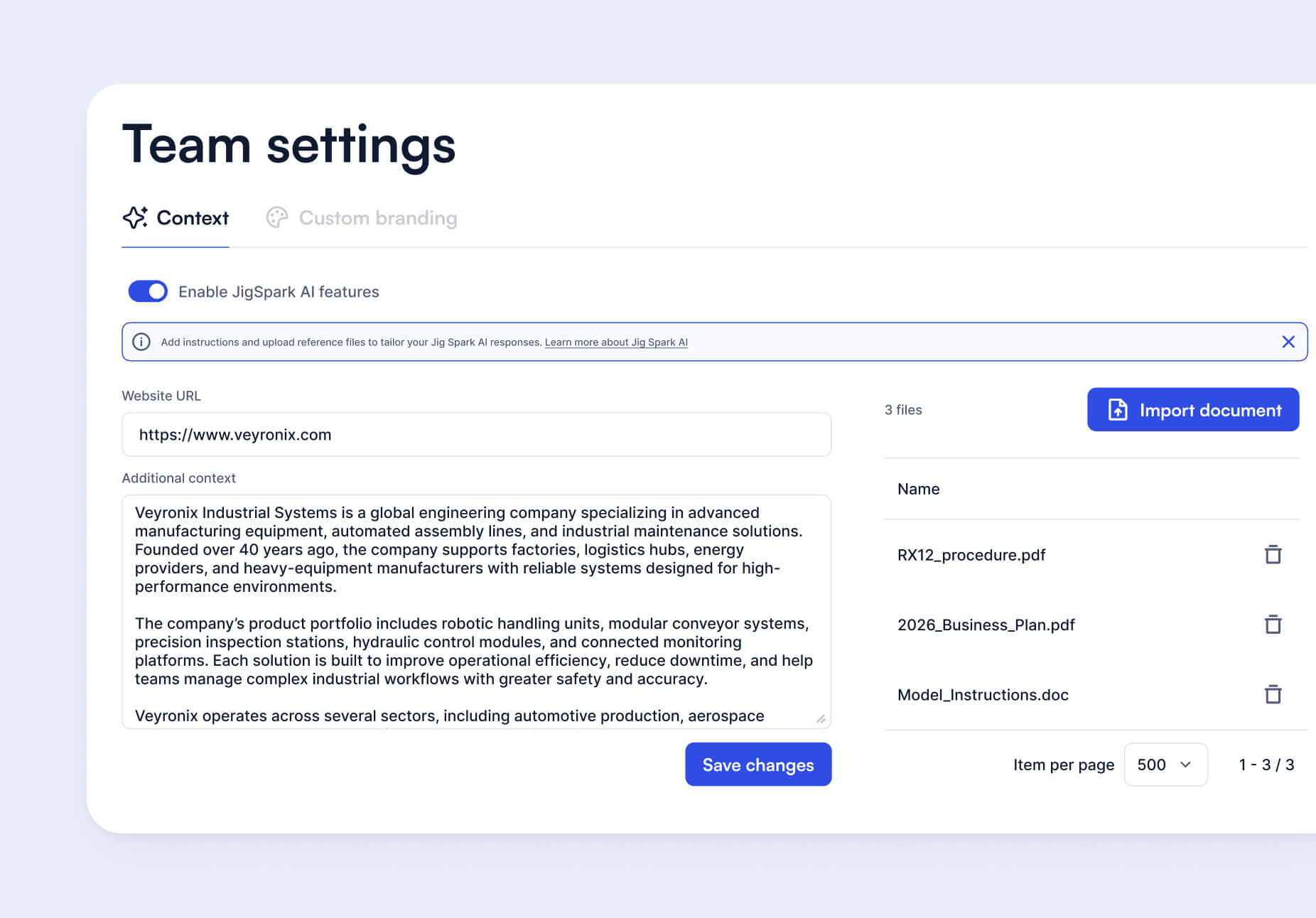
Jig Spark AI is controlled at the team level in the Dashboard. Add company context: product specifications, preferred terminology, subjects to avoid, tone, or highlight colors. Upload global reference documents like a brand guide or product catalog to apply across everything your team creates.
Prefer not to use AI right now, or need a technical review first? A single global opt-out turns every Jig Spark AI feature off for your team.
Prefer not to use AI right now, or need a technical review first? A single global opt-out turns every Jig Spark AI feature off for your team.

Built for enterprise data custody
We're consolidating Jig Spark AI's processing, inference, and storage onto the same AWS infrastructure as JigSpace, so your data stays in one trusted environment alongside the rest of your account. Jig Spark AI is opt-in and currently in beta. Your team admin controls whether it's available, and you choose what context to share.
See our security and trust center →
See our security and trust center →
Made for training, sales, and teaching
.jpg)
TRAINING
Turn machine manuals and CAD into step-by-step spatial training your team can follow from anywhere.
.jpg)
SALES AND DEMOS
Build interactive product demos from your existing spec sheets and models.

EDUCATION
Generate teaching modules from a model and a prompt, then refine the detail.
Upload a model, write a prompt, and watch it build a Jig
Frequently Asked Questions
What is Jig Spark AI?


How is this different from gen.jig.com?
What files can I use?
Do I need to log in to try it?
Is it free?
Is my data used to train AI?
How do I turn it off?
How do I get the best results?
Can I edit what it generates?