


JigSpace compresses and optimizes 3D models so they load faster and run smoothly in AR. You can use our automatic optimization, manual preparation in 3D tools like Blender, or a combination of both.
What affects performance
Two things matter most: how many separate objects it contains, and how many triangles (i.e. polygons) your model has. A single 3D model can have anywhere from 1 to 1,000s of objects within it. Your Jigs may have only one 3D model, or a great deal more inside it. Understanding this structure is important when we show you “performance metrics” in your Jig.
If you can, we recommend staying under 200,000 polygons and 200 sub-objects per Jig. Go higher and you risk seeing a reduction in framerates or even crashes, especially on phones and older devices.
Identifying problem areas
The performance panel inside the JigSpace app tells you if you're over the limits and shows what automatic optimization can do about it.

Hover details in the object list
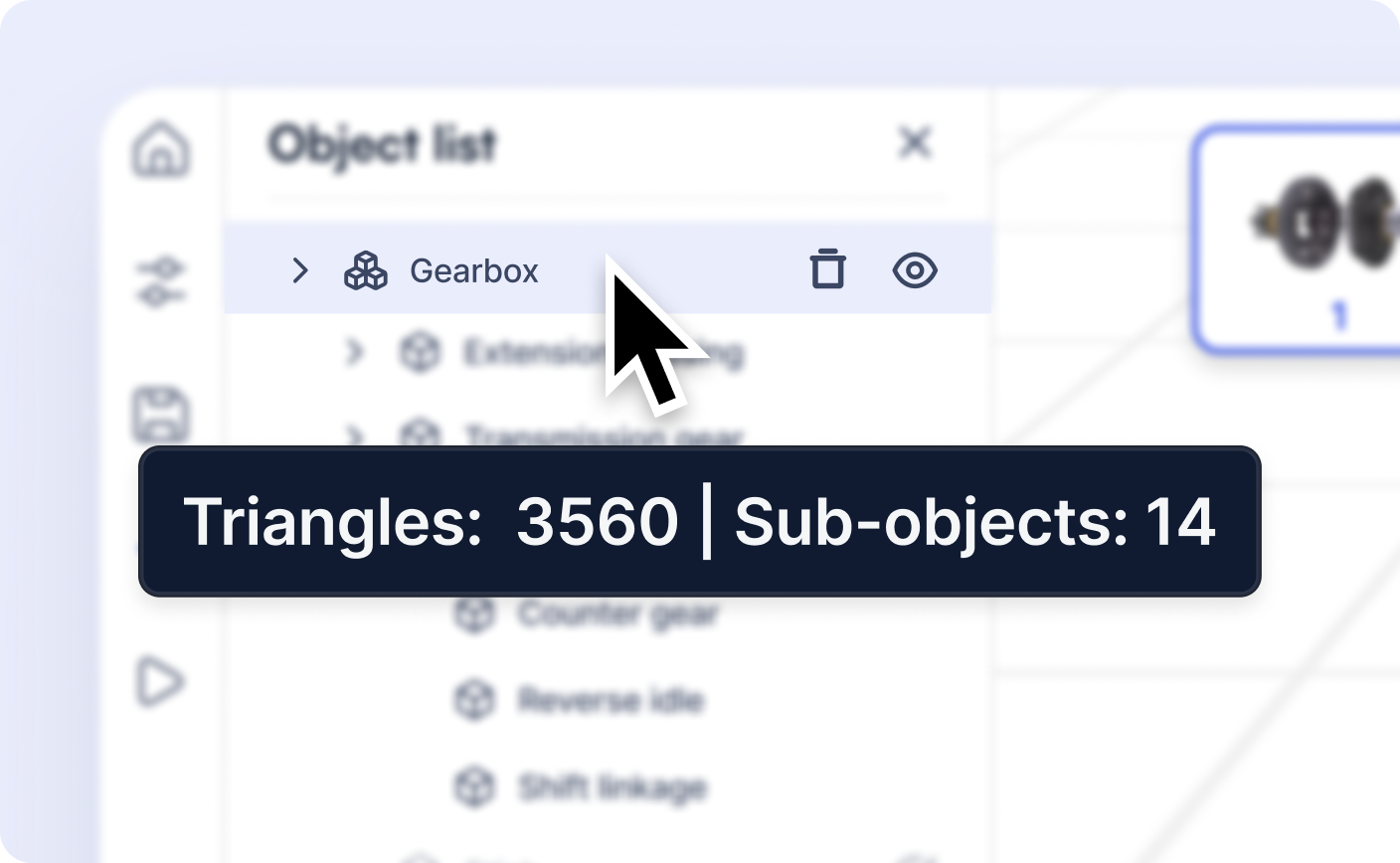
When you're editing a Jig, hover over any object to see its mesh count and triangle count. You can also see how many triangles are in each individual mesh. This makes it easier to spot the heavy hitters that are slowing things down.
Automatic optimization
When you import a 3D file, JigSpace compresses it to reduce load times. We also optimize components as you build your Jig.
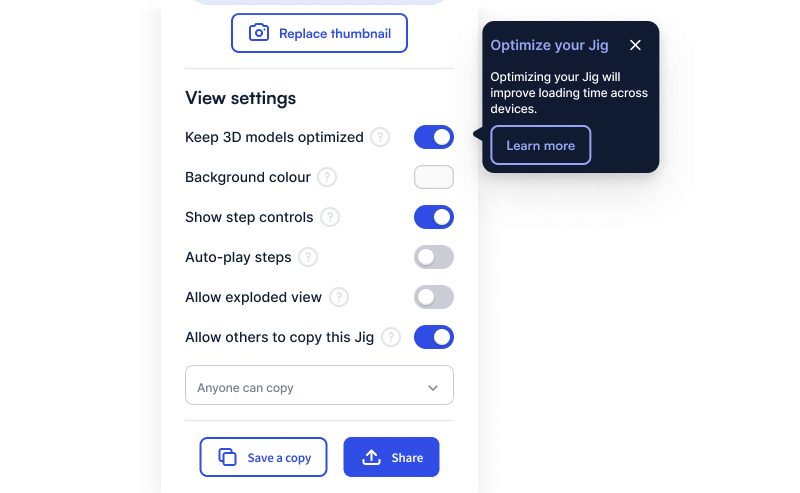
If this causes problems with how your model looks, you can turn it off. Toggle Keep 3D models optimized in the performance panel or Jig settings.
Optimize when importing files into JigSpace app
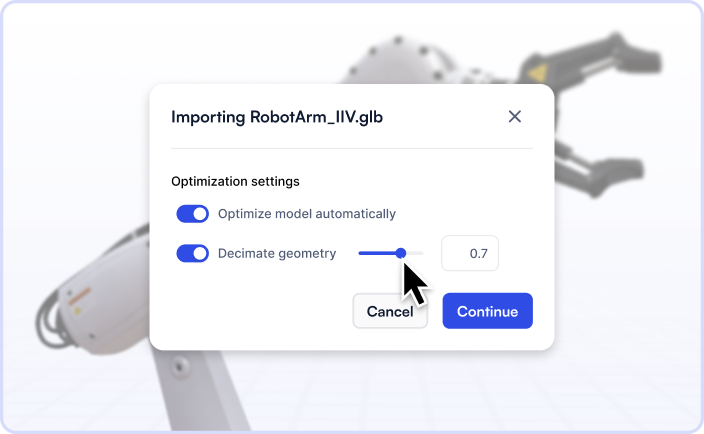
When you import a CAD file or 3D model into the JigSpaced app, the opptimization settings window lets you control how we reduce the number of sub-objects and triangles in the file. Enable Optimize model automatically and Decimate geometry on or off, then click Continue.
With Optimize model automatically on, large files (more than 750 sub-objects) have their sub-objects merged when they share the same parent in the hierarchy and the same material properties. We also reduce triangle count automatically if it exceeds 750,000 triangles.
To reduce the triangle count further regardless of size, turn on Decimate geometry and set a rate between 0 and 1. The lower the rate, the fewer triangles the model keeps; the default of 0.7 removes about 30%. Turn off Optimize model automatically if merging distorts your UVs or combines objects you want to keep separate.
%20tiny.png)
Optimizing via the team library
The admin dashboard has the same optional settings that you can apply during bulk uploads to your team object library. You can apply them individually or together in bulk at dashboard.jig.space/library
.png)
Manual optimization
Preparing files in Blender
You can optimize models yourself before importing. Our Blender template makes this easier: optimize, push to your library, and use Replace to test in your Jig.
Watch the 3D model preparation tutorial below and download the Blender template for JigSpace here.
Export settings from CAD
When exporting from SolidWorks, Inventor, Creo, or similar:
- Simplify geometry. Remove small details that won't be visible, like internal fasteners or tiny features.
- Use decimation to reduce polygon count while keeping the overall shape.
- Try the built-in simplify or shrinkwrap tools. Most CAD software has a range of features like this.
- Consider standalone reduction tools if you need more control.
Reducing polygons also reduces detail, so there's always a tradeoff. Start aggressive and dial back if the result looks too rough.
Guides for specific CAD software
We have step-by-step guides for simplifying CAD files and assemblies in several of the most popular CAD programs. Download the guides below.
Updating models after optimization
Replace tool
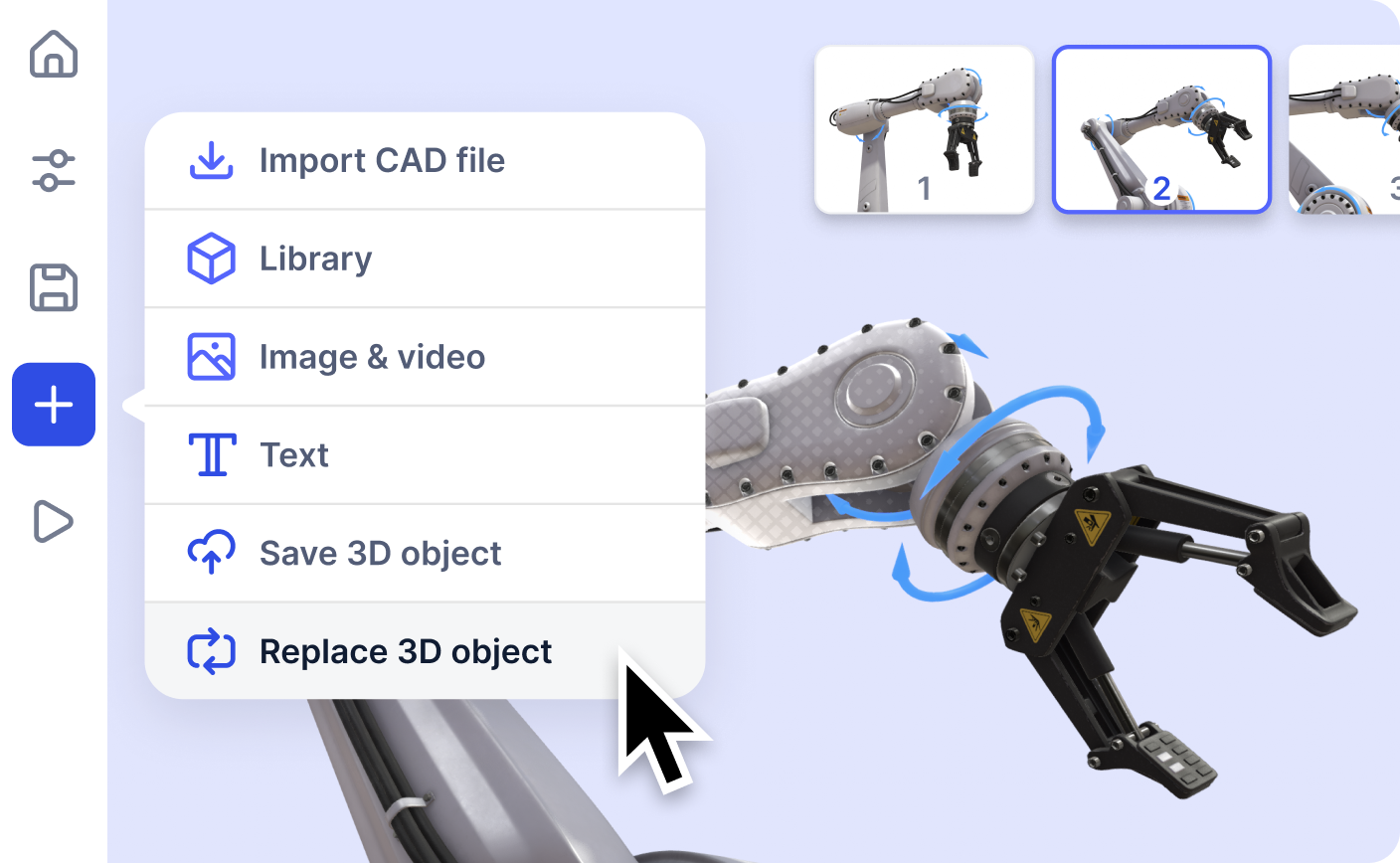
Say you've optimized a model in Blender and want to test it in your Jig. Use the Replace tool in the Workshop to swap in the new version without redoing all your step changes.
The Replace tool copies over the position, scale, and step assignments from the old object. You don't have to match everything up manually, which saves a lot of time when you're iterating.
Further reading
Click on the links below to learn more about 3D model optimization, improving the performance of your Jigs, and how to get the perfect 3D models for your next Jig from a range of websites.