


To view a 3D presentation you do not need to install any software, however, to create a 'Jig' of your own, or use special features like Vision Pro, you need to install one of the Jig apps.
Installing desktop apps
Visit the downloads page and choose to download either Windows or MacOS applications.
From there, you'll need to follow the installation instructions.
Install on Mac
When download completes, move Jig to your Applications folder.

To launch JigSpace, search your Applications folder. Drag your Jig icon to your task base for easy future access.

Lastly, sign-in with your account and you're ready to create Jigs with the Mac desktop app!
Install on Windows
- Go to jig.com/downloads/windows on your Windows PC the download should automatically start
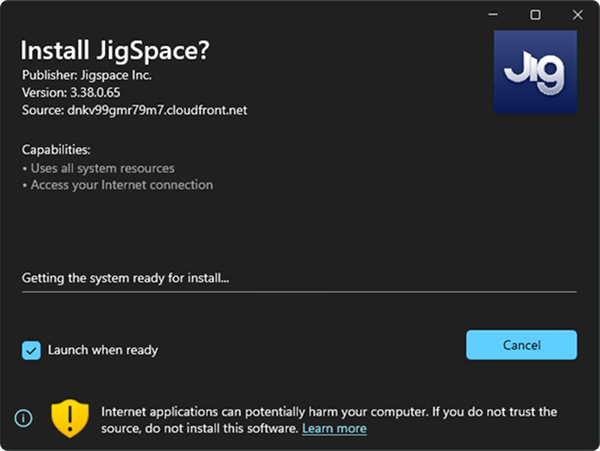
- Run the downloaded JigSpace.appinstaller file and follow the installation instructions
- Once installation finishes, search your Start menu or Applications folder for JigSpace
- Drag the Jig icon to your desktop or preferred shortcut location for future access
- Lastly, sign-in with your JigSpace account and you're ready to create Jigs with the Windows desktop app
Updating the desktop apps
JigSpace typically updates new versions of the desktop app on a monthly basis, to introduce new features and capabilities. See our release notes to see the most recent updates.
Automatic updates
You will be notified inside the app when a new version is available. Simply click to restart and the new version will installed and updated immediately.

Manual updates
To update manually, go to the download page, and install the latest version as per the instructions above.
If you don’t update straight away, you will still be able to use JigSpace. However, you may miss out on some great new features. Content you create is generally backwards-compatible for viewing, but not always for editing, depending on the features you have in your Jigs.
Problems with Windows installation?
There are many flavor combinations of Windows PCs and OS versions, most of the time JigSpace will install and update without any problems. However, if something goes wrong, try one of the solutions below to complete your installation.
Unsupported Versions of Windows
If you get an error message when attempting to install JigSpace on Windows indicating “this package is not compatible with the device”, try the following:
- Check to make sure you’ve updated Windows to the latest version.
- Note: JigSpace for Windows requires Windows 10 or later.
Application Package Error Message
If you get an error message when attempting to install JigSpace on Windows that says “Error parsing application package”, try the following:
- Make sure your Microsoft App Installer app is up to date. Download here: https://apps.microsoft.com/detail/9nblggh4nns1
- Once downloaded, restart your computer and try launching JigSpace again
Class Not Registered Error Message
If you get an error message when attempting to install JigSpace on Windows that says “Class not registered”, try the following:
- Make sure your Microsoft App Installer app is up to date. Download here: https://apps.microsoft.com/detail/9nblggh4nns1
- Once downloaded, restart your computer and try launching JigSpace again
Microsoft Defender SmartScreen
After running the .exe file on Windows, Microsoft Defender SmartScreen prompt may ask you if you wish to continue.
If this occurs:
- Click More info
- Then click Run anyway and follow the installation instructions in the installer.

Installing iPad and iPhone apps
Visit the downloads page and select iPad or iPhone. This will redirect you to the Apple AppStore.
From there, download the Jig app, to complete the installation.
You can create a new account inside the app, or login with an existing account, to get started.
Updating iPad and iPhone apps
Updates to iPad and iPhone apps occur automatically or manually by visiting your account settings at AppStore > Account settings. Ensure you update to the latest app when they become available to use new capabilities and features.
Installing Vision Pro app
Visit the downloads page and select Vision Pro. This will redirect you to the App Store for Apple Vision Pro.
From there, download the Jig app, to complete the installation.
You can use some features in the Vision Pro app without an account, however you will need to log in with an existing account, to view content made by your team, privately secured content, or view Jigs without internet access using offline mode.
Updating Vision Pro app
Updates to the Jig Vision Pro app occur automatically typically within 1-2 weeks. If you are unsure about whether you are on the latest version, go the the App Store on your Vision Pro, search "Jig" and check for new updates.
Software security and compliance
JigSpace has successfully completed the SOC 2 Type II audit, which confirms that JigSpace’s information security practices, policies, procedures, and operations meet the SOC 2 standards for security.
Learn more about our features and practices to help you align your security and compliance frameworks with JigSpace.