


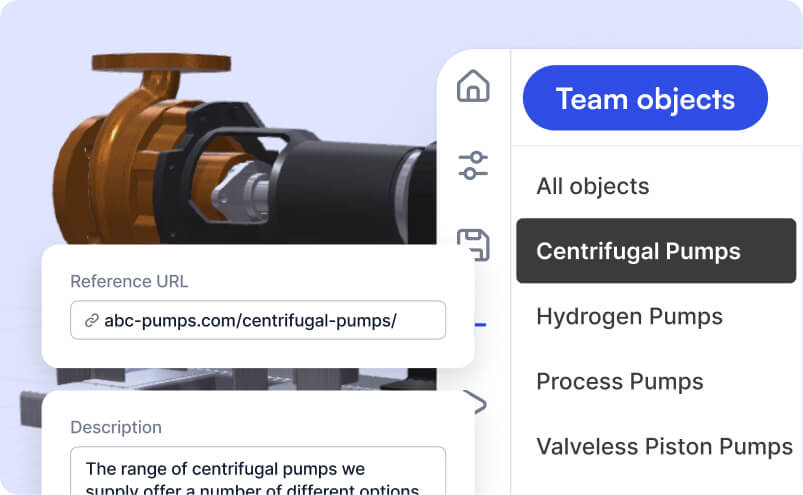
Your Team Object Library is a shared collection of 3D models and objects that you and your teammates can reuse across your Jig presentations. You can save models you've already enriched with materials, labels, and effects to this library, so nobody has to redo that work.
You can also enrich your 3D objects with further metadata to make it easy for your team to find the right object, or add additional references to them to enhance JigSpark AI features.

Organise objects into categories
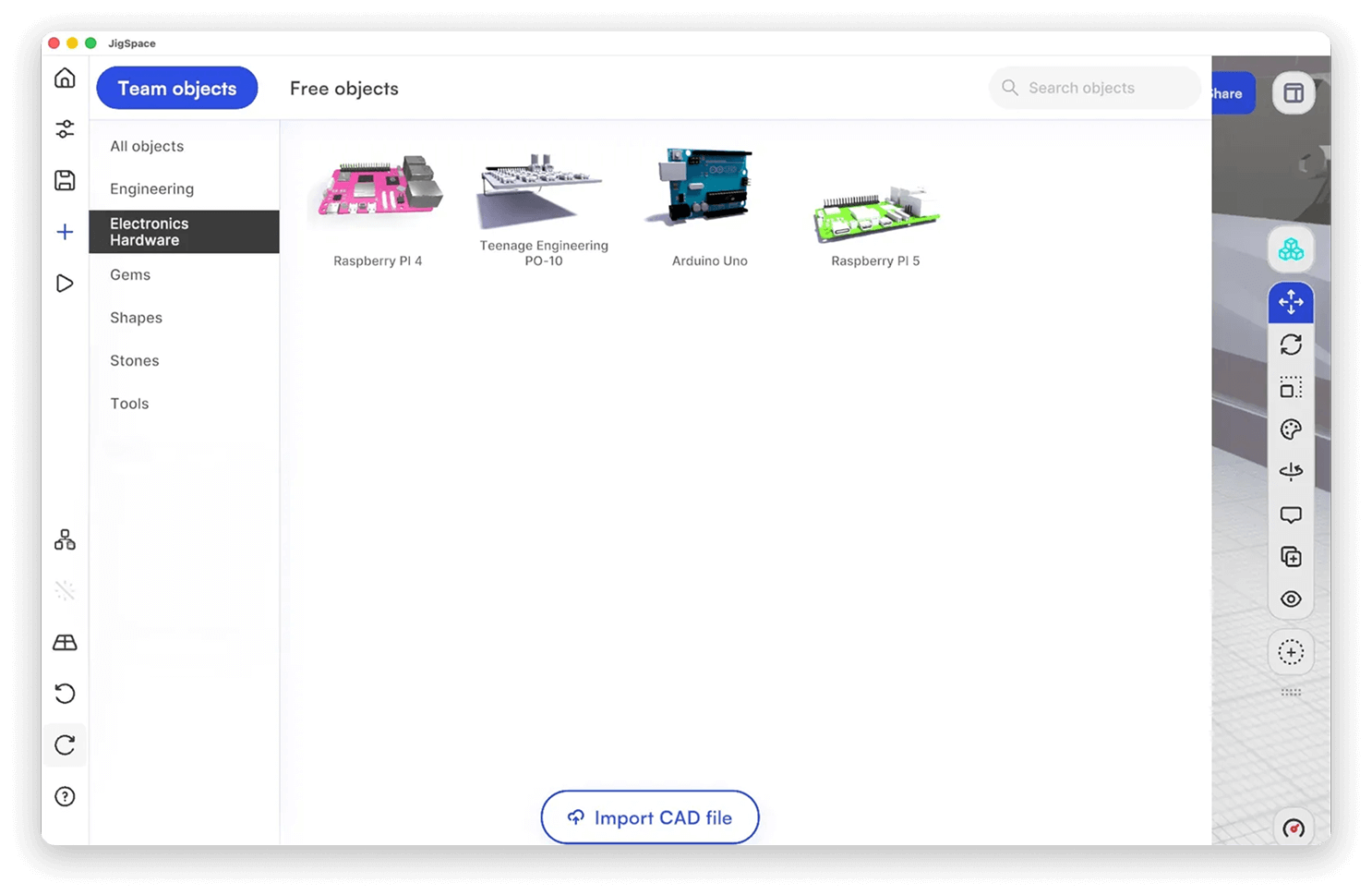
Categories work like folders for your Team Object Library. Categories can be used to group product lines, part types, projects, or divisions within your team.
When creating a Jig, you can add objects directly from the Team Object Library and browse by category to make it easier to find what you need.
Manage categories
To manage your categories, go to the admin dashboard in your web browser and team objects.
Select an object or upload your first 3D model to get started. Then click edit.
Click Manage categories next to the category drop-down in the Dashboard.
From here, you can:
- Add new categories for your team
- Reorder the sequence categories appear in
- Delete categories you no longer need
Save models to a category
Save models directly into categories from within the JigSpace app. Give your model a name, create a thumbnail, and select a category from the drop-down list.
Learn more about saving objects to library
Manage your library in the dashboard
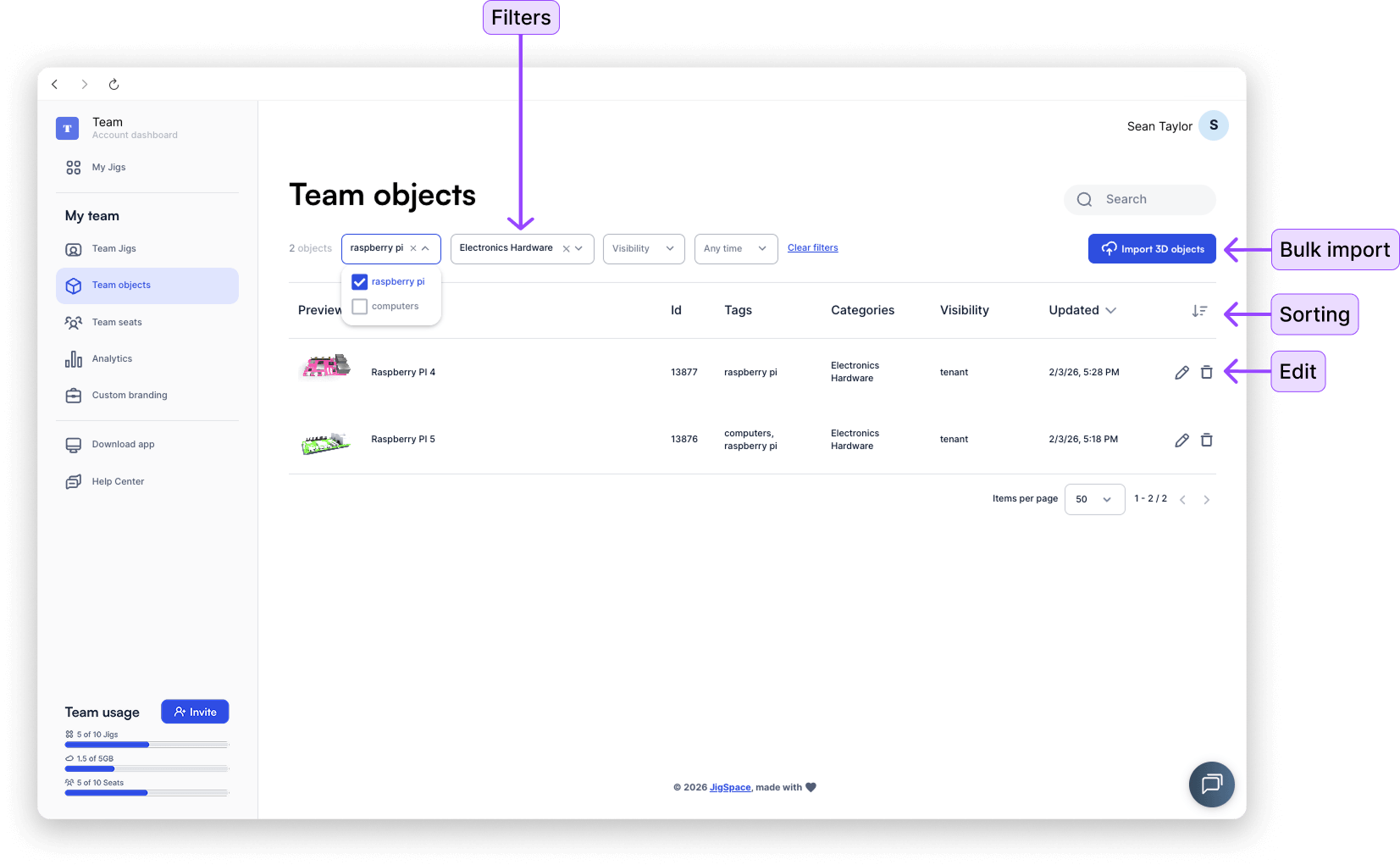
Go to Team Objects in the Team menu of your admin dashboard to access the full library view.
From here, you can:
- Sort objects by name, date created, or triangle count
- Filter by category or by tags
- Upload objects in bulk at the same time and apply custom optimization settings
- Edit object name, category, tags, and enrich its metadata with references.
Edit 3D object metadata
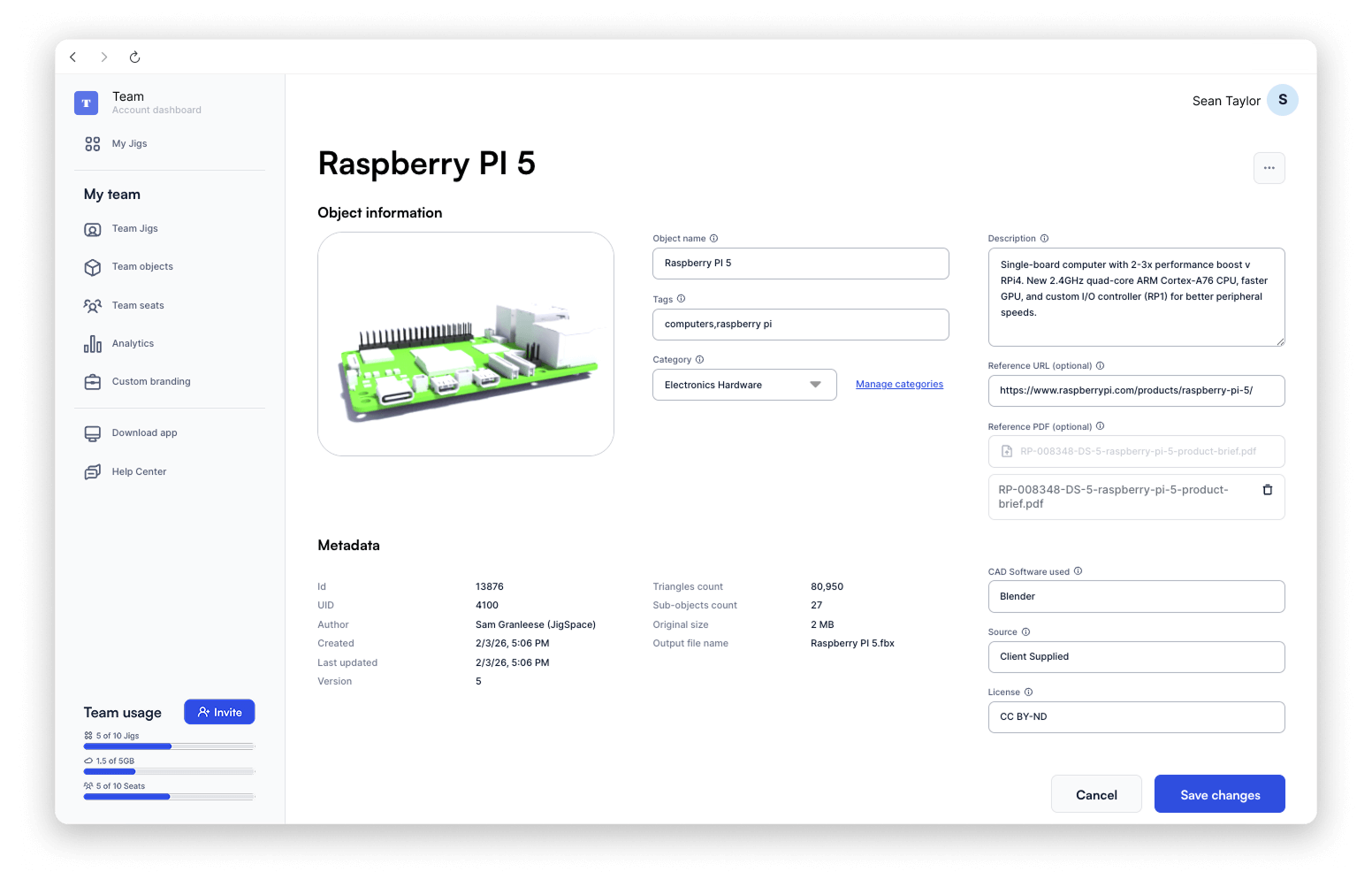
Select any 3D object in your Team Object Library to view and edit its metadata.
Customisable properties
- Name —> rename the model to something your team will recognise
- Category —> assign or reassign to a category (one per 3D object)
- Tags —> add tags for filtering and search (can me multiple per 3D object)
- Description —> describe what the model is
- Reference URL —> link to the public real-world product page, manual, or specifications
- PDF reference —> attach a PDF for datasheets, technical drawings, or install guides
- Source and licence —> optional fields for tracking where a model came from and any licence restrictions (commercial, educational, or from a specific provider)
Reference URLs and PDF references connect your 3D model back to its real-world counterpart — a product page, a manual, or a spec sheet.
Enrichment for Jig Spark AI and optimisation
The metadata you add to your models — names, descriptions, tags, and reference URLs — feeds directly into Jig Spark AI features like generating Jigs. The more complete your model metadata, the more accurate JigSpark can generate complimentary content, suggest labels, and assist your team when building Jigs.
Triangle count and sub-object count are also used by JigSpace's automatic optimisation pipeline to determine how your models are compressed and processed for performance across devices.
Auto-generated metadata
Some metadata is generated automatically when you import and optimise models:
- Uploaded by —> the team user who added the file
- Triangle count —> total polygons in the model
- Sub-object count —> number of individual parts
- Source CAD software —> the application used to create the file
Use the source and licence fields to track models from paid providers or to record usage rights across your team.