


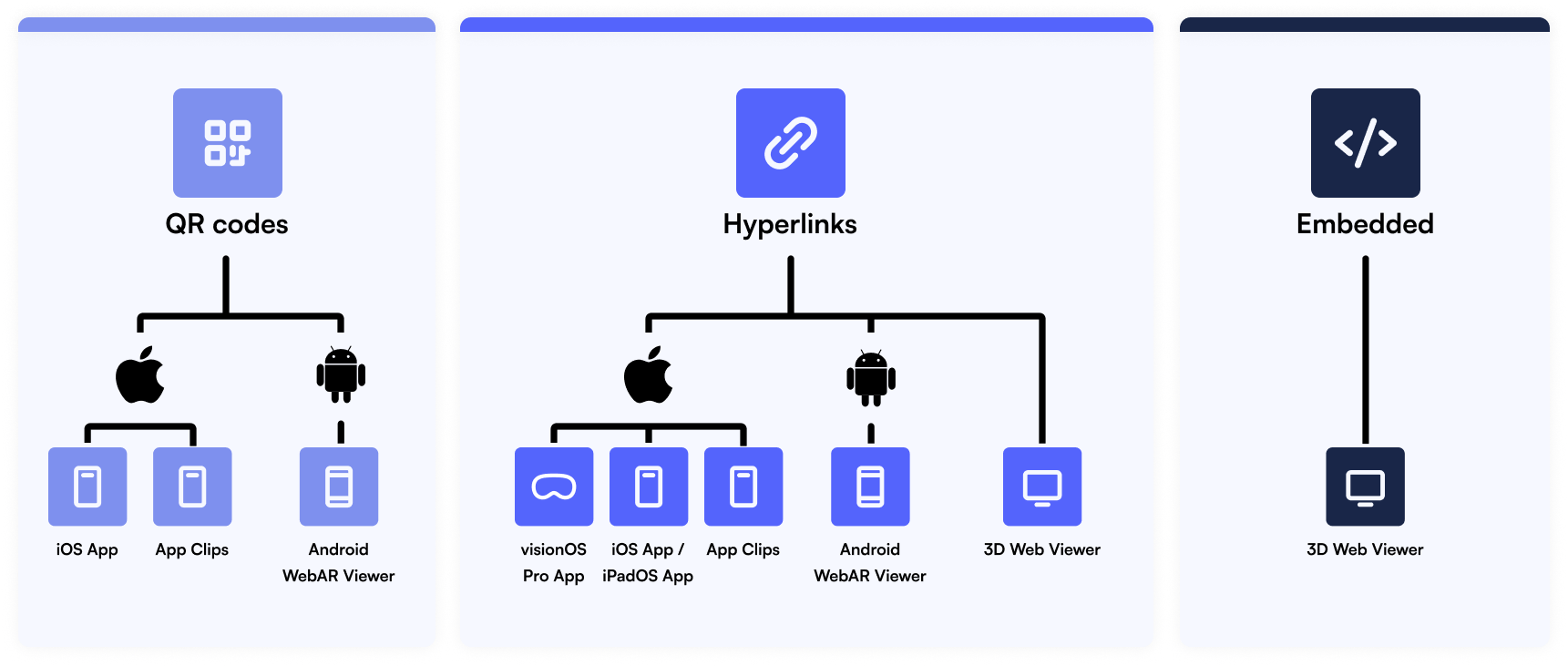
When someone clicks on a hyperlink to a Jig, they are automatically routed to the best available experience, depending on their device and operating system.
iPhone and iPad users
If you have JigSpace app installed on an iOS device, the shared Jig link will automatically load into augmented reality mode. iOS users can also switch to view the non-AR versions of Jigs in Safari or their chosen web browser.
If you don’t have JigSpace installed on an iOS device, you will be directed to the AppStore page. Download the JigSpace app and once installed, click on the shared link, the presentation will automatically be loaded in AR presentation mode.
Android users
Users on supported Android-based mobile devices will see your 3D content appear in our WebAR viewer.
Desktop users
Users on Mac or Windows based laptops and desktop computers will be directed to the WebAR viewer in their default web browser. If they have the JigSpace app installed, they can chose to open the Jig presentation inside the app.
Apple Vision Pro users
Opening a Jig link on Apple Vision Pro will default to viewing it in Safari, however a 'View on Apple Vision Pro' button will appear, which on click launches thee Jig in the JigSpace app in immersive mode.