



IT admins can install the JigSpace desktop app on managed Mac and Windows devices in their organizations with Microsoft Intune. Use the .dmg file for Mac and the .msix package for Windows.
App details for Intune
Mac
Your Macs must be managed by Intune and have the Microsoft Intune management agent installed. The .dmg contains one app, JigSpace.app, which Intune copies into the Applications folder.
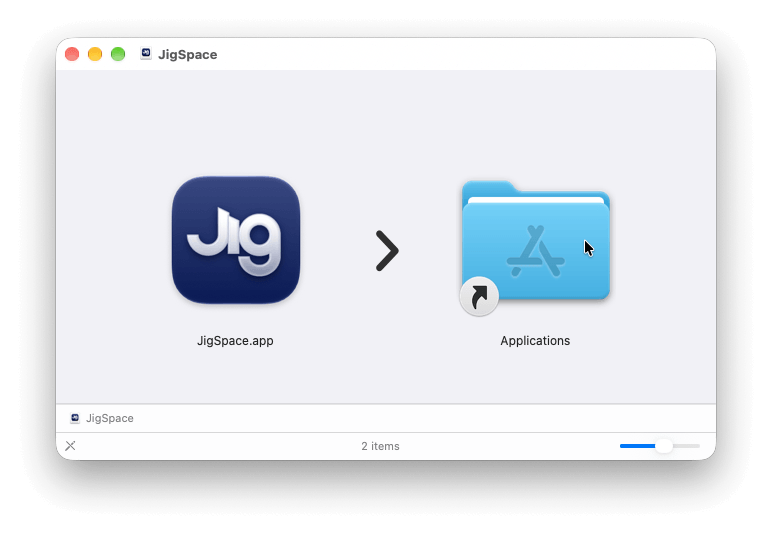
- Download the JigSpace .dmg file from the Mac download page.
- In the Microsoft Intune admin center, go to Apps > All apps > Create.
- Under Select app type, choose the macOS platform, then macOS app (DMG), and click Select.
- Click Select app package file and upload the .dmg. Enter "JigSpace" as the Name and Publisher.
- On Requirements, set the Minimum operating system.
- On Detection rules, set Ignore app version to Yes. Under Included apps, enter
com.jigspace.jigworkshopas the bundle ID, exactly as shown, and the version number of the .dmg you uploaded (for example,3.46.0). - On Assignments, choose Required to install automatically, or Available to let people install it from Company Portal.
- Click Review + create.
Windows
- Get the JigSpace .msix file. Download JigSpace.appinstaller from the Windows download page, open it in a text editor, and download the .msix from the link in the MainPackage line. You can also contact support for the link.
- In the Microsoft Intune admin center, go to Apps > All apps > Create.
- Under Select app type, choose the Windows platform, then Line-of-business app, and click Select.
- Click Select app package file and upload the .msix. Intune reads the name and publisher from the package.
- If Intune lets you change App Install Context, choose Device to install JigSpace for everyone who signs in to the device.
- On Assignments, choose Required or Available for enrolled devices.
- Click Review + create.
Note: Use the .msix package. The .zip download isn't packaged for Intune and doesn't register JigSpace links.
Update JigSpace
- Mac: JigSpace updates itself. Ignore app version stops Intune from reinstalling an older version over a newer one. To control versions yourself, set it to No and upload each new .dmg to the same app.
- Windows: JigSpace updates itself when it’s installed from the JigSpace download page. Intune installs the .msix directly, so these automatic updates aren’t turned on. To update, open the app in Intune, select the package file, and upload the new .msix.
If an install fails or is stuck
- In the Intune admin center, open the device and select Managed Apps. Select JigSpace to see its install status and any error.
- If the error says the DMG "doesn't contain any app that matches the provided bundle IDs", check the bundle ID is exactly
com.jigspace.jigworkshop. - If it's stuck on Downloading, sync the device from Company Portal or the Intune admin center. Intune only checks in every few hours otherwise.
- On Mac, check that
/Library/Intune/Microsoft Intune Agent.appexists. - Make sure your proxy or firewall allows Microsoft Intune and JigSpace network traffic.
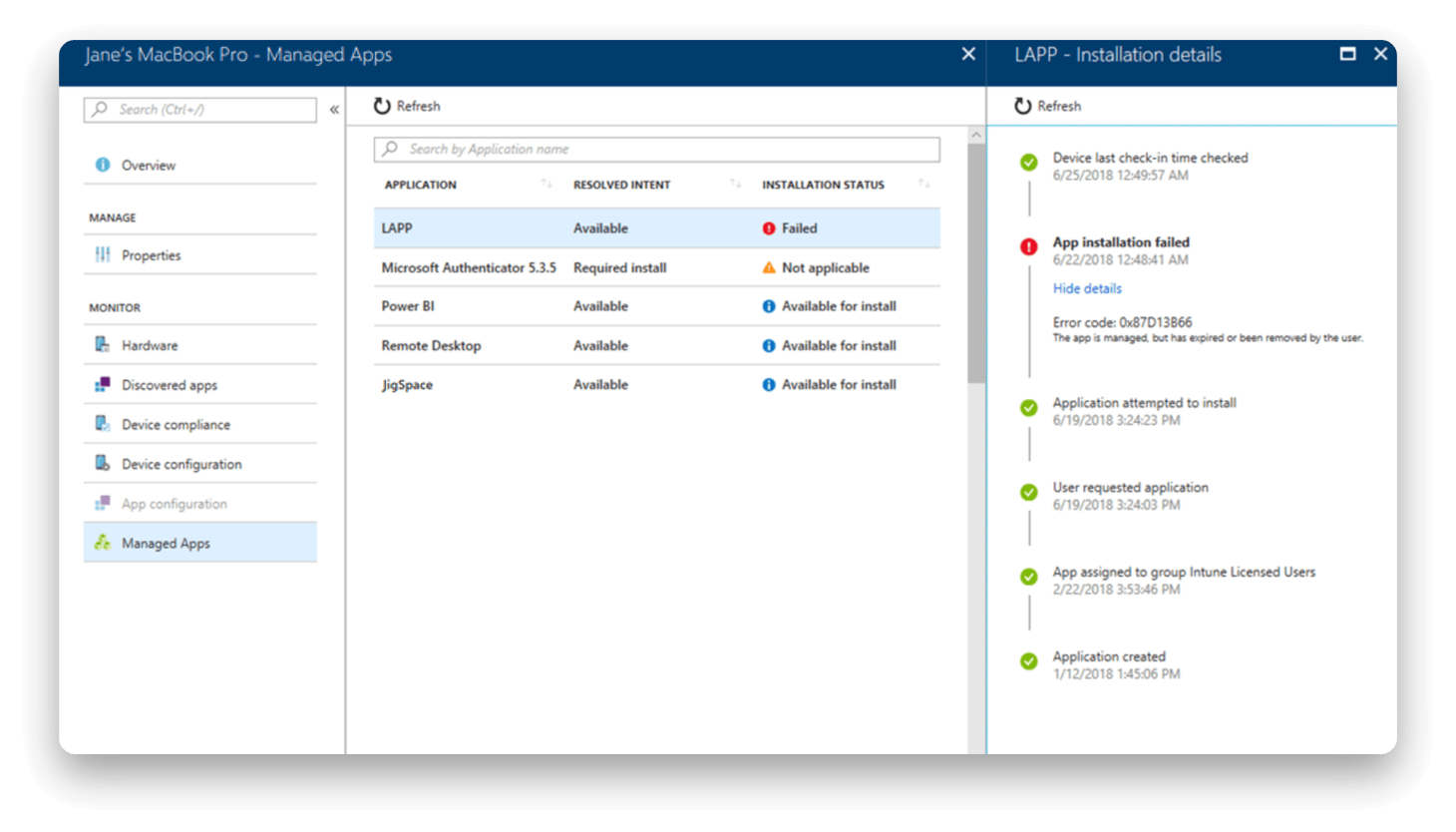

For other install errors, see Microsoft's troubleshooting app installation issues. If it's still not working, contact support. On Mac, include the Intune logs from /Library/Logs/Microsoft/Intune to help us diagnose any settings mismatches.