


Animations group consecutive steps so they play automatically as a sequence. Use them for rotating product views, assembly loops, or any part of your Jig that should run hands-free. We strongly recommend using these in combination with camera viewpoints.
Add an animation to your steps
You can add animations to your Jigs using the Windows, macOS, and iPad apps.
Start by clicking on a step tile to display the step properties, making sure you have the {icon-object-property-panel.svg} right side panel open.
Animations appear at the top of step property panel, above camera viewpoints.
Click the + icon to add an animation to the current step, or hold the SHIFT key and click on a range of steps to create an animation from the selected steps.
The steps are grouped with a blue wrapper, and the animation defaults to Playthrough.
You need at least two consecutive steps. You can’t start an animation from the last step.
Animation types
- Playthrough: Plays from the first grouped step to the last, then stops.
- Loop: Plays forward, then jumps back to the start and repeats.
- Boomerang: Plays forward, then reverses back to the start and repeats.
Loop and Boomerang both support a set repeat count or infinite playback.
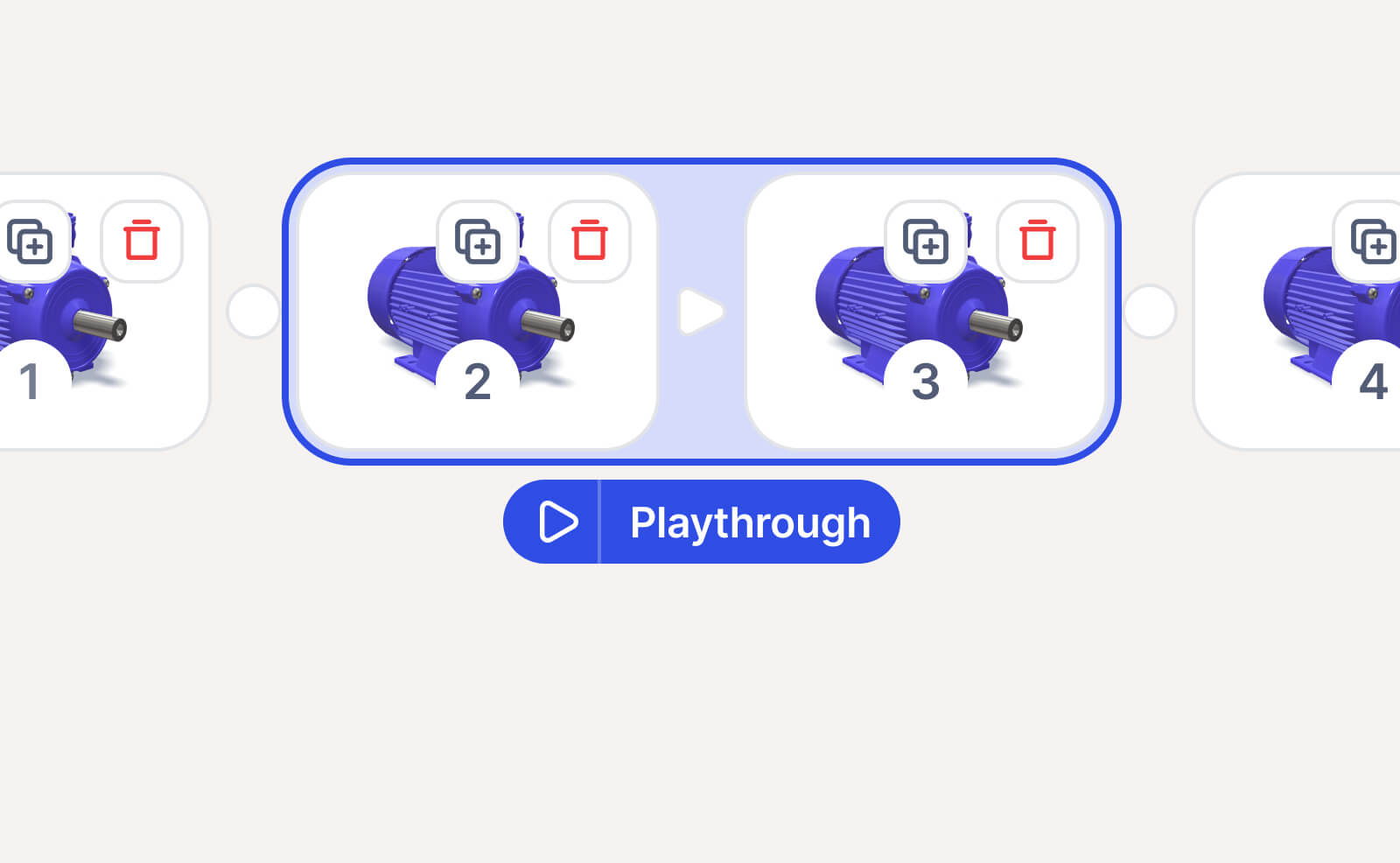
Note: All transitions inside an animation are automatically set to Autoplay. You can still change each transition’s motion type and duration individually.
Animation settings
Tap the animation label below the group (or tap the blue wrapper) to open the property panel {icon-object-property-panel.svg}:
- From step / to step: Expand or shrink which steps are included. Animations can’t overlap with other animations.
- Type: Playthrough, Loop, or Boomerang.
- Repeat indefinitely: Loop and Boomerang only. Keeps the animation running until the viewer advances.
- Repeat instances: Loop and Boomerang only. Plays a set number of times when indefinite is off.
- Delay between steps: Time to pause on each step before advancing. Applies to all transitions in the group. Shows “Mixed” if individual transitions have different delays.
- Navigate as one step: When on, viewers skip the entire animation as a single step when tapping forward or backward.

Edit an animation’s range
In the property panel, change the From step or To step values. The blue group wrapper expands or contracts on the timeline. If the new range overlaps with another animation, the change is blocked.
You can also drag steps into or out of an animation group in Edit mode {icon-btn-edit.svg}.
Delete an animation
- Select the animation group in Edit mode {icon-btn-edit.svg}.
- Tap Delete Animation at the bottom of the property panel.
Your steps stay in the Jig. Only the grouping is removed, and the transitions inside revert to manual.