


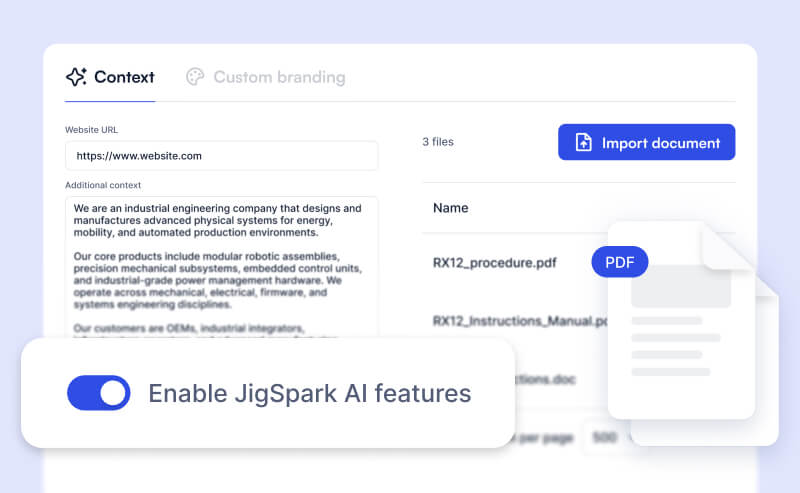
Jig Spark AI is a set of generative features built into JigSpace. Use it to create audio instructions, generate thumbnails, and build complete Jigs from your 3D models.
All Jig Spark AI features are opt-in. Your team admin controls whether they're available across your account.
Features
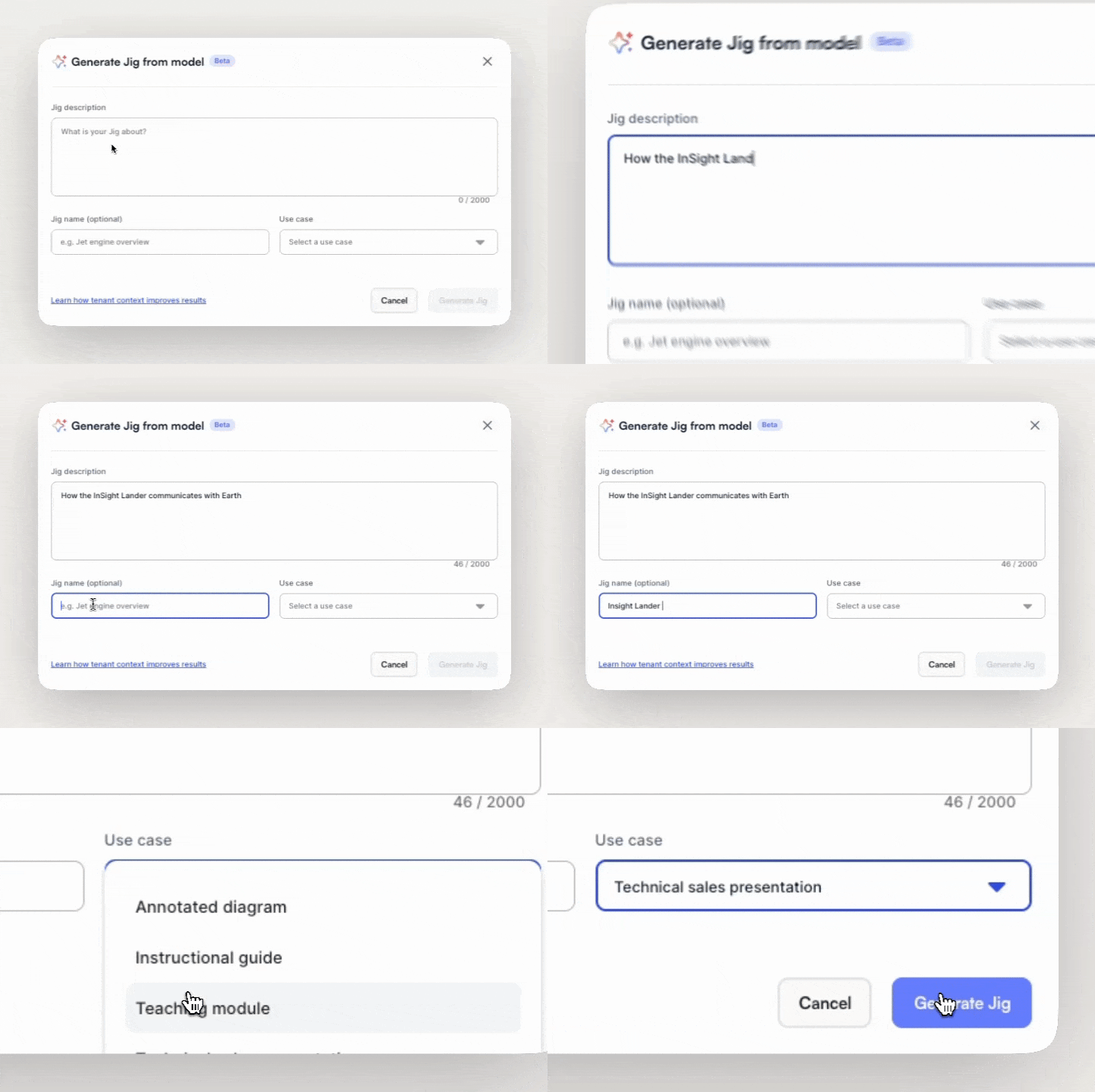
Generate a Jig from a 3D model
Provide a description of what you want to teach, and Jig Spark AI analyzes your model's structure, identifies its components, and produces a step-by-step Jig ready to edit or share. Start from any model on your Dashboard by clicking the ⋯ menu and selecting Generate Jig.
See Generate a Jig from a 3D model for the full walkthrough.
Generate audio instructions
Create voiceover narration for your Jig steps from text. Jig Spark AI converts your written instructions into spoken audio you can attach to any step. See Generative audio instructions for setup and usage.
Generate thumbnails
Create cover images for your Jigs using AI. You can generate a thumbnail directly from the Jig editor without needing to screenshot or design one manually. See Adding image thumbnails for details.
AI permissions and controls
There are several ways to manage the context shared with Jig Spark AI, or disable it completely for your team.
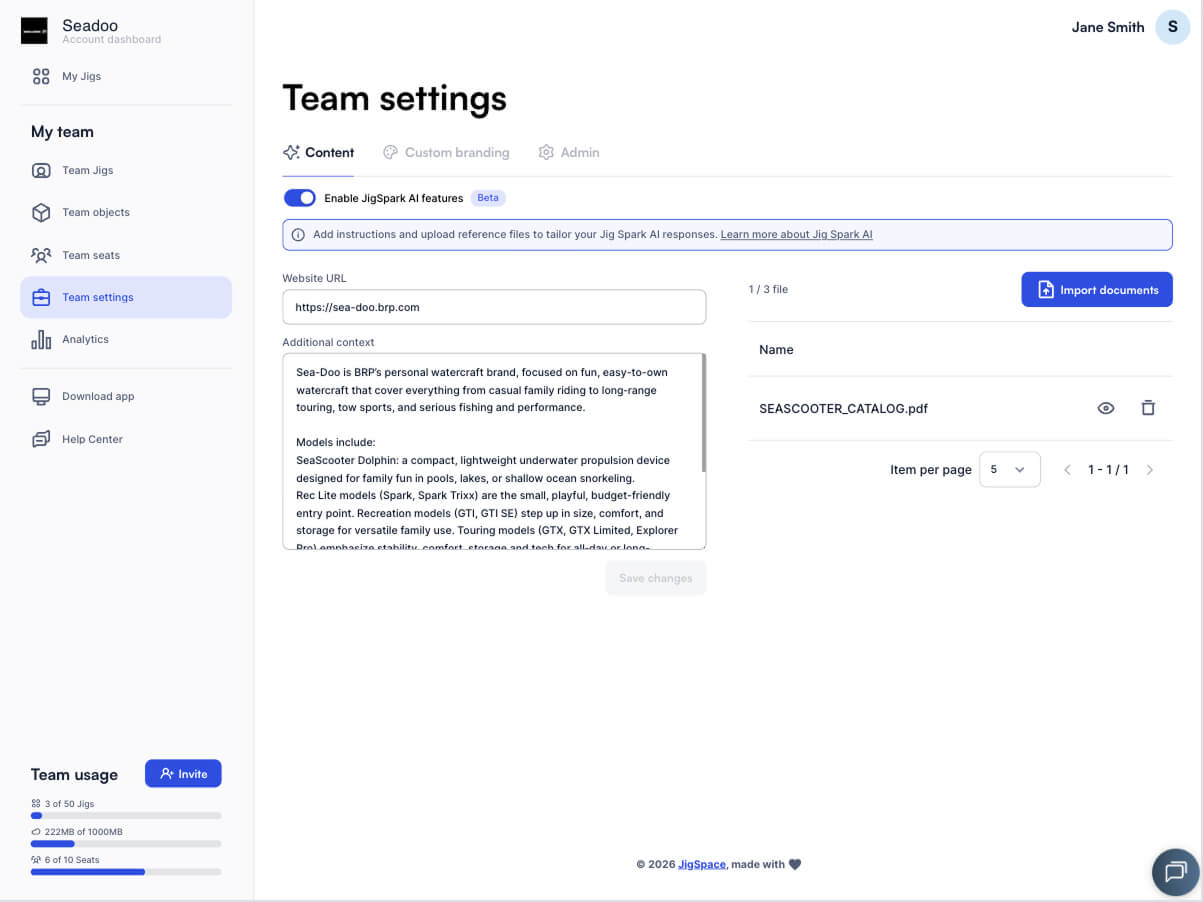
Manage your team's AI context
You can improve the quality of AI-generated content by adding context about your organization.
Go to Admin Dashboard > Team Settings > Content and add information like company background, brand guidelines, tone of voice, or upload reference documents such as product manuals and catalogues.
Jig Spark AI will use this context when generating content for your Jigs.
Curate referece context for your 3D models
You can attach reference content about your 3D models into your library to improve the level of detail in Jig Spark AI, such as technical manuals, marketing brochures, or fact sheets. Updating 3D model names and descriptions can also help improve the quality and accuracy of Jig Spark AI features.
Learn more about your team object library.
Turn Jig Spark AI on or off
Jig Spark AI is controlled at the team level.
- Go to Team Settings > Content.
- Toggle Enable Jig Spark AI features on or off.
This applies to every user on your team. When disabled, all AI features are hidden across JigSpace.
How your data is used
The quality of the company or product context that you input into these features directly influences the quality of the outputs. This features is in beta, and we may use the information collected through these features to improve how Jig Spark AI works. To learn more, refer to the terms and conditions or contact us directly to discuss.