


Overview
JigSpark lets you generate a complete Jig directly from a 3D model on your dashboard, without manual step-building required.
You provide a description of what you want to teach or explain, and JigSpark analyses your 3D model's structure, identifies its components, and produces a navigable, step-by-step Jig ready to edit or share.
How to generate a Jig
Step 1: Open the Generate Jig modal
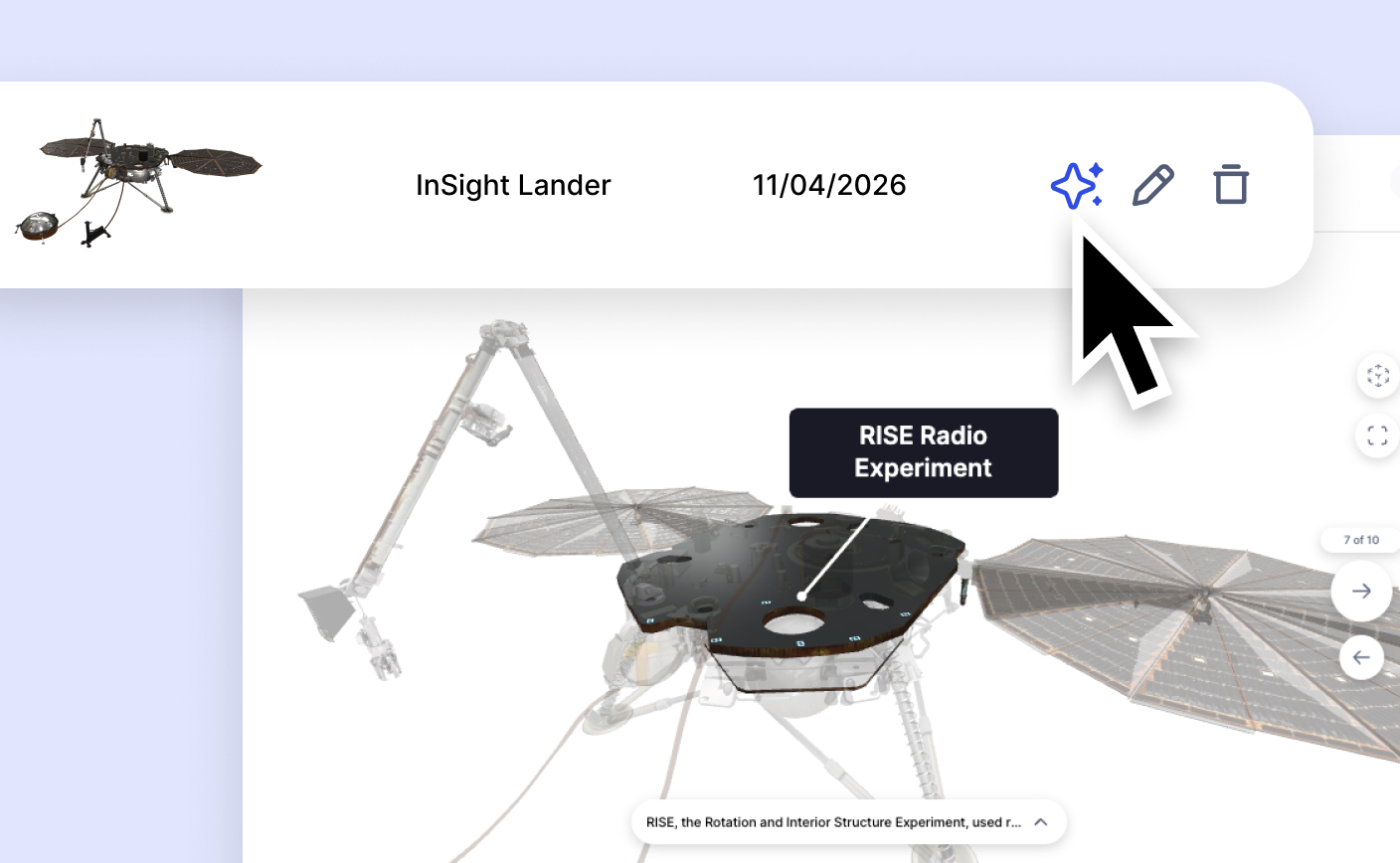
From your dashboard, find the 3D model you want to use. Click the ⋯ menu in the top-right corner of the object's detail page, then select Generate Jig from the dropdown.
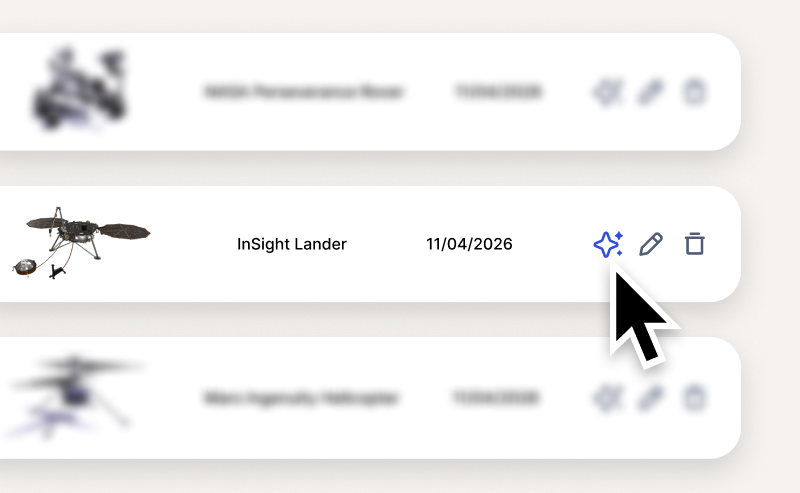
Tip: You can also access the Generate Jig option from the object list. Click the ✦ (sparkle) icon that appears next to any model.
Step 2: Fill in the generation form
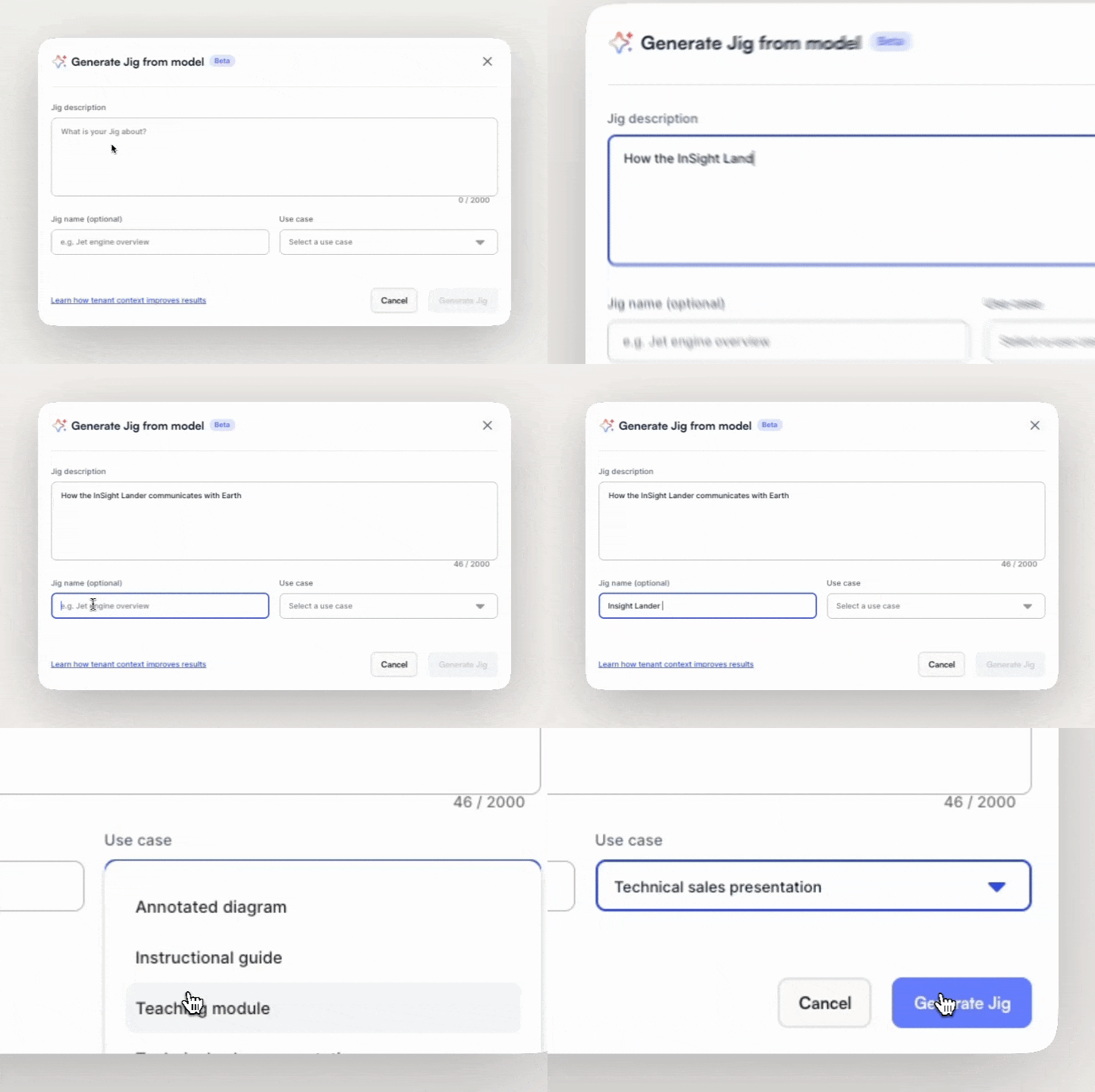
The Generate Jig from model modal opens. Complete the fields:
- Jig description (required, min. 10 characters) — Describe what the Jig should cover. The more context you give, the better the output.
- Jig name (optional) — Defaults to the model name if left blank.
- Use case (optional) — Select a use case (e.g. training, assembly, inspection) to tailor the output.
Click Generate Jig when you're ready.
Tip: Adding a Reference URL or Reference PDF to your model's object detail page before generating gives JigSpark additional context and can improve the quality of step descriptions.z
Step 3: Wait for generation to complete
The modal transitions to a loading state. JigSpark works through five stages in sequence:
- Analysing structure
- Identifying components
- Structuring steps
- Generating instructions
- Finalising
A progress indicator and the JigSpace logo animation are shown throughout. This typically takes under a minute.

Step 4: Review the Jig preview
Once complete, the modal switches to a Jig preview. You'll see:
- A slide viewer showing the generated steps with labelled component callouts
- A step navigator to move between steps
- An instruction bar at the bottom displaying the step description
Review the steps to check the structure and content before deciding what to do next.

Step 5: Edit or share
Two actions are available from the preview:
- Edit in Jig app — Opens the Jig in the JigSpace editor so you can refine steps, adjust callouts, or update instructions.
- Share with team — Takes you directly to the Jig's detail page, where you can share it with colleagues.
The generated Jig is also automatically saved to your account and accessible from My Jigs.
Things to know
- JigSpark is in Beta. Output quality improves with richer input — longer descriptions and reference materials produce more accurate results.
- Generation uses your model's metadata. Models with clean object names, an accurate description, and reference files attached will yield better step structures.
- You can regenerate. If the output doesn't meet your needs, return to the object detail page and generate again with a revised description.
- Editing is always available. Every generated Jig can be fully edited in the Jig app — use the preview as a starting point, not a final output.