


Every Jig is made up of steps: snapshots of your 3D scene that viewers move through. Transitions control how your Jig moves from one step to the next: the trigger, the motion style, and the timing.
The timeline
The timeline runs across the top of the Jig workshop. Each step appears as a tile. Tap a tile to select that step and see it in the 3D view.
To reorder, duplicate, or delete steps, switch to Edit mode by tapping the pencil icon {icon-btn-edit.svg} to the left of the timeline.

Edit mode
When the timeline is in edit mode you can:
- Drag and drop steps to reorder them.
- Duplicate or delete a step using the action buttons {icon-btn-duplicate.svg} {icon-btn-delete.svg} that appear when you hover over a tile.
- Select multiple steps by holding Shift and clicking, or use the options menu {icon-btn-more.svg} to select all steps or all transitions at once.
- Reverse the timeline {icon-reverse.svg} from the options menu {icon-btn-more.svg} to flip the step order.

Transition settings
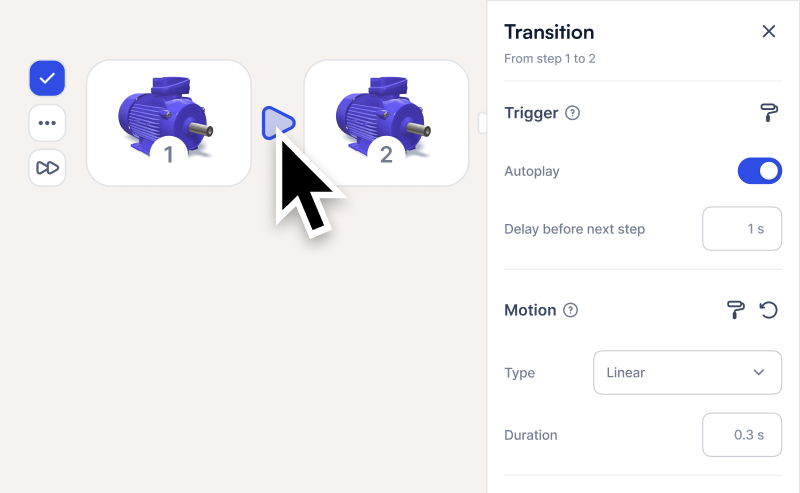
Tap a transition handle {icon-transition.svg} between two steps in Edit mode to open its property panel.
Trigger
- Manual (default): The viewer taps forward on button UI to advance, or on an interactive action.
- Autoplay: The step advances automatically after a set delay.
When Autoplay is enabled, a Delay before next step field appears. Set the pause time in seconds before the Jig moves on.
Note: Transitions inside an Animation are locked to Autoplay. You can’t switch them to manual while they’re grouped.
Motion
Motion describes how the two steps transition from step to the next. Often described as "tweening" in animation.
- Type: Choose how the 3D scene moves between steps: Linear (constant speed), Ease-In/Out (starts slow, speeds up, then slows), or Gentle bounce (slight overshoot at the end).
- Duration: How long the transition takes, in seconds.
Autoplay for the full Jig
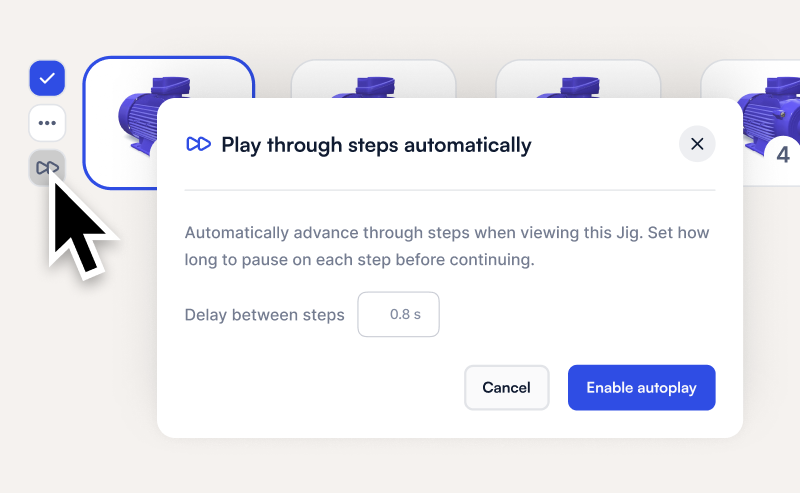
Auto-advance through the entire Jig, independent of any animations:
- In Edit mode, tap the Autoplay settings button {icon-btn-autoplay.svg}.
- Set the Delay between steps.
- Tap Enable autoplay.
Viewers see the Jig play through all steps without tapping. Any Animations in the timeline play as part of the sequence.
Multi-select
Hold Shift and click to select a range of steps or transitions.
With multiple transitions selected, changes in the property panel apply to all of them at once. This is useful for setting the same motion type or duration across your Jig.