

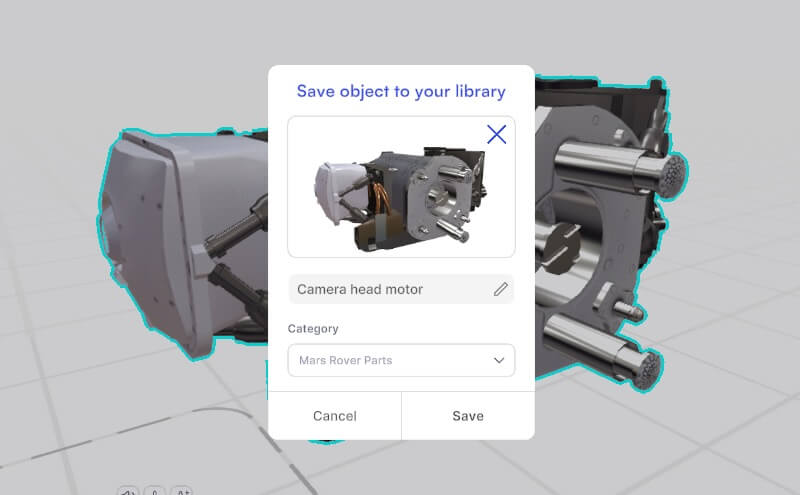
You can save a 3D model to your team object library in the JigSpace app, or via the admin dashboard. Library objects can be created from:
- CAD files that you upload and enrich
- Free 3D objects in the free library that you edit or modify.
Saving 3D object from inside Jig app

To save a 3D object to your library, follow these steps in the Jig workshop.
- Ensure your whole object is selected and in 'Object Mode' {icon-object-mode.svg} in the workshop.
- Click on the + and click Save 3D object’.
- Give your object a name, select a category (optional), and reposition the thumbnail model to your desired angle.
- Save.

Replace existing objects
If you ware using an existing 3D object from your library and have further edited it, you can choose to save a copy as a new file, or replace the existing one.
- Save a copy-> will add an additional new 3D object to your team library
- Replace -> will replace the 3D object your current 3D object is based on. Only do this if you are certain.

Preview your object in its category
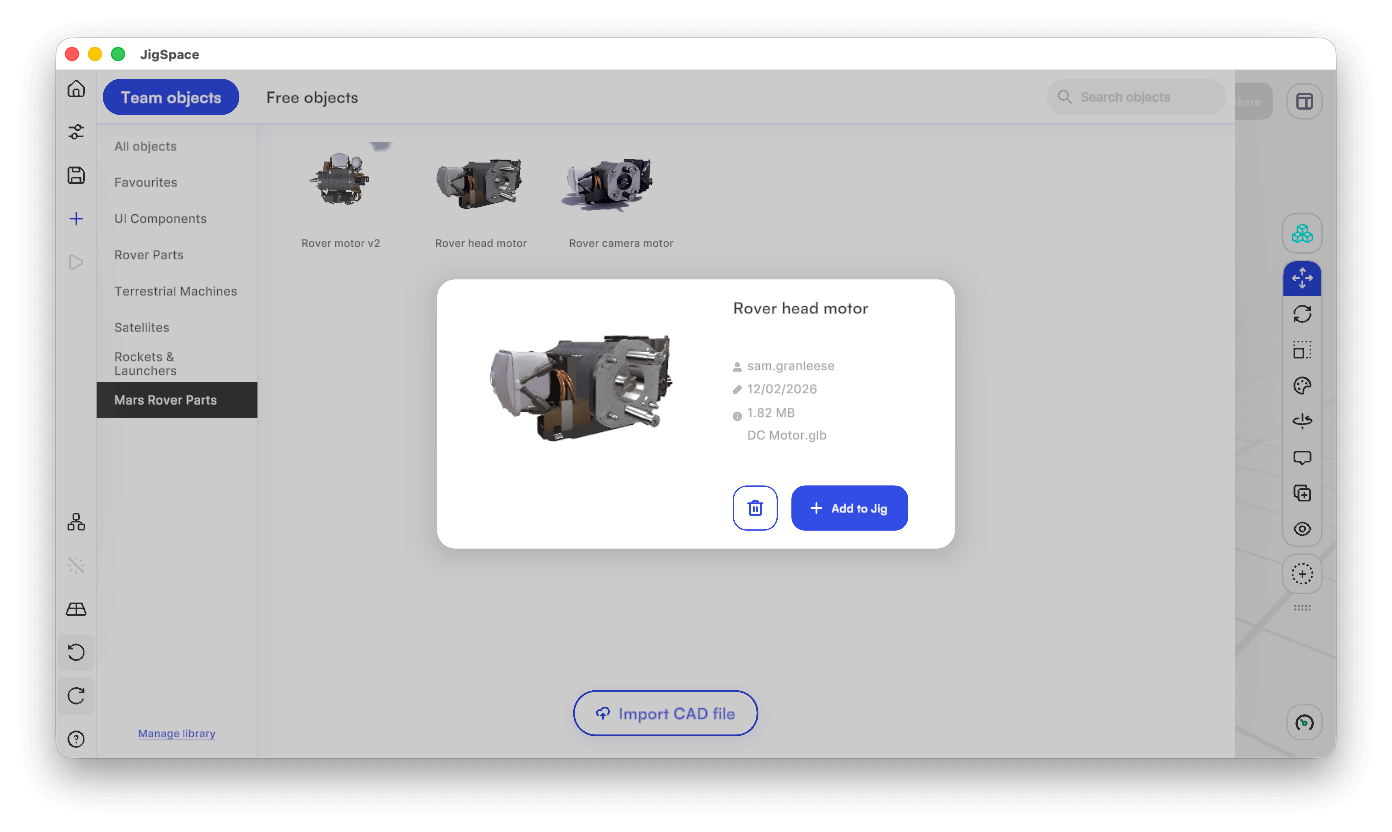
Your saved object will be instantly viewable in your Team Objects in the Jig app. If you want to add new categories, or edit the categories and models in each, you can do this at the team object library in the admin dashboard.
Learn more about managing your team object library.
Bulk upload CAD files
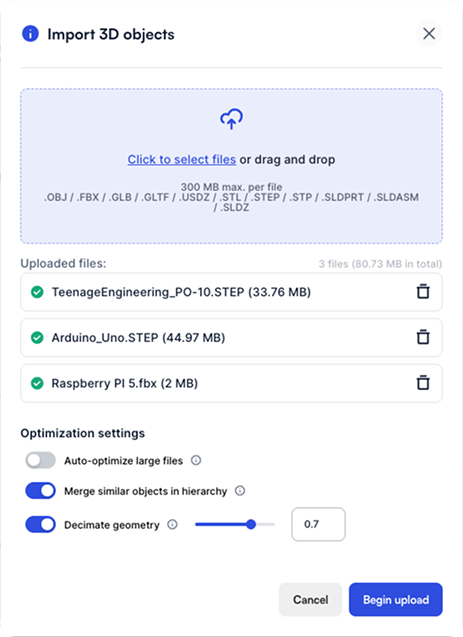
If you have a large number of CAD files you wish to load into your team library, you can also do this via the team object library in the admin dashboard.
This also provides custom optimization settings:
- Merge similar objects by hierarchy
- Decimate model
- Automatically optimize extra-large files
Learn more about how to use optimization settings.
Upload direct from Blender
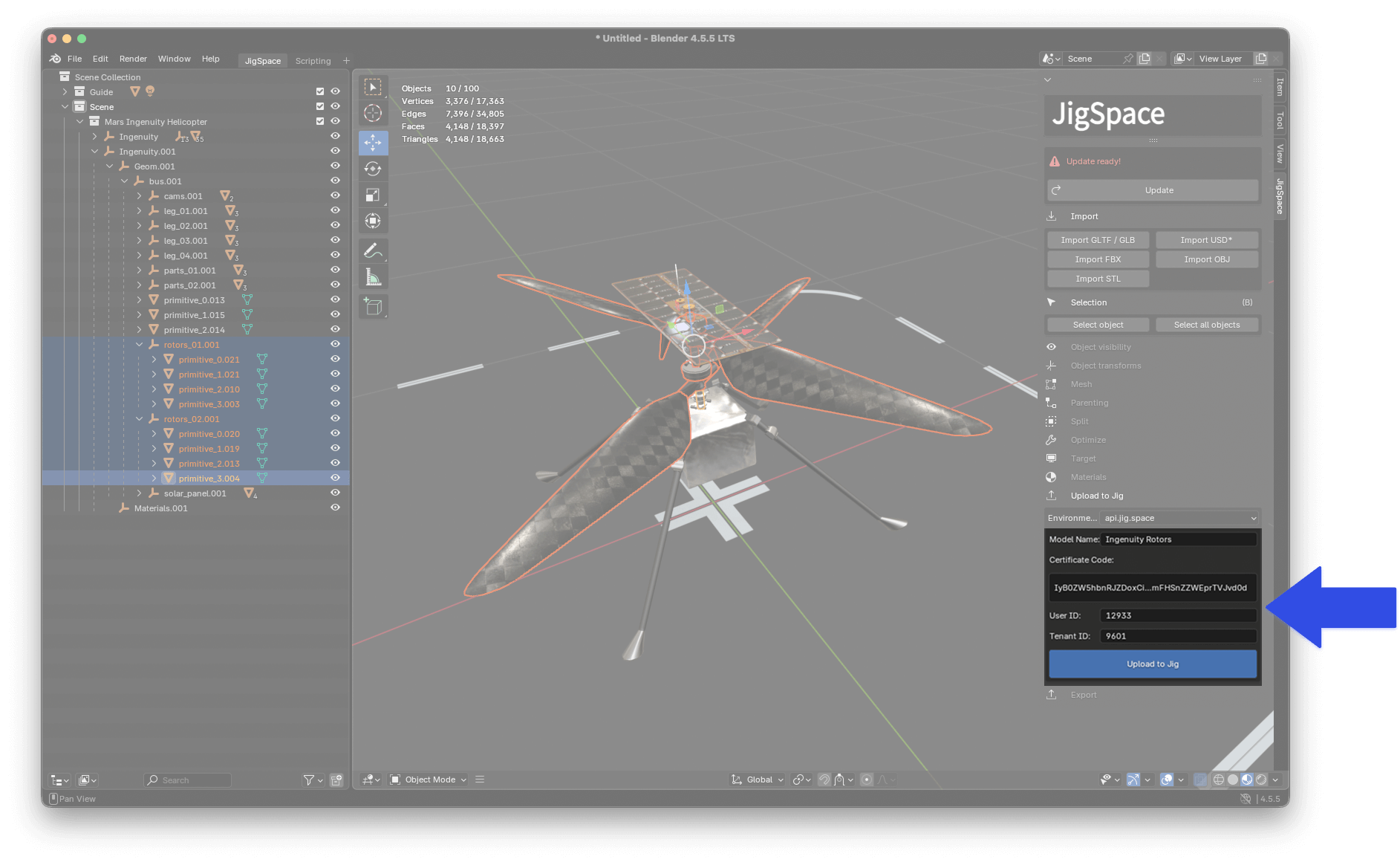
You can upload your 3D models to the team object library via API from 3rd party applications like Blender.
To do this, follow these instructions:
- Download the Blender template and follow the setup instructions
- Generate an API key
- Add your API details to the template and save it.