



Showcase mode presents a chosen set of Jigs in a focused, branded view. Nothing else from your account is visible, so you can use it in classroom training, trade show events, and hands-on demos and ensure your viewers are not distracted or take a wrong turn.
Note: Showcase mode is currently available on Apple Vision Pro.
Open Showcase
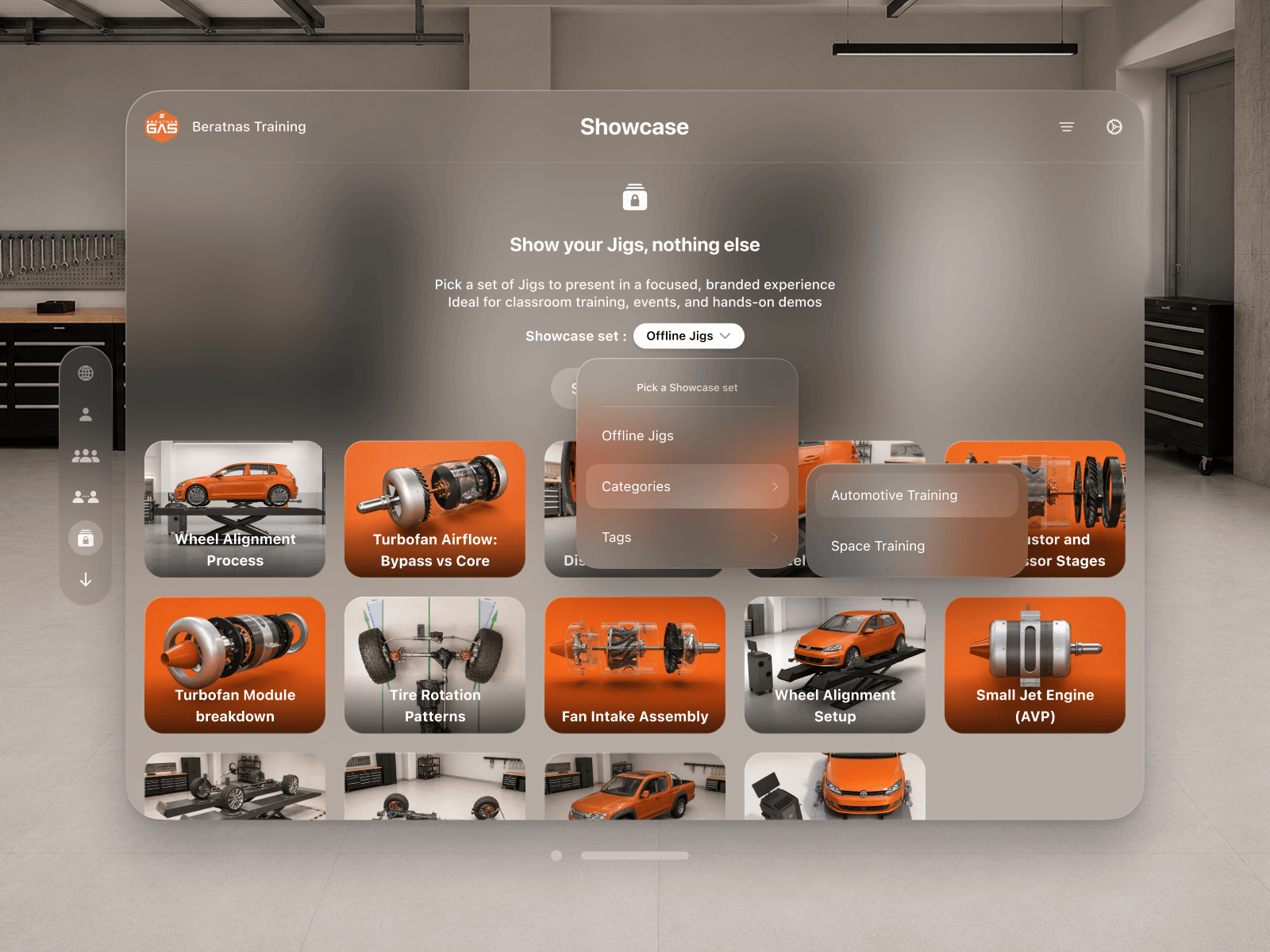
Select Showcase in the navigation bar. The home screen previews the Jigs in your current set, so you can check the selection before you start.
Choose a Showcase set
Open the Showcase set menu and pick what to present:
- Offline Jigs: the Jigs saved to your device for offline viewing. This is the default.
- Categories: one presentation category. Set these up in presentation categories.
- Tags: every Jig with a chosen tag. A Jig can have multiple tags, separated by comma
The Jig preview updates to match your selection.
Start the session
Tap Start Showcase. Showcase opens with only your selected Jigs, branded with your team’s logo, name, and accent color instead of JigSpace branding.

Note: Showcase is white-labeled. Set up your branding logo, name, and accent color in the Admin Dashboard.
Open Showcase from My Team
Sort your Jigs by category to jump straight into Showcase for a single category.
- Go to My Team.
- Open the sort menu and choose Category. Your Jigs group under category headings.
- Select the Showcase button next to a category name.
Showcase opens with that category’s Jigs already selected.

Leave Showcase
Tap your team name in the top-left corner to exit.

Note: Showcase shows only the Jigs in your selected set. To present a different group, leave Showcase and choose another Showcase set.