This icon list section is only visible in Designer and Editor View. On live page you will not see this icon list.
icon-help-support.svg
icon-transition.svg
icon-btn-autoplay.svg
icon-reverse.svg
icon-btn-duplicate.svg
icon-btn-delete.svg
icon-btn-edit.svg
icon-btn-more.svg
icon-paint-roller.svg
icon-preview.svg
icon-sub-object-green.svg
icon-spark.svg
icon-alpha.svg
icon-replace.svg
icon-eye-hidden.svg
icon-eye.svg
icon-ai-sparkles.svg
Icon_Apple_VideoPlus.svg
Icon_Apple_PersonViewfinder.svg
icon-app-settings.svg
icon-info-sliders.svg
icon-object-property-panel.svg
icon-snap-vertex.svg
icon-object-hierarchy.svg
icon-snap-face.svg
icon-ellipsis.svg
icon-attachments.svg
icon-annotation.svg
icon-swatch-texture.svg
icon-swatch-texture-delete.svg
icon-library.svg
icon-check.svg
icon-team-black.svg
icon-explode.svg
icon-visible.svg
icon-view.svg
icon-video.svg
icon-unlocked.svg
icon-undo.svg
icon-sub-object-mode.svg
icon-stop.svg
icon-select-all.svg
icon-scale.svg
icon-save.svg
icon-rotate.svg
icon-remove.svg
icon-redo.svg
icon-record.svg
icon-previous-step.svg
icon-play.svg
icon-paste.svg
icon-ok.svg
icon-offline.svg
icon-object-mode.svg
Icon-next.svg
icon-next-step.svg
icon-multiselect.svg
icon-move.svg
icon-more.svg
icon-more-settings.svg
icon-mic-on.svg
icon-locked.svg
icon-lock.svg
icon-lasso-select.svg
icon-lasso-deselect.svg
icon-label.svg
icon-invisible.svg
icon-information.svg
icon-home.svg
icon-flatmode.png
icon-duplicate.svg
icon-dropper.svg
icon-delete.svg
icon-delete-audio.svg
icon-copy.svg
icon-colour.svg
icon-camera.png
icon-audio.svg
icon-ar.svg
icon-all.svg
icon-all-previous.svg
icon-all-after.svg
icon-add-user.svg
icon-add-steps.svg
icon-add-object.svg
icon-3d-icon.svg
Keyboard shortcuts
Keyboard shortcuts let you switch tools, move the camera, and manage objects without going back to the toolbar. Keep one hand on the keyboard and one on the mouse: press W, E, or R to swap between move, rotate, and scale, and keep dragging.
Shortcuts work in the JigSpace desktop app on Windows and Mac. The keys are the same on both, except Windows uses Ctrl and Shift where Mac uses command ⌘ and shift ⇧.
Core
Action
Windows
Mac
Save Jig
CtrlS
⌘S
Undo
CtrlZ
⌘Z
Redo
CtrlShiftZ
⌘⇧Z
Navigation
Action
Windows
Mac
Rotate the view
Drag
Drag
Pan the view
SpaceDrag
SpaceDrag
Zoom
Wheel
Wheel
Perspective view
1
1
Top view
2
2
Side view
3
3
Front view
4
4
Focus on selected object
F
F
Object
Action
Windows
Mac
Switch model/child
Tab
Tab
Move
W
W
Rotate
E
E
Scale
R
R
Snap to increments
ShiftDrag
⇧Drag
Delete
Del
Del
Snap to floor
Ctrl↓
⌘↓
Group objects
CtrlG
⌘G
Ungroup objects
CtrlShiftG
⌘⇧G
Open the shortcuts panel in the app
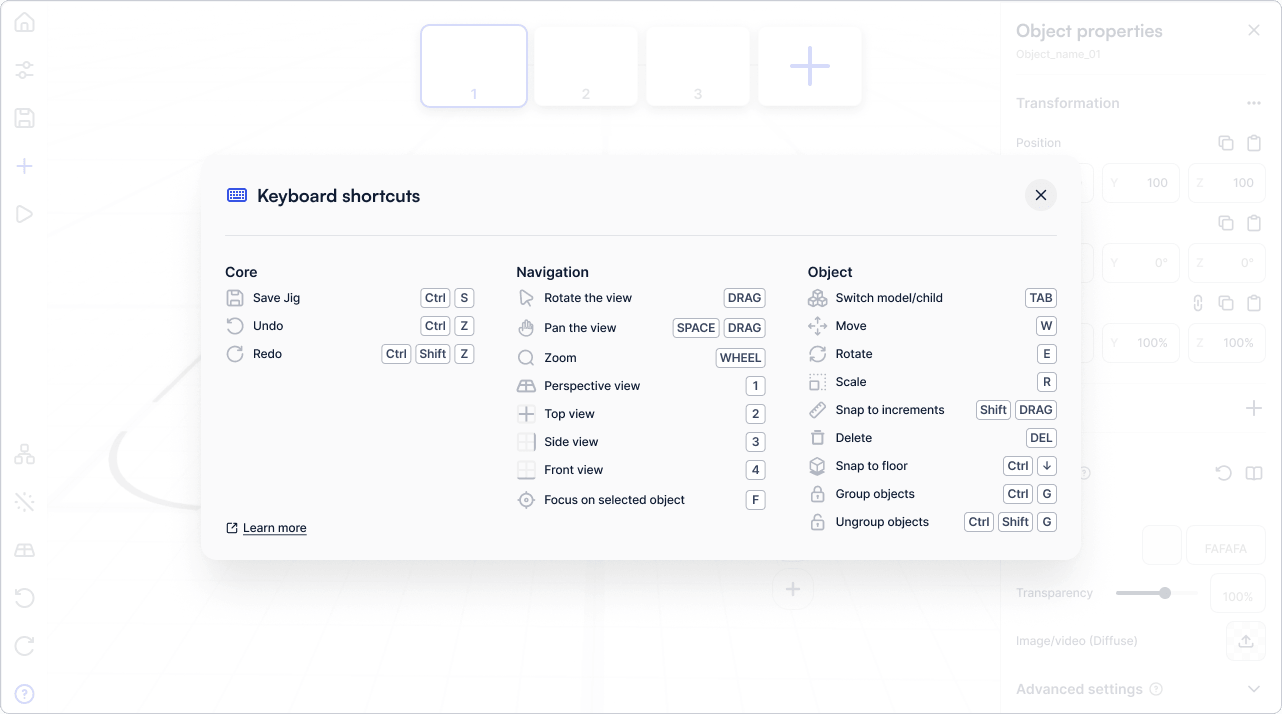
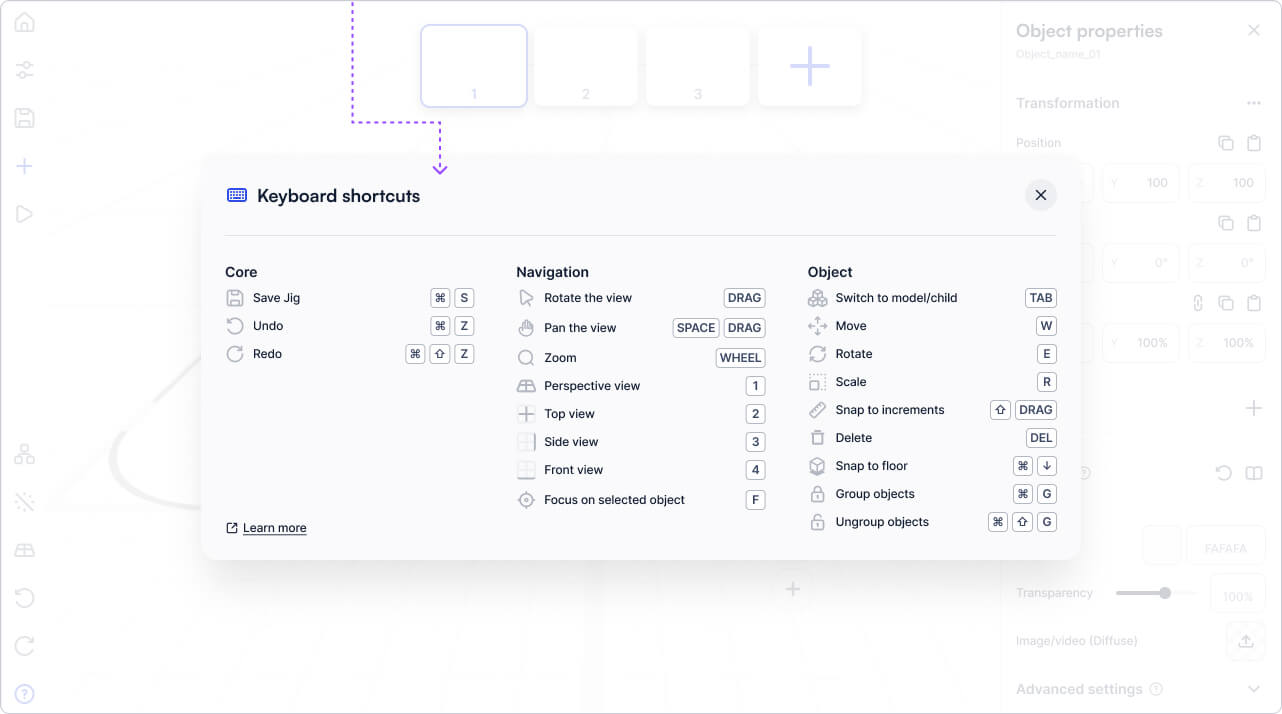
To see what shortcuts are available inside the JigSpac app while you are editing, click the {icon-help-support.svg} help icon in the bottom-left corner, then Keyboard shortcuts.
The panel shows the keys for the platform you're on.
Windows
Keyboard shortcuts panel on Windows
Mac
Keyboard shortcuts panel on Mac
Tips
Select an object and press F to bring the camera to it, then press 1 to 4 to check it from each camera view.
Hold Shift while dragging a move, rotate, or scale handle to snap to fixed increments.
Press Tab to switch your selection between the whole model and one of its sub-objects.
Ctrl↓ on Windows or ⌘↓ on Mac drops the selected object onto the floor, which is handy before viewing a Jig in augmented reality.



 Save Jig
 Undo
Undo Redo
Redo Rotate the view
 Pan the view
 Zoom
Zoom Perspective view
 Top view
 Side view
 Front view
 Focus on selected object
 Switch model/child
 Move
Move Rotate
 Scale
Scale Snap to increments
 Delete
 Snap to floor
 Group objects
 Ungroup objects