


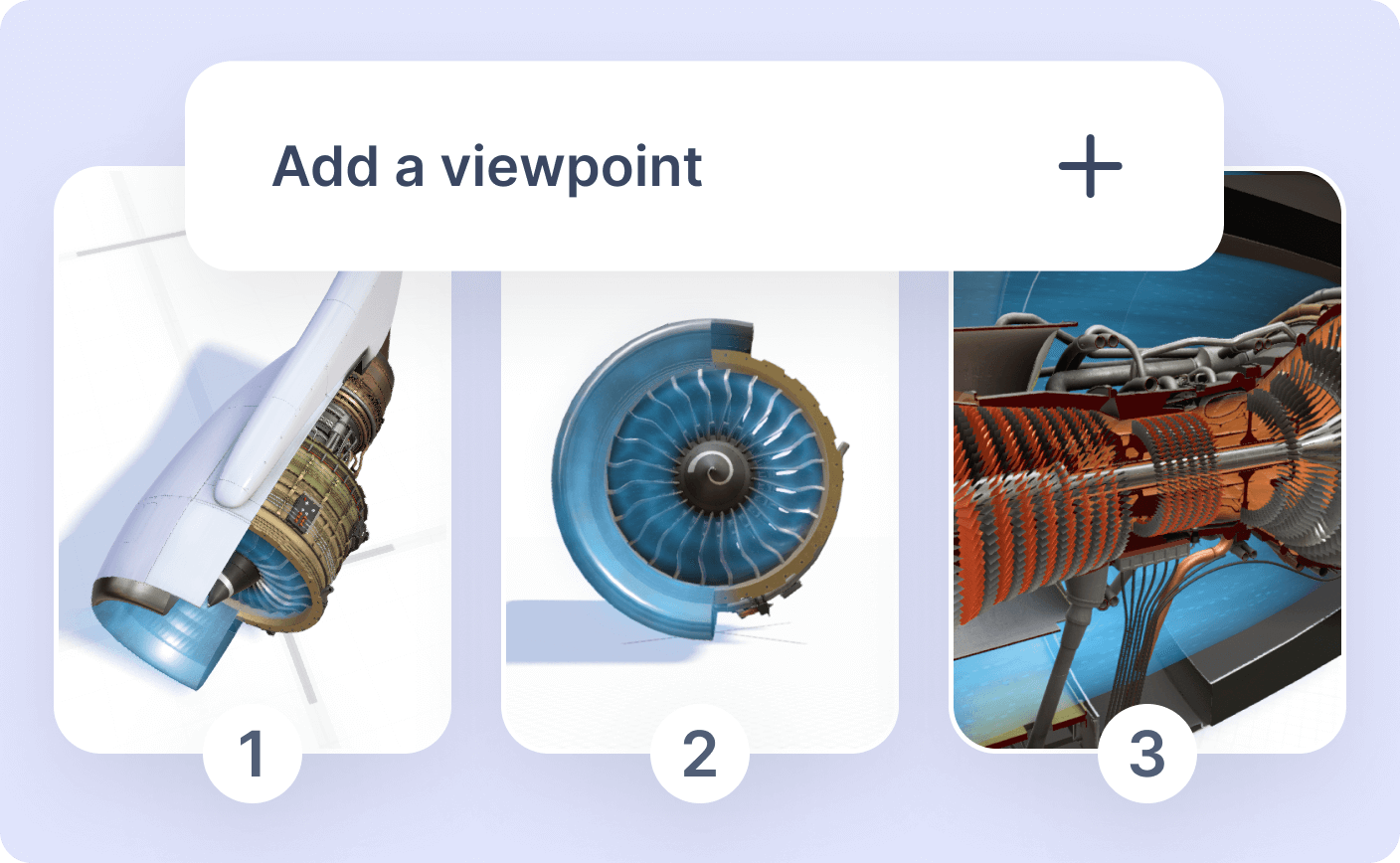
Any step in your Jig can have a camera viewpoint that moves the viewer's camera.
This is ideal for zooming in on key parts of a 3D model, rotating around an object, or creating fly throughs in a larger scene.
Add a viewpoint to a step to set the camera position
To add a view point to your Jig you need the desktop app for Windows or Mac.
- In the Jig editor, click the {icon-object-property-panel.svg} to open the right-side property panel
- Move your Jig around to your desired angle and zoom, use space + drag the canvas to pan or drag
- Click on the step thumbnail in the timeline, or on the canvas, to show Step properties
- Click on {icon-add-object.svg} Viewpoint to add a camera viewpoint to the current step
- Click preview and navigate between steps to see the camera move to your viewpoint on the step.
Editing, deleting, and reusing camera viewpoints
Delete a viewpoint
- Select the step
- Click the delete {icon-delete.svg} button in Step properties
Duplicate steps
- Duplicating a step keeps its viewpoint
- To delete a viewpoint after duplicating, follow the steps above
- To change this viewpoint, move to your desired angle and zoom, then click the add viewpoint again.
Copy a viewpoint to other steps
- Select the step with the viewpoint you want to copy
- Click the Replicate button {icon-paint-roller.svg}
- Apply it to other steps as needed
Autoplay with camera viewpoints
You can set your Jigs to autoplay through their steps, to give viewers a completely guided tour of your Jig. This is ideal when embedded in websites, or on large LCD screen monitors with limited user interaction. When your steps have viewpoints the camera will go to each camera position and follow the auto play step delay you set (i.e. 5 seconds, 10 seconds each).
The default tweening camera transition time between viewpoints is 2 seconds. If a Jig is set to autoplay and the autoplay delay is shorter than 2 seconds, it will automatically update to 2 seconds for steps that include a viewpoint. This ensures camera motion stays smooth and readable, even in fast autoplay sequences.
Common questions
Does this work in AR?
No. Camera viewpoints apply to non-AR viewing only.
In AR, viewers control their own physical position in the space.
Can I use viewpoints on just one step?
Yes. Viewpoints are completely optional and can be used only where needed.
Do viewpoints work with autoplay?
Yes. This is one of the best ways to create automated fly-throughs or self-running demos.
Can I create viewpoints on iPad?
Not yet.
Viewpoints can currently be created using the desktop app, with support coming to the JigSpace iPad app in late January 2026.
Example use cases
Sales demos
- Guide prospects through a product in a clear, repeatable sequence
- Jump straight to differentiating features without manual camera control
- Create autoplay demos for booths, kiosks, or unattended displays
Training and onboarding
- Focus attention on specific components or procedures
- Walk learners through complex assemblies step by step
- Ensure every trainee sees the same views, every time
Marketing and visualisation
- Create polished product fly-throughs from CAD models
- Highlight design details that are hard to see in static images
- Build lightweight, reusable 3D assets for web and presentations