


The object list is a powerful feature in JigSpace’s creator tool that helps you organize, navigate, and manage various elements of your 3D models, images, videos, and text boxes.

What is the object list?
The object list provides a hierarchical view of all the 3D objects, images, videos, and text boxes within your 3D presentation. It's a visual representation that allows you to see the structure of your project at a glance.
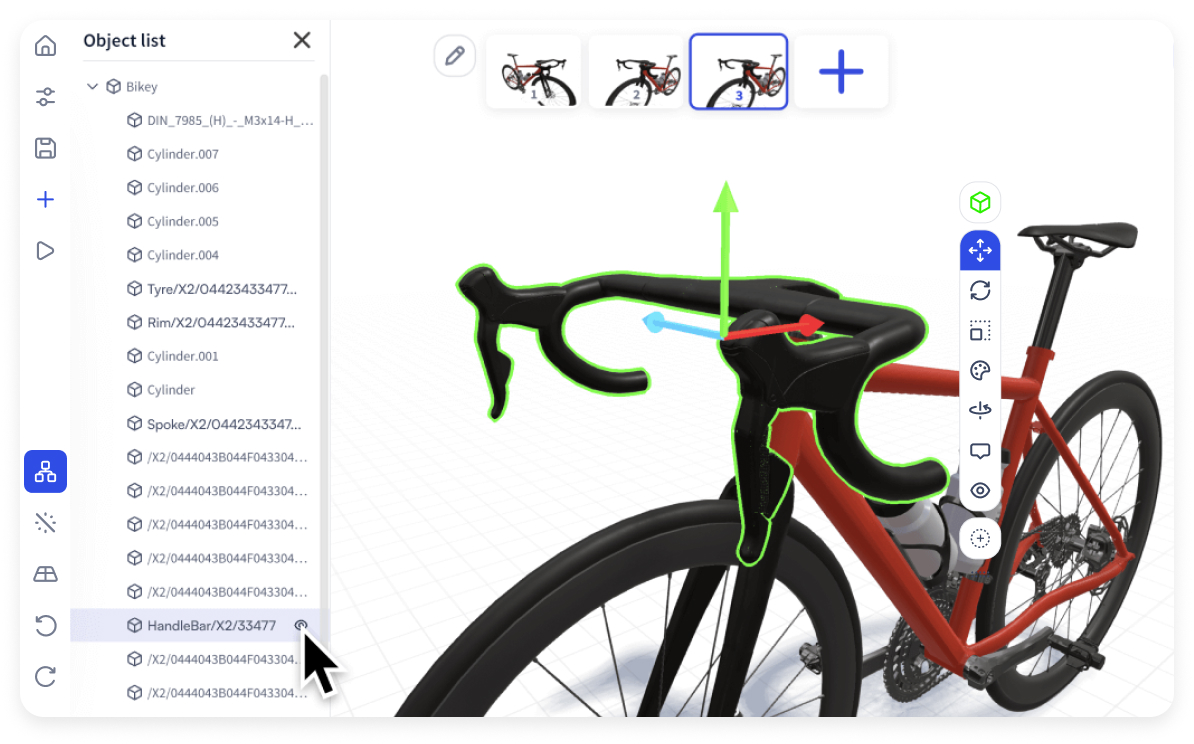
Navigating the object list
- Selecting objects: Click on an object in the object list to select it in the viewport.
- Expanding and collapsing: Use the arrows next to parent objects to expand or collapse the view of child or sub-objects.
- Hiding the object list panel: you can show the object list panel, or hide from your view, by clicking the object list icon in the left side menu.
- Show and hide: you can hide any object on a step, and show it again, by toggling the eye icon
- Deleted objects: you can only delete a whole object (including it's child parts) from all steps in your Jig.
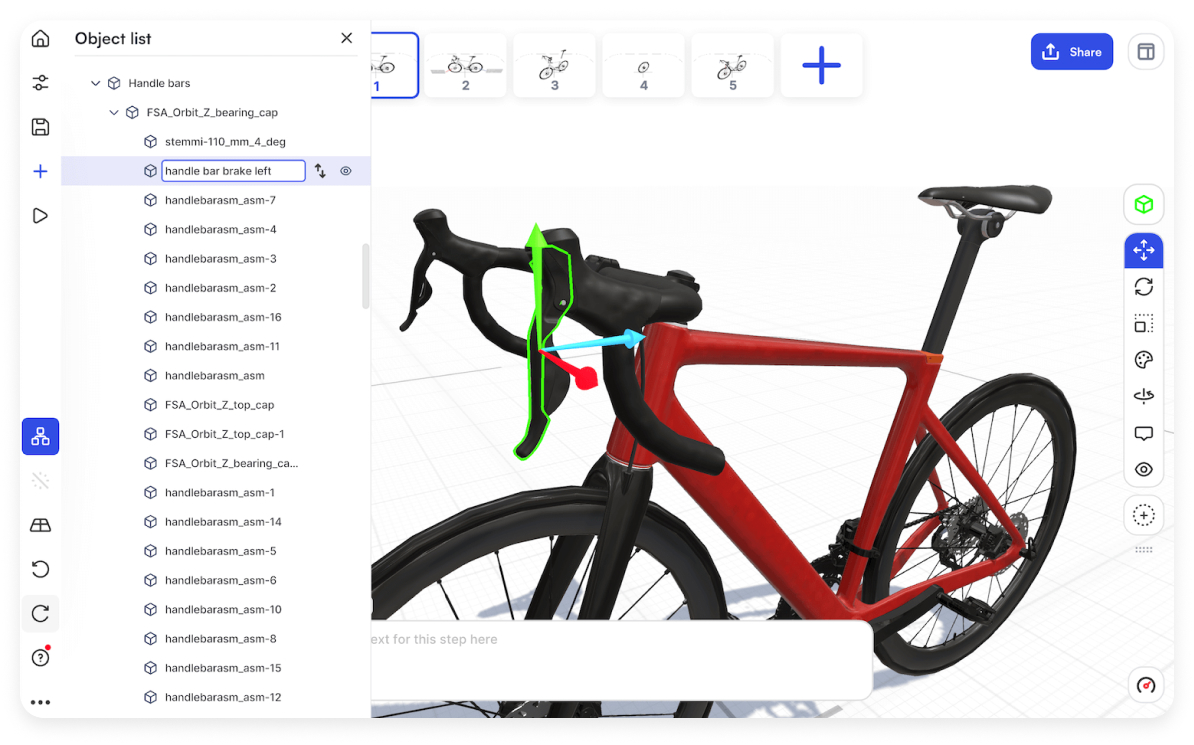
- Rename objects: names are derived from your 3D model data and CAD program. To rename a part, double click it in the object list.
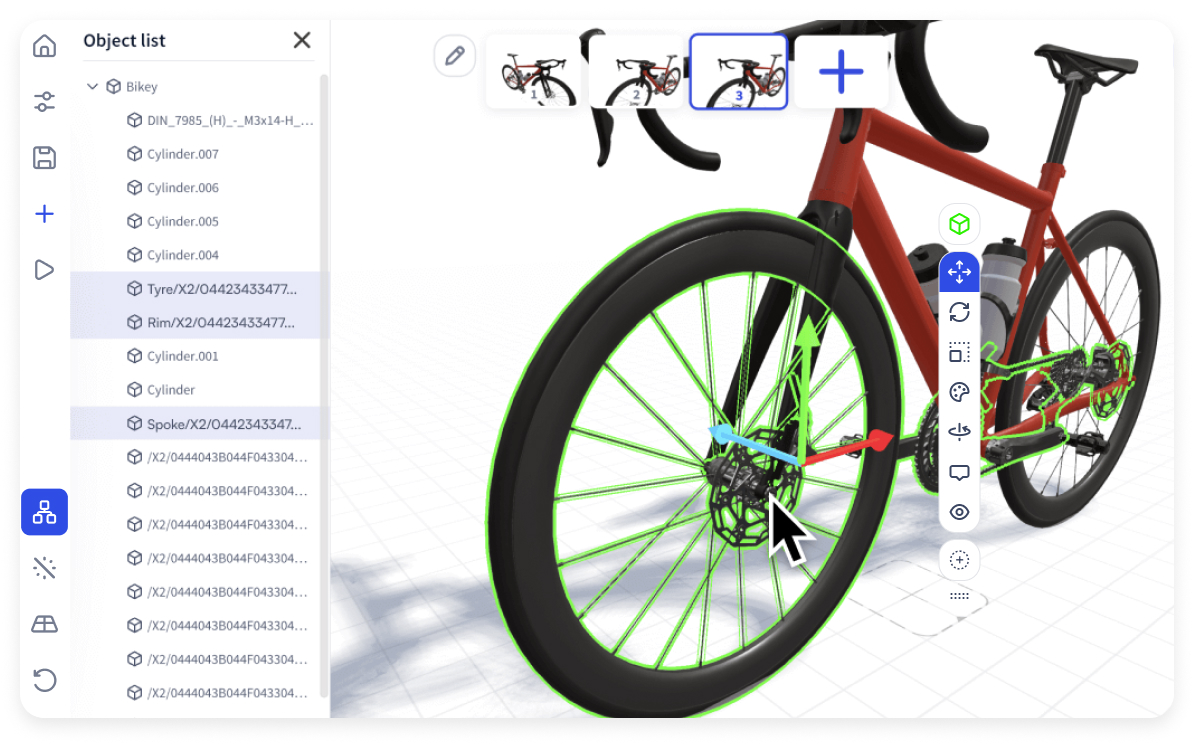
Select multiple objects
- Hold Command ⌘ (Mac) or Ctrl (Windows) + click on objects to multi-select them.
- The selected objects will appear with an outline in the viewport and then can be transformed, formatted, duplicated, or deleted.
Editing elements
- Duplicating: Select a whole object and choose 'Duplicate' from the toolbar to create a copy.
- Transforming: Use the toolbar, or right-hand side object property panel to edit the position, pivot point, rotation, scale, color, materials and textures of your objects.
Hide, show, delete
Whole objects can be hidden from the object list or by clicking on the hide icon {icon-eye.svg} in the floating toolbar. These settings can be set individually on each step.
This hides an object or group of objects while you are editing, so you can easily view or select internal or nested objects. Hidden objects are also not visible to end viewers, so remember to show them again when you are finished editing interior parts. You can unhide an object by clicking the same icon which will be shown as an eye crossed out {icon-eye-hidden.svg}.
To make objects semi-transparent, edit the alpha transparency in the color settings by clicking on {icon-color.svg}.
To delete an object, you need to select the whole object (blue outline) and select 'Delete' in the object list. This will delete it from all steps.
Drag and drop parenting and hierarchy
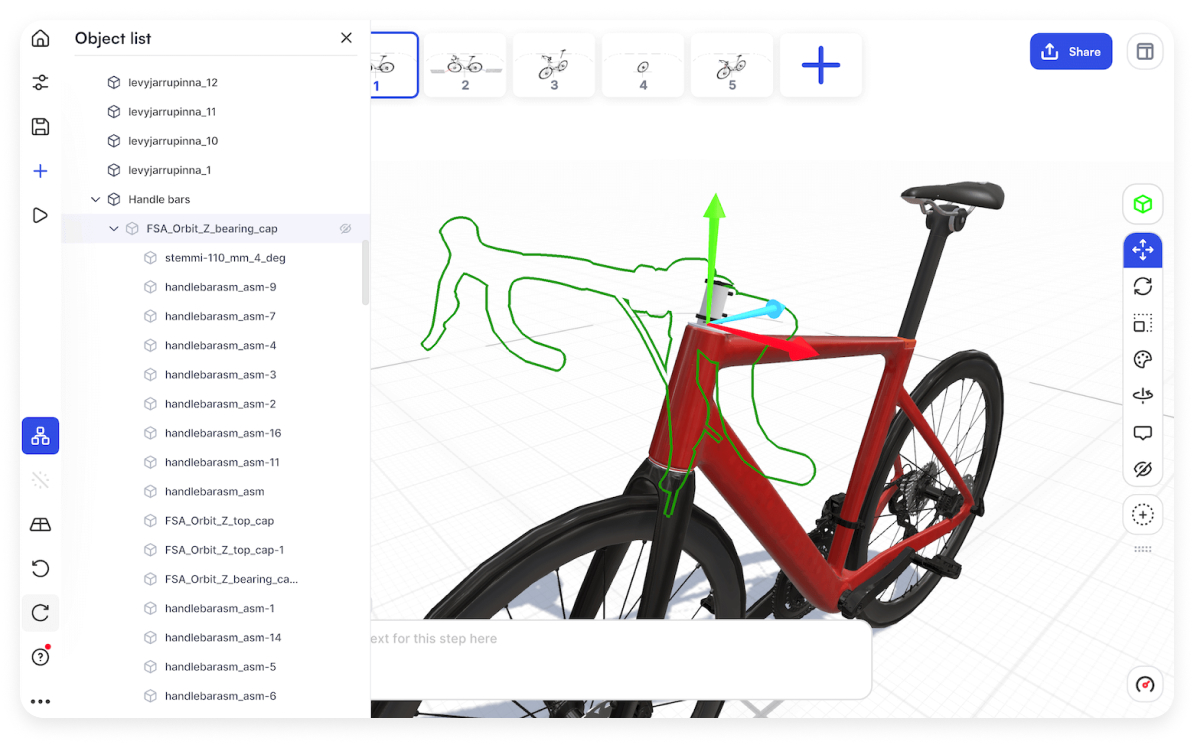
You can drag and drop objects into parent-child hierarchies using the object list, making advanced animations and transformations easy to edit. Organize complex assemblies like robotic arms, mechanical parts, or fasteners into logical groups to streamline your workflow.
Learn more about drag and drop parenting
Importing hierarchy, groups, and assemblies
When creating 3D presentations from CAD, like SolidWorks or Maya, JigSpace now automatically imports your existing model hierarchy, groups, assembly structure and pivot points to save you time getting started with each new model or project.
You can see the object list and manipulate your models on the JigSpace desktop app for Windows and Mac.
Empty meshes that parent a group of child objects together are represented as a new dashed-line circle icon, and can have their pivot origin, position, rotation, and scale transformed to enable easy-transformation of entire groups of objects in one go.
Rename objects and parts
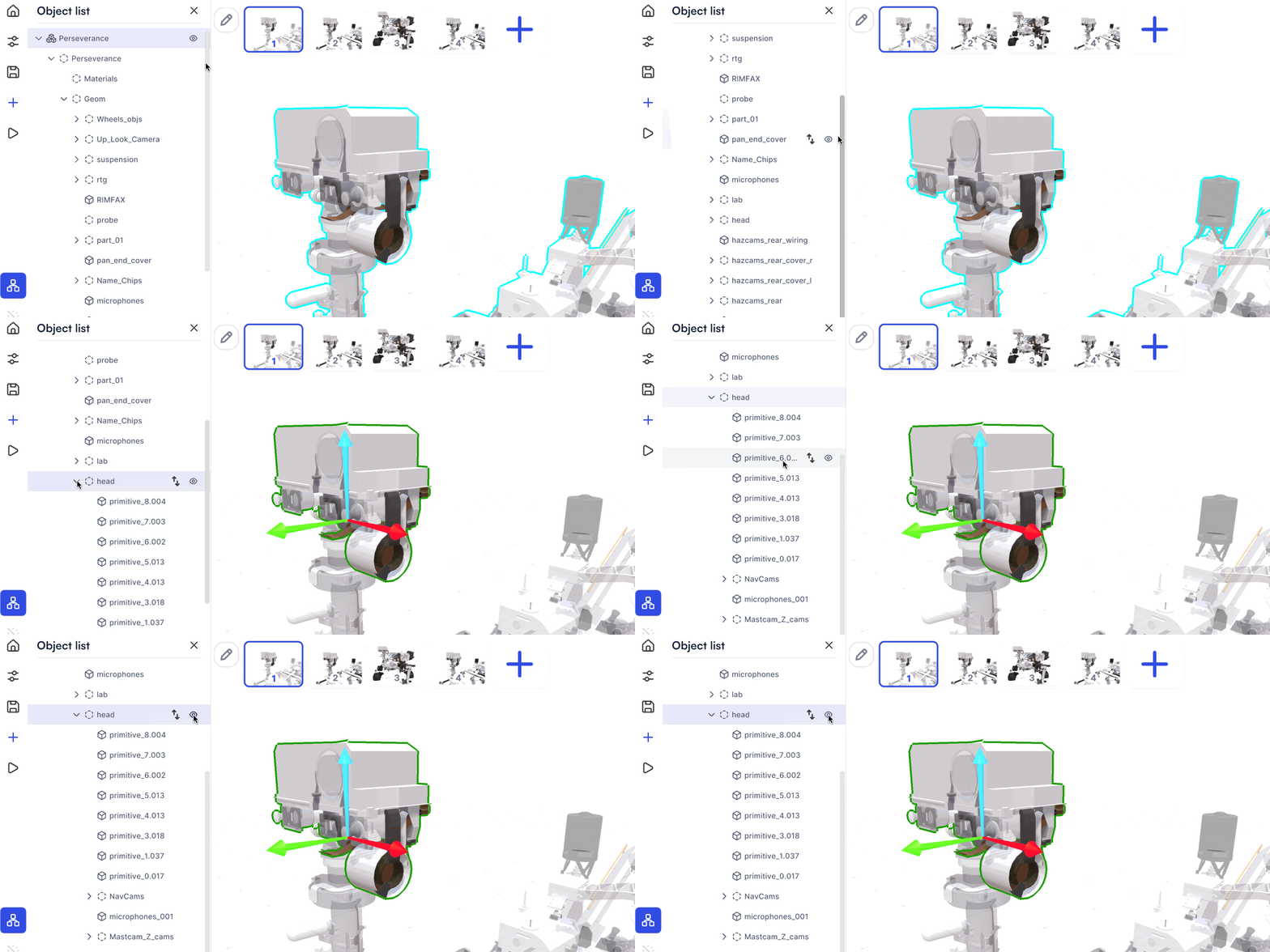
You can make your objects and parts easier to locate and manipulate by renaming them in the object list.
Double click on any item in the object list to update its name with a correct names, part ids, or reference text. You even prefer to use this just to get rid of any messy suffixes added by your design tool like object.001 for example.
We recommend renaming objects before saving your models to the team library so your teammates can benefit from your clean and updated models.
Benefits of using the object list
Productivity
The object list provides a clear and logical hierarchy of the design elements, allowing for easy navigation and understanding of the overall structure.
Asset management
It enables efficient management of individual objects or media files, facilitating quick modifications, duplications, or deletions without affecting other parts of your 3D presentation.
Design reusability
By visualizing objects and media in the tree, designers can easily reuse parts in different projects, enhancing efficiency and consistency across designs.
Collaborative work
The clear organization within the object list facilitates collaboration among team members, as each person can work on specific sections without confusion, overlap, or deletion of incorrect parts of the presentation.
Reducing errors
By providing a clear overview of the design and its parts, the object list helps in maintaining a smooth and logical workflow, reducing the risk of errors with naming of parts that are easy to select or modify.