


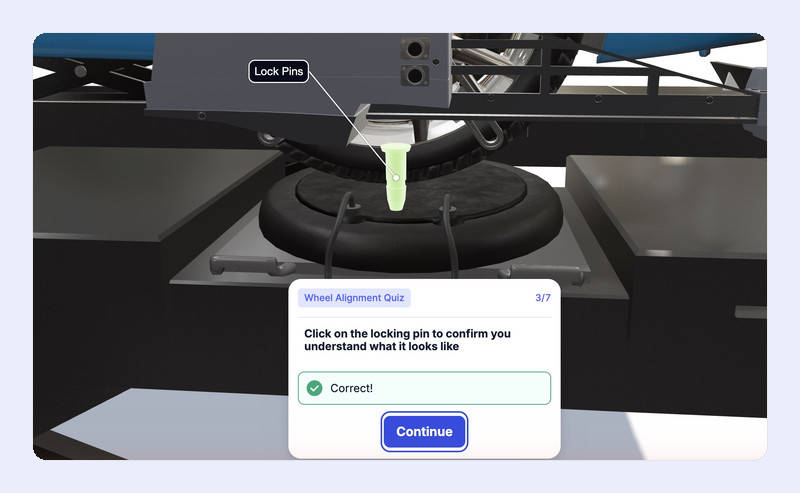
Add a quiz to any Jig to check what your viewers learned. Questions appear as viewers move through the steps, and the quiz ends with a score and a pass or fail result. Share the Jig as a link or embed, or export the Jig as a SCORM package to record scores in your learning management system (LMS).

Try a quiz
Select Start to take the Wheel Alignment quiz. Use the arrows to move through the steps, and answer each question as it appears.
Who can use Quiz
You can try Quiz on the Free plan with your trial Jig. On the Starter and Enterprise plans, Quiz is an add-on. Contact us to add it to your subscription.
If your team doesn't have Quiz yet, the Quiz questions and Quiz settings tabs show an orange lock. Select Contact us on either tab to get in touch.
To create a quiz, your role must be an Editor or Team Admin.

Multiple choice and Action questions
Each question is one of two types.
Action questions happen in 3D. The question card says Find & click in the scene. The viewer can rotate and zoom to find the part, then click it. The part they select highlights, and after they confirm, it turns green if they're right or red if they're wrong.
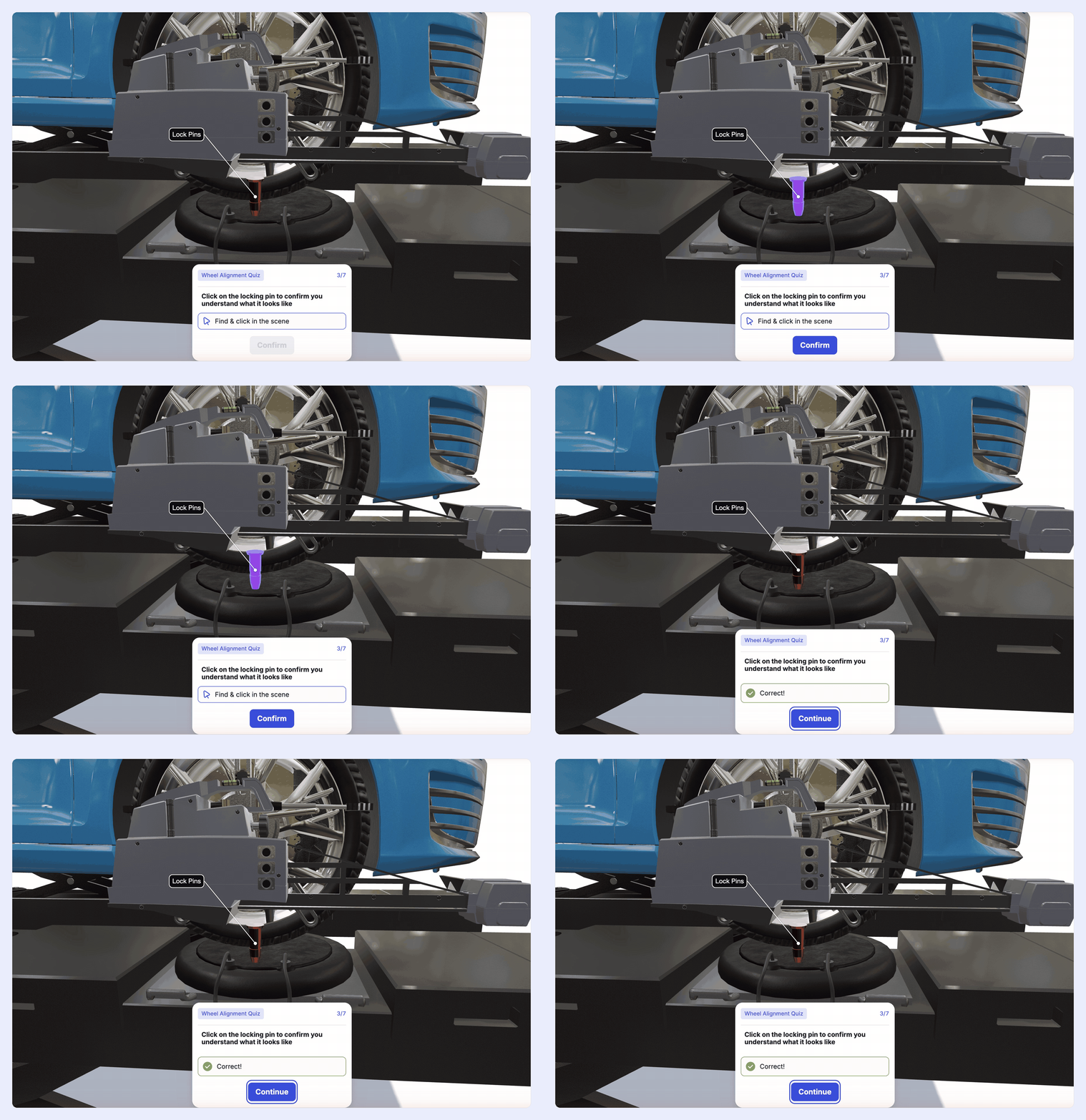
Only the parts you add to the question count. A click on one of those parts that isn't marked correct is a wrong answer. A click on any other part of the model does nothing, so viewers can explore the scene without being marked wrong.
Add a question
- In the Dashboard, open your Jig and select the Quiz questions tab.
- Enter a Quiz title. Viewers see it on every question card.
- Select Add question.
- In Step, enter the step the question belongs to. The question appears when the viewer leaves that step.
- Choose a Question type, then enter the Question title.
- Add the answers (see below), then select Save.
The questions list shows each question's step, type, and title, in step order. Select a question to edit it, or select the bin icon to delete it. The preview on the right plays your Jig. Select Reload in viewer to see your latest changes.

Multiple choice answers
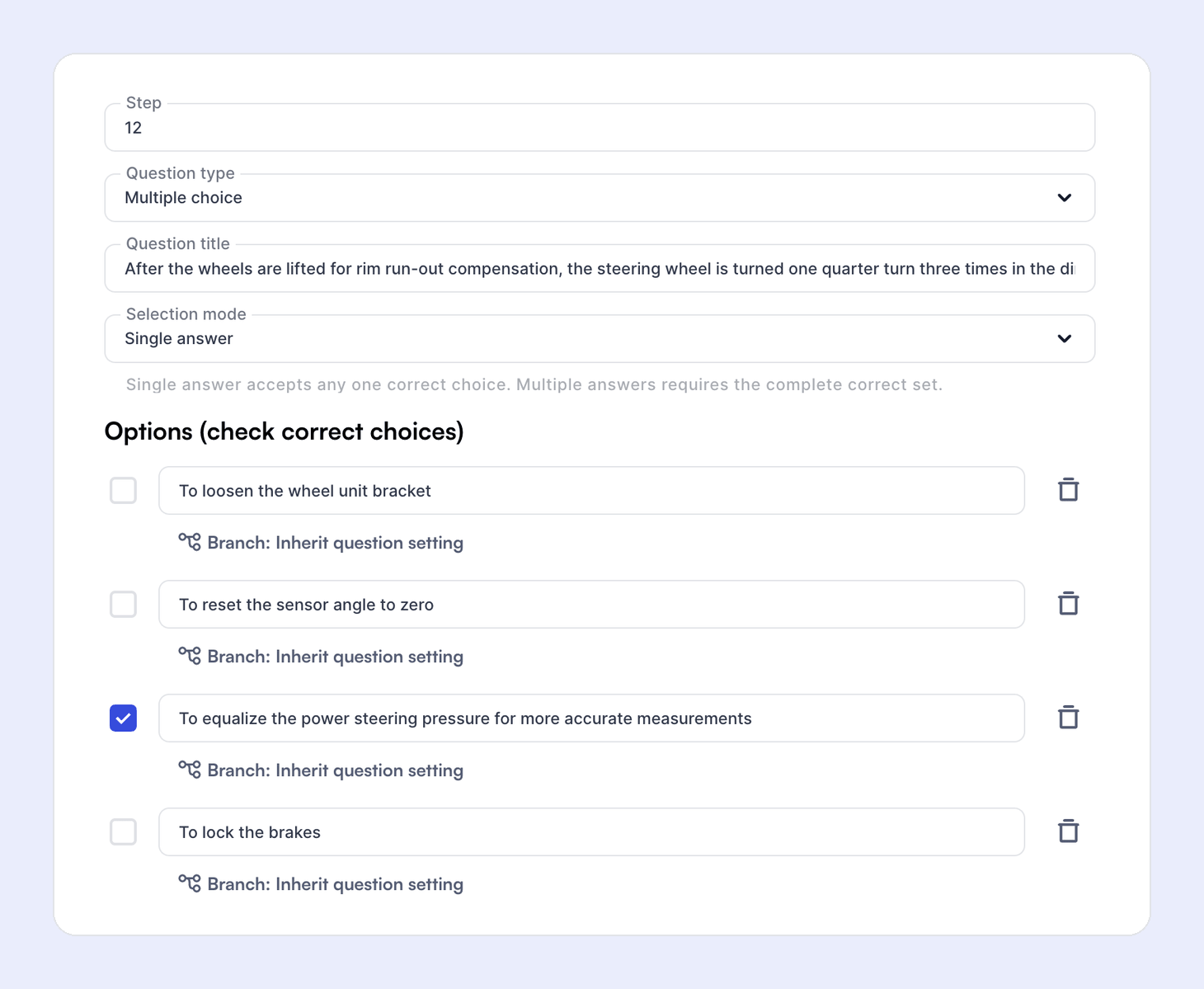
- Choose a Selection mode:
- Single answer: the viewer picks one answer. Any answer you mark correct counts.
- Multiple answers: the viewer picks several. They need the complete correct set to get the question right.
- Select Add option for each answer, and check the box next to every correct one.
Action answers
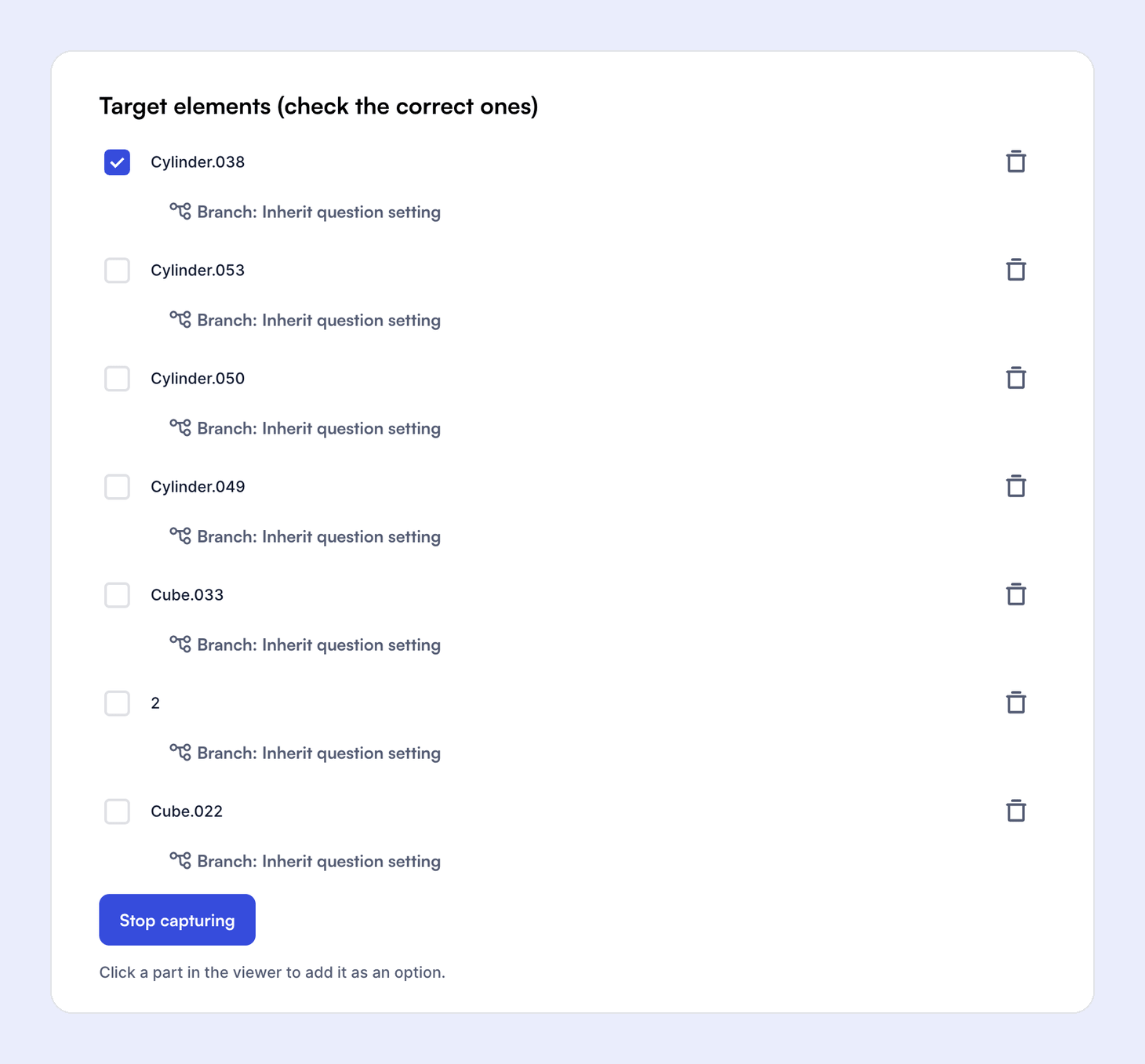
- Select Capture from viewer.
- In the preview, click each part you want as an answer. Each one is added to Target elements.
- Select Stop capturing.
- Check the box next to every correct part. Unchecked parts are wrong answers.
Parts are listed by their display name. Name your parts in the Jig before you capture them so the list is easy to read.
Feedback and points
Branching
By default, the viewer moves on to the next step after each answer. Use Branch settings to send them somewhere else.

- Open a question and go to Branch settings.
- Choose what happens for a Correct and an Incorrect answer.
- For Go to step, enter the Target step.
- Select Save.
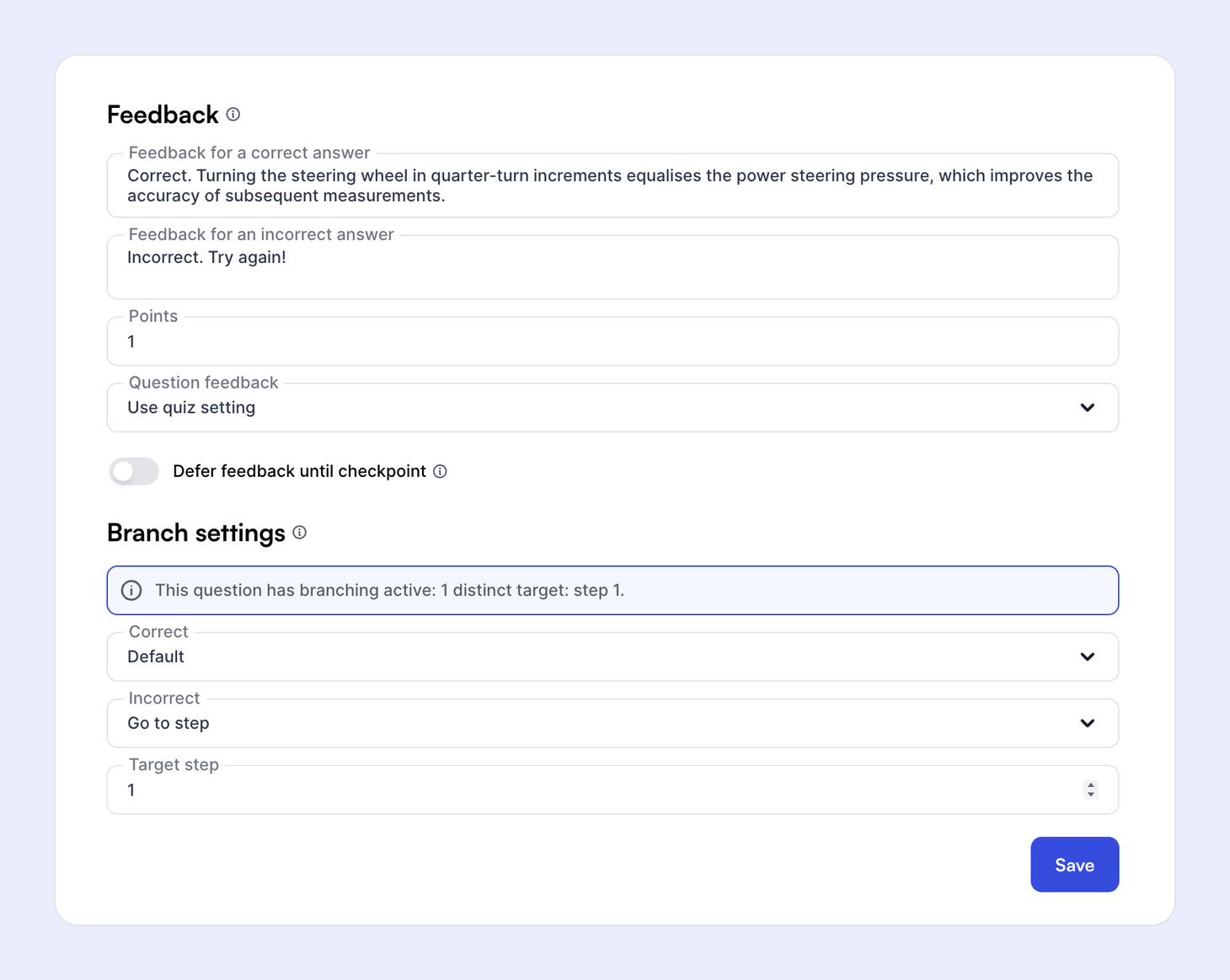
For example, on a safety question, set Incorrect to Go to step and enter 1. A viewer who gets it wrong goes back to the start of the procedure.
Branches follow the step, not its number. If you reorder the steps in your Jig, the branch still goes to the same step.
Branch on a single answer
Each answer has its own Branch setting under it. It inherits the question's setting unless you change it. Use it when one wrong answer is more serious than the others. For example, end the attempt when a viewer picks an unsafe option.
Retries
When Incorrect is set to Retry, the viewer gets the number of retries in Quiz settings › Retries after first attempt. The button shows which attempt they're on, such as Confirm (attempt 2/2). After the last retry, the viewer moves on.

Checkpoints
Turn on Defer feedback until checkpoint for a run of questions to hold their feedback. The next question without it is the checkpoint. It shows the results for the whole group under the heading in Name for a grouped review. Branches on individual answers don't apply to deferred questions.
Quiz settings
Open the Quiz settings tab, change what you need, and select Save changes.
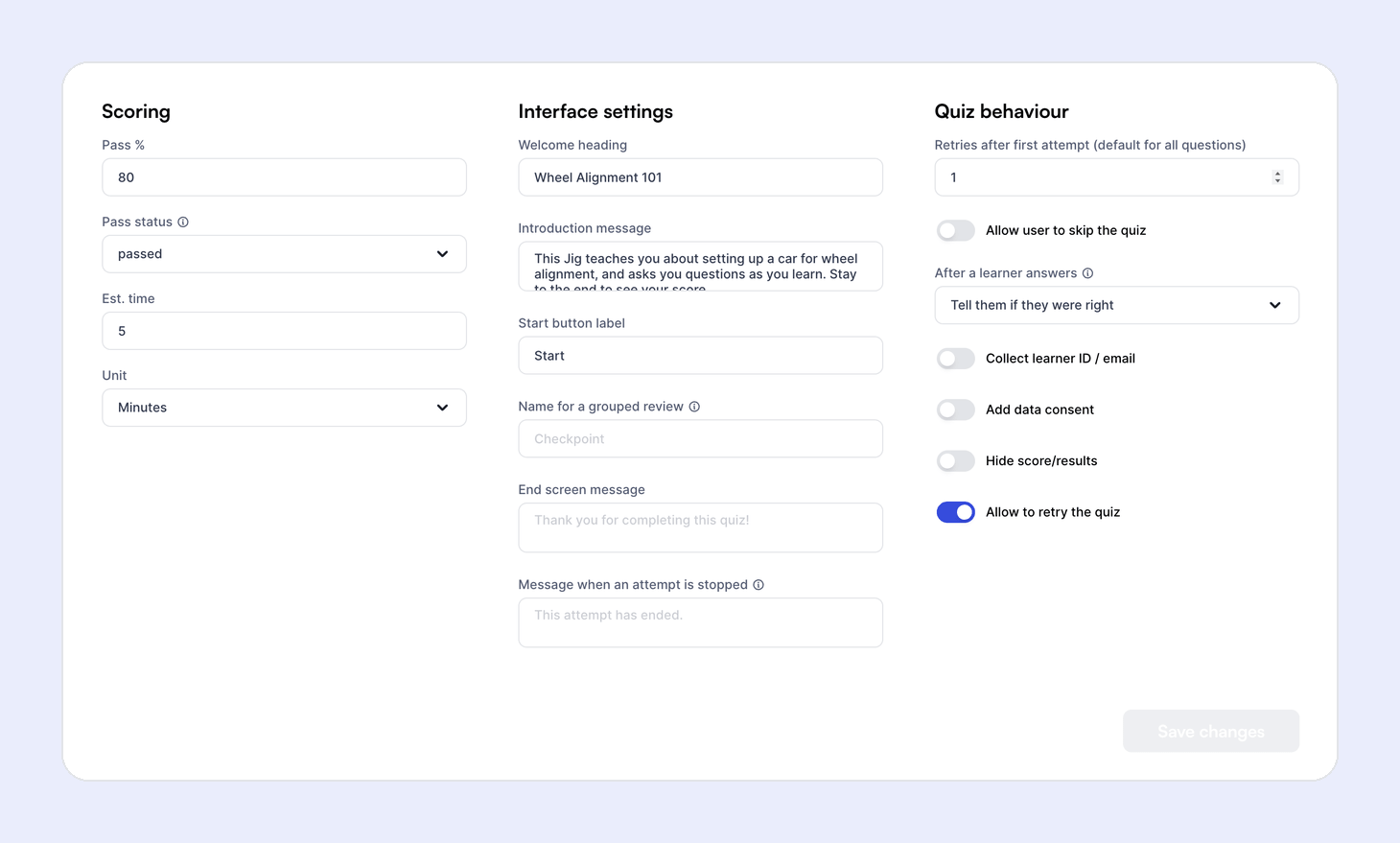
Scoring
Interface settings
The welcome screen also shows the number of questions, the pass mark, and the estimated time.
Quiz behaviour
Turn on Allow to retry the quiz for practice and refresher training, where the goal is for every viewer to learn the content. Leave it off for assessments, where you grade each viewer on one attempt.
Publish your quiz
Viewers only see a quiz once it's published. Saving keeps your changes without publishing them.
- On the Quiz questions tab, turn on Published.
Published quizzes are read-only, including their settings. To make changes, select Unpublish to edit, edit the quiz, then turn on Published again. While a quiz is unpublished, viewers see the Jig without it.
To reuse a quiz, duplicate the Jig from the ⋯ menu and keep Include quiz on. The copy keeps the quiz and its published state, but not viewers' results.
Download quiz results
When Collect learner ID / email is on, you can download each learner's answers as a CSV file. Once learners have taken the quiz, select Download results next to Unpublish to edit on the Quiz questions tab.
What viewers see
- A welcome screen with the quiz heading, introduction, question count, pass mark, estimated time, and Start.
- Each question when they leave its step.
- Feedback after each answer, unless you've deferred or hidden it.
- A results screen with their score and the pass mark, and Retake the quiz if retries are on.
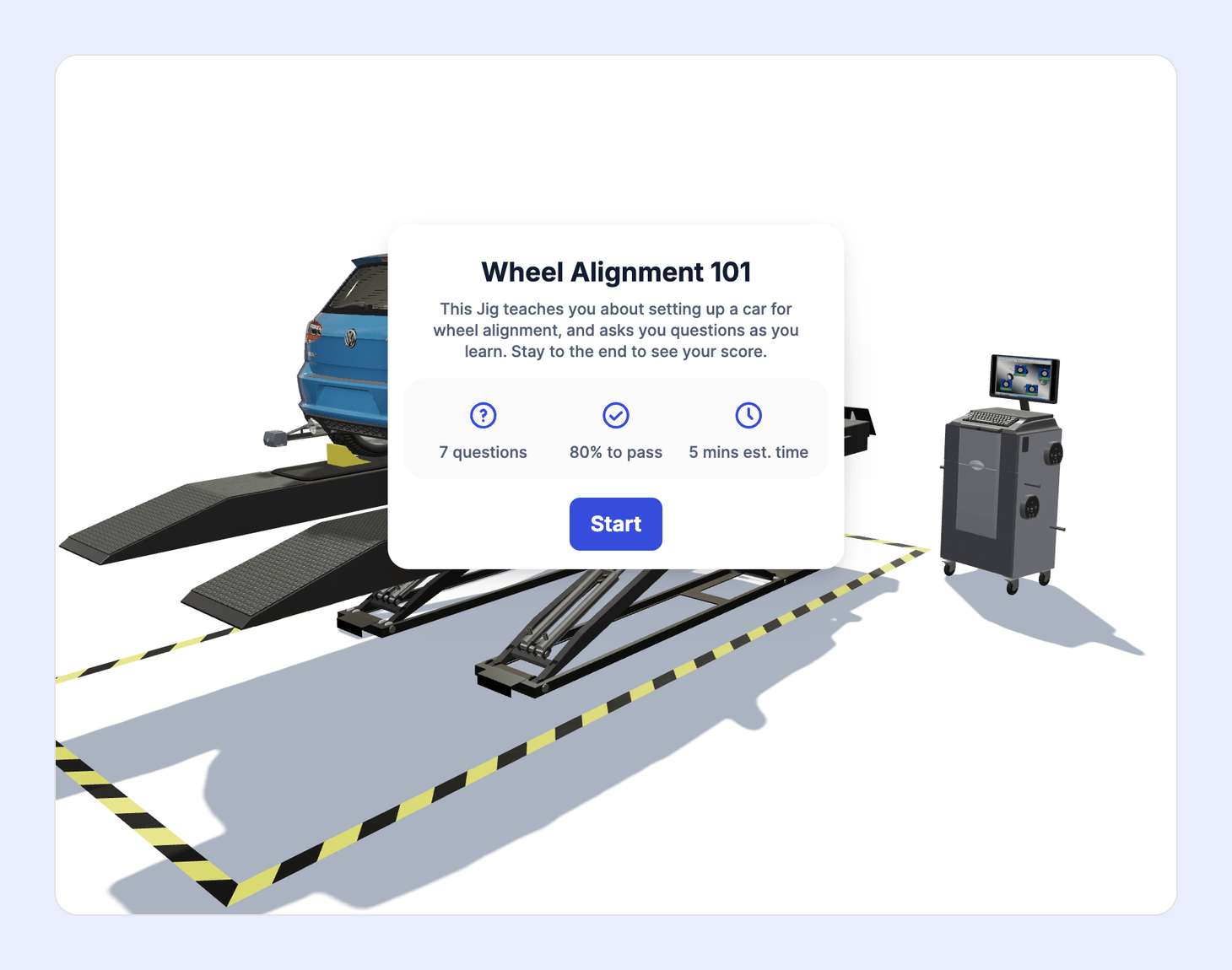
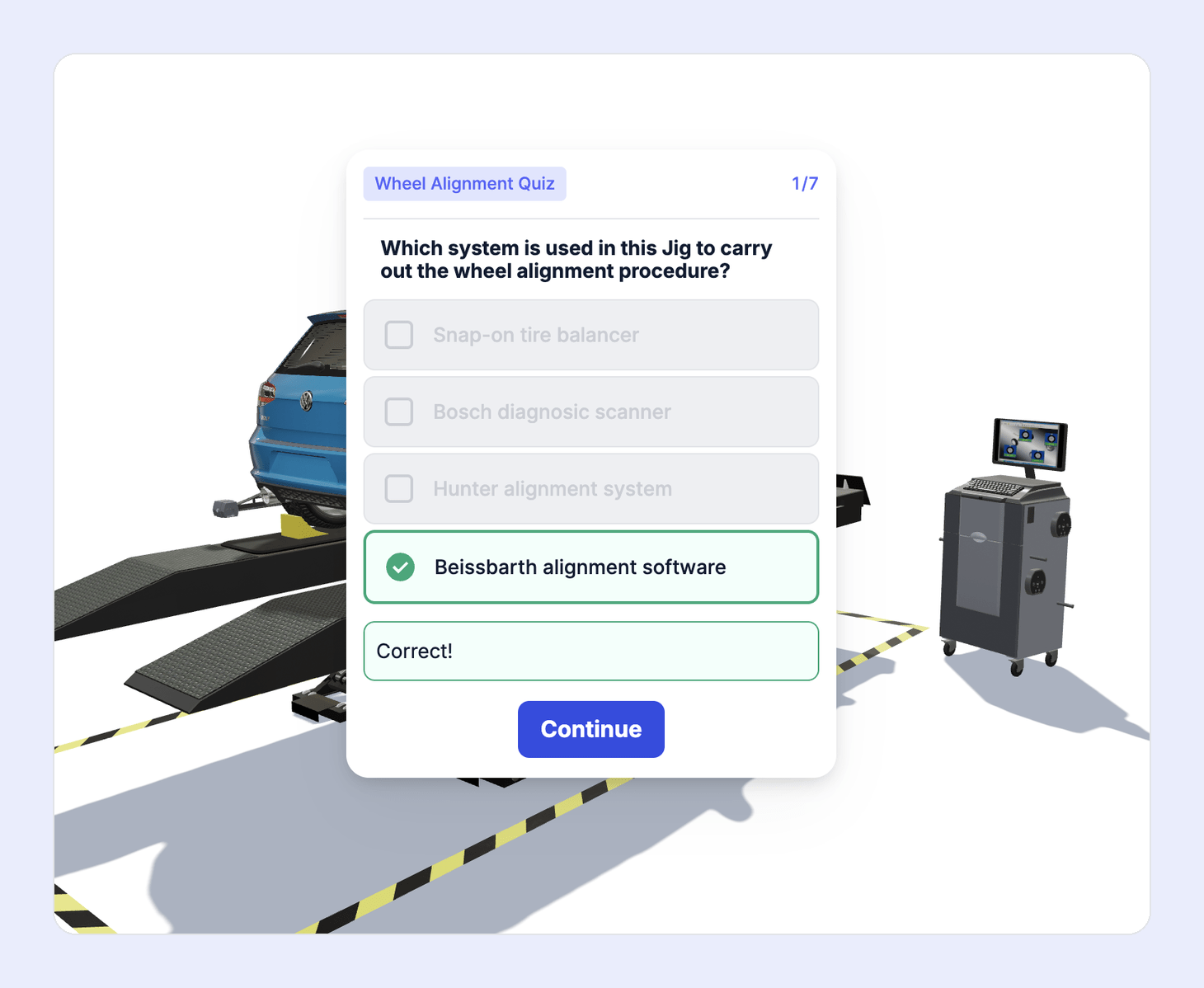

Quizzes play in the web viewer, in embeds, and in SCORM packages in your LMS. You can preview a quiz in the JigSpace app on desktop and iOS.
Share a quiz
To record quiz scores in your LMS, export the Jig as a SCORM package. An iframe embed in an LMS, such as Moodle or TalentLMS, plays the quiz but sends nothing to the LMS. We don't recommend putting a quiz in an LMS as an iframe embed.
Scores, retries, and your LMS
When you export a Jig with a published quiz as SCORM:
- Choose Complete when › The quiz is finished to record the quiz score.
- Pass status decides whether a pass shows as passed or completed.
- Allow to retry the quiz sets the attempts shown in Package details. Attempts include the first one and count across every launch of the course.
- A lower score on a retry never replaces a higher one.
- If a learner fails and has no attempts left, an LMS admin can reset their record.
For practice quizzes with Allow to retry the quiz on, set LMS status to Passed / Incomplete. Your LMS then records each learner's best score from all their attempts, instead of a fail.
See Export a Jig as SCORM for every export setting.
Things to consider
- Test before you share. Play the whole quiz in the preview, including every branch, before you publish it or export it to your LMS.
- Steps and questions. A question belongs to a step and appears when the viewer leaves it. Put each question on the step that teaches the answer.
- Action questions need clear parts. Use parts a viewer can find and click, and give them clear display names.
- One quiz per Jig. To give different groups different quizzes, duplicate the Jig.