


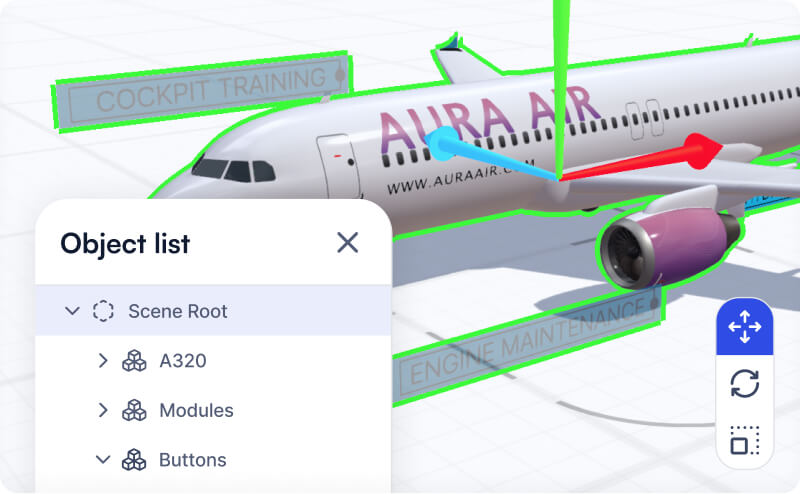
You can transform the position, rotation, and scale of your Jig's scene root to quickly transform all objects on a step together.
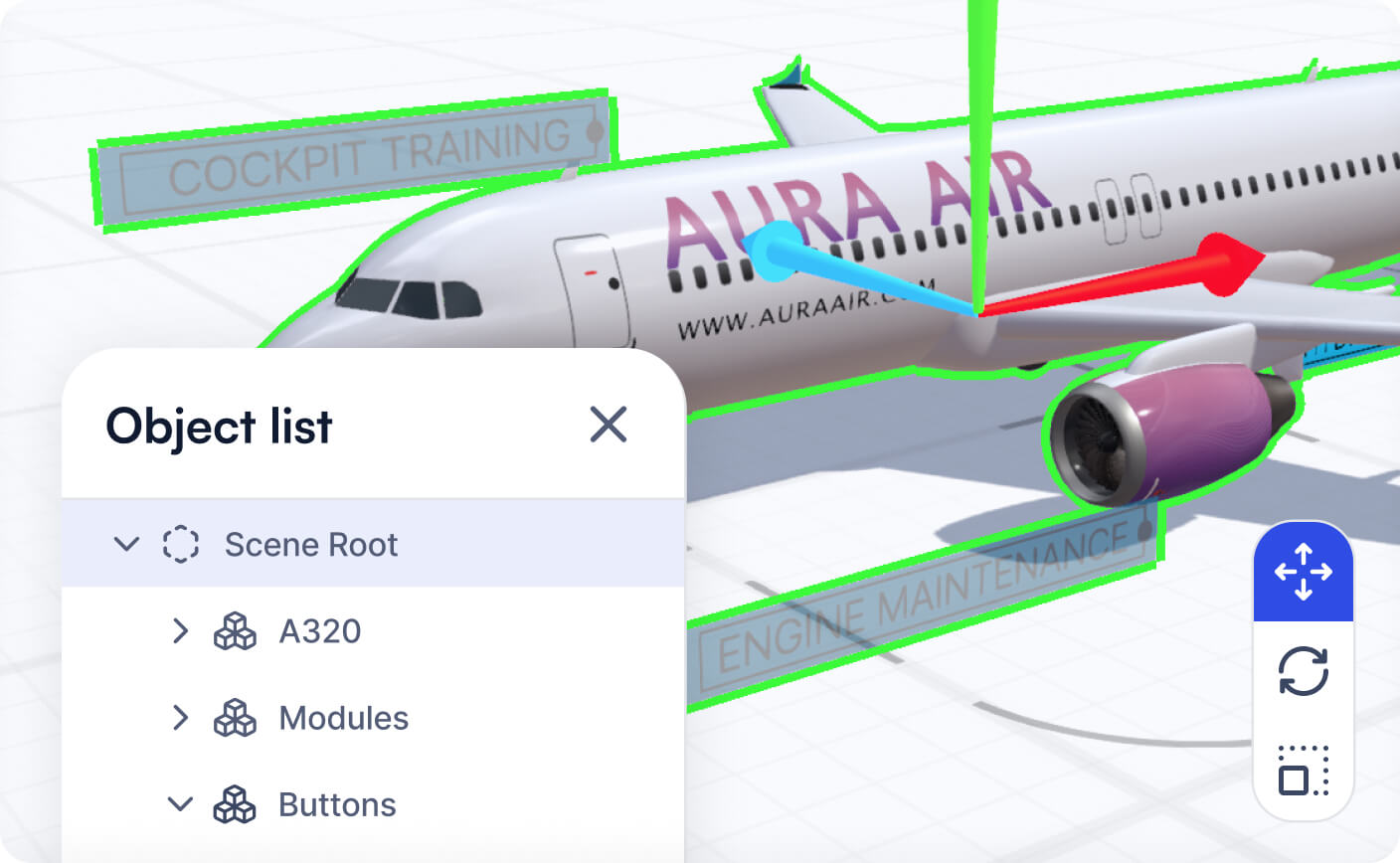
What is the scene root
All objects in your Jig exist as 'children' of the scene root. If you edit properties of your scene root, all 'child' objects under it are also transformed relative to this.
The scene root can be edited on each step in your Jig presentation making dynamic immersive Jigs.
See example below at 0:24 where the Jig scene root scales from 10% to 100%, and rotates 90º as it goes from step 1 to step 2.
Editing scene root
To edit the scene root on a step:
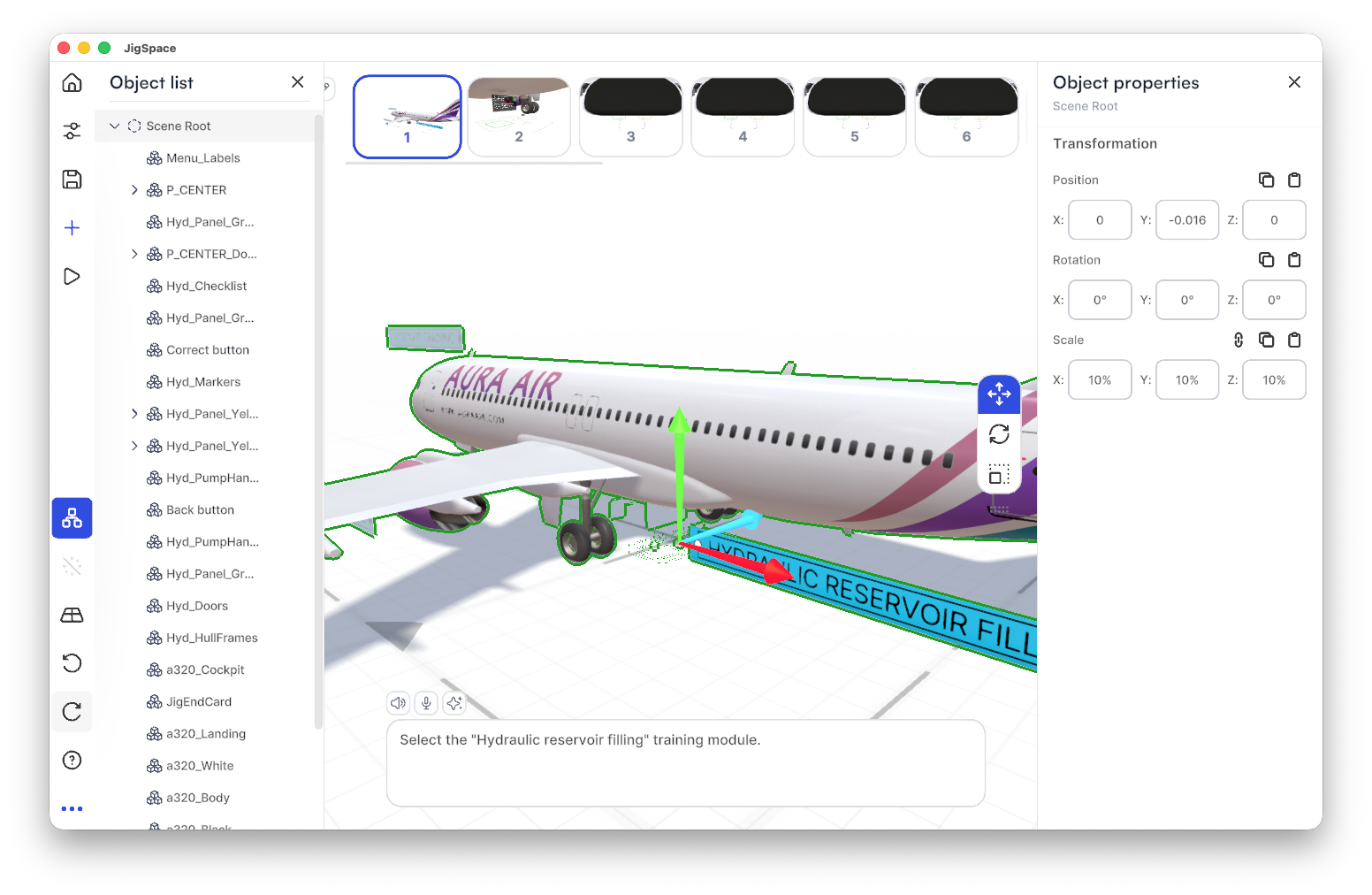
- Click on the scene root of a step in the object property panel
- Edit the position, rotation or scale using the gizmo in the viewport
- Or edit via the object properties panel.
Navigate between steps in the timeline to see the transition.
Use cases
There are many zoom-in/out or repositioning effects and animation between steps that can make use of transforming the scene root. Below are some examples:
Scaling up and down large objects (planes, trains, buildings)
- Scale whole scene root to 10% on one step to show overview
- Scale whole scene root to 100% on next step to bring it to real scale
Tracking a Jig to vertical surfaces
- Rotate scene root X axis 90º
- Position scene root X, Y,Z coordinates relative to where you want it tracked.
Rotate or orbit a whole scene around the center of the Jig
- Go to step you want to rate
- Click scene root and rotate scene root Y axis 180º