


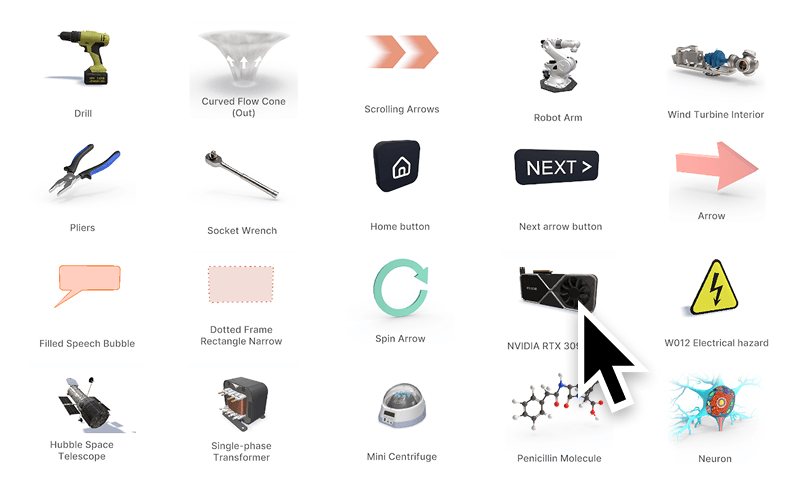
Every JigSpace plan, including the free plan, comes with a library of ready-made 3D models you can add to any Jig. There are sample CAD files to learn with, effects and buttons to guide viewers, and models of tools, machines, people, and more to build a scene around your own product.
Find free objects
- Open your Jig in the JigSpace app.
- Click + in the menu bar, then click Library.
- Select Free objects.
- Choose a category, or search for a model by name in Search objects.
- Select a model to add it to the current step.
To add a model to several steps at once, see Add library objects to your Jig.
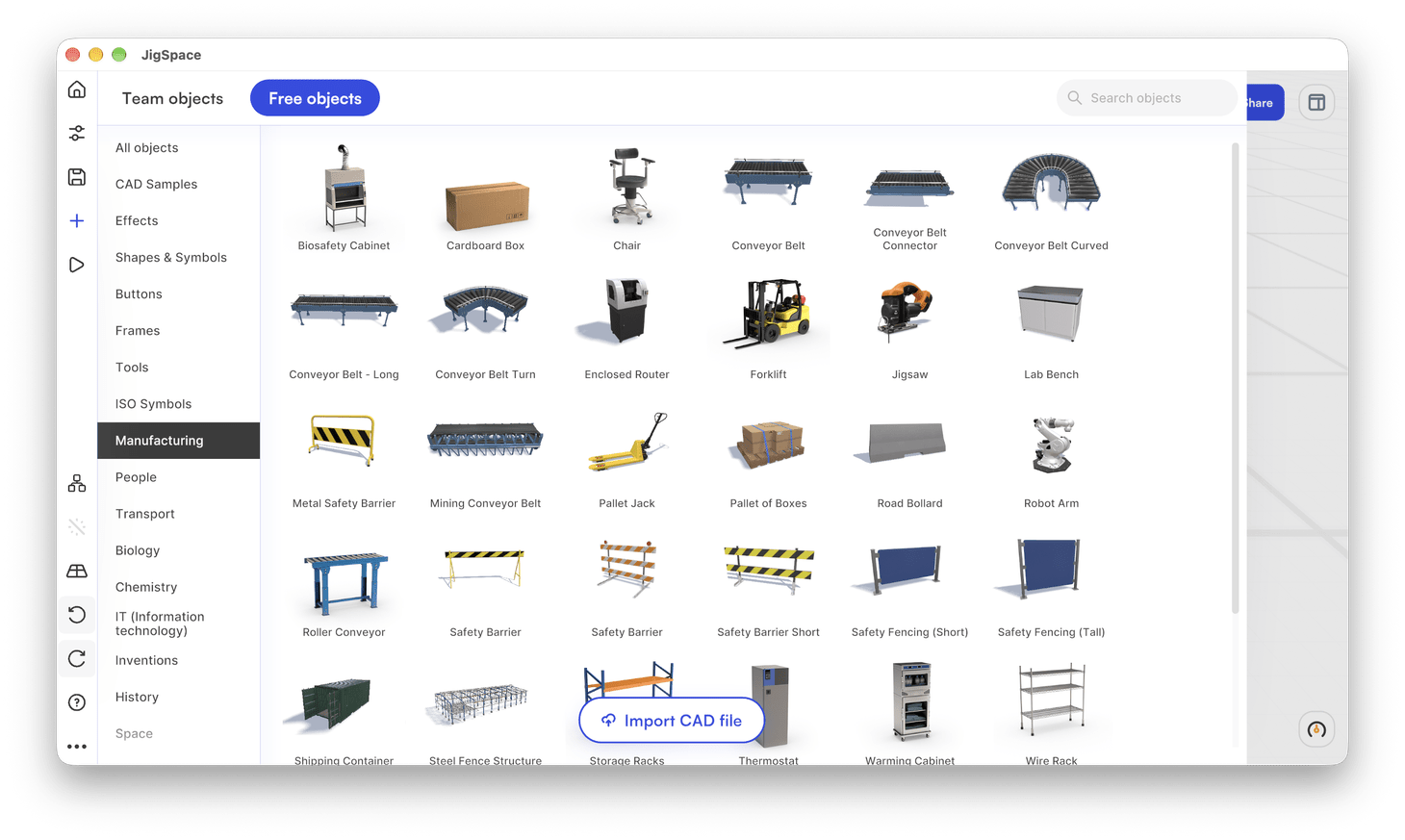
Free object categories
Categories appear in this order in the library. Select All objects to browse everything at once or search across the whole library.
- CAD Samples
- Effects
- Shapes & Symbols
- Buttons
- Frames
- Tools
- ISO Symbols
- Manufacturing
- People
- Transport
- Biology
- Chemistry
- IT
- Inventions
- History
- Space
- Sports
- Home & Furniture
- Food
- Coral Reef
- Miscellaneous
- Plants
- Letters & Numbers
- Geography
- Flags
Everyday categories
Use 3D models from these categories in almost any Jig, whatever you're presenting.
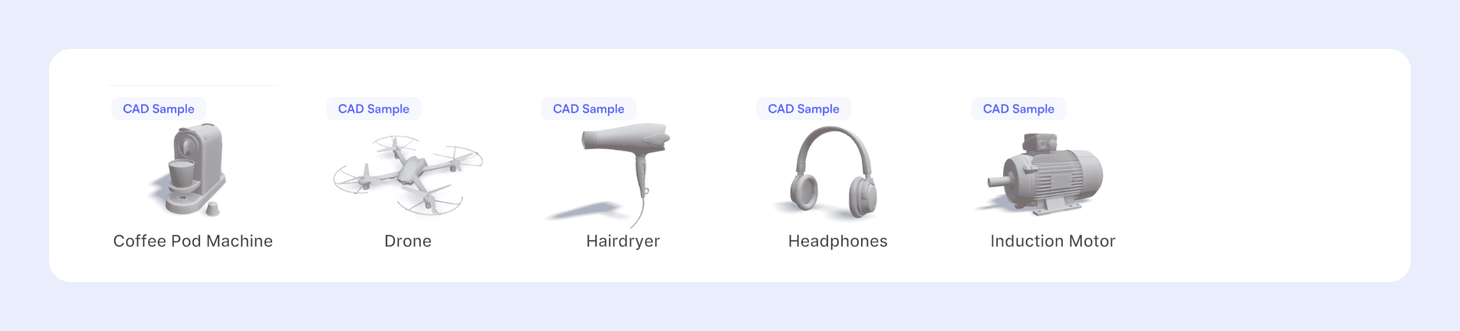
CAD Samples
CAD Samples are plain CAD files to practice on while you learn JigSpace: a coffee pod machine, a drone, a hairdryer, headphones, and an induction motor. They arrive unformatted, so you can add your own colors and materials, explode the parts, and animate them across steps. Once you're comfortable, import your own CAD files.
Effects
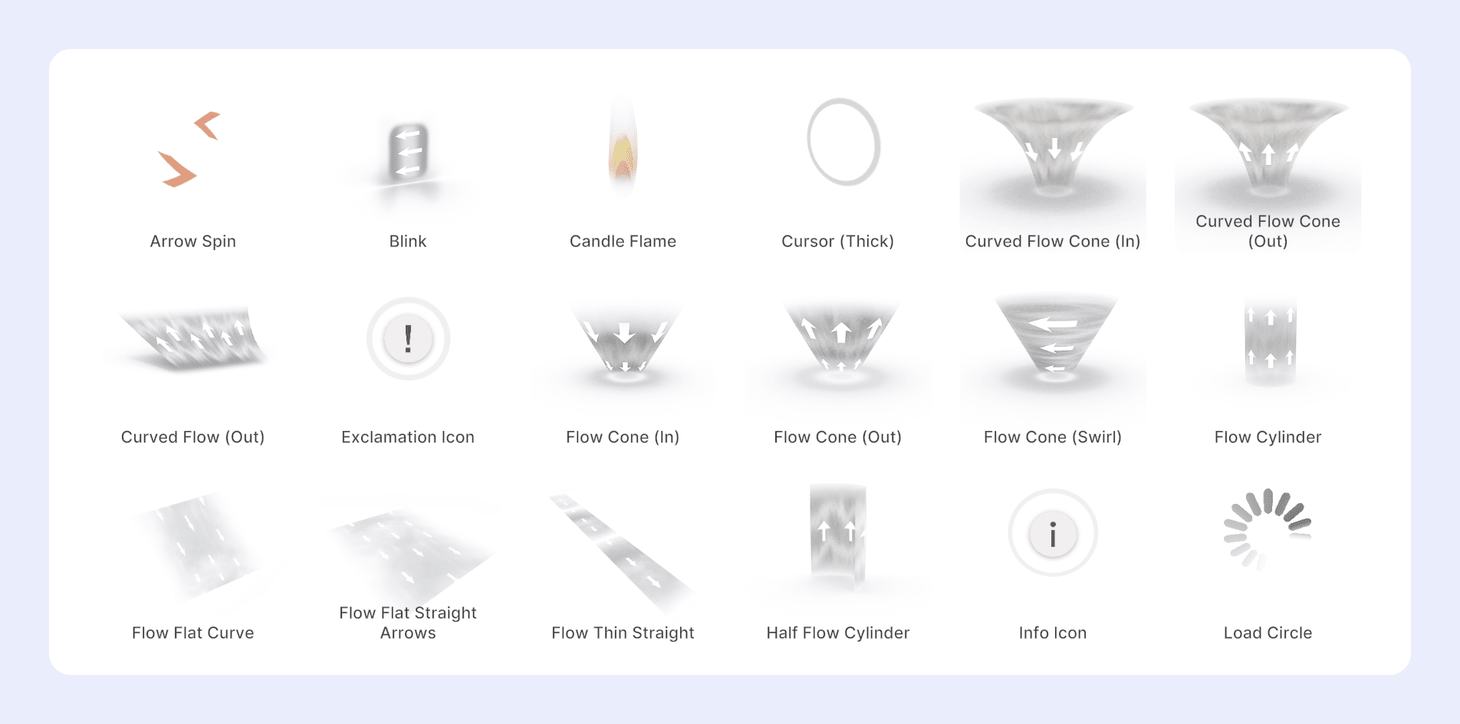
Effects are animated 3D models that show movement. Flow effects like Flow Cone, Flow Cylinder, and Curved Flow Cone show liquid or gas flowing in, out, across, and around your product.
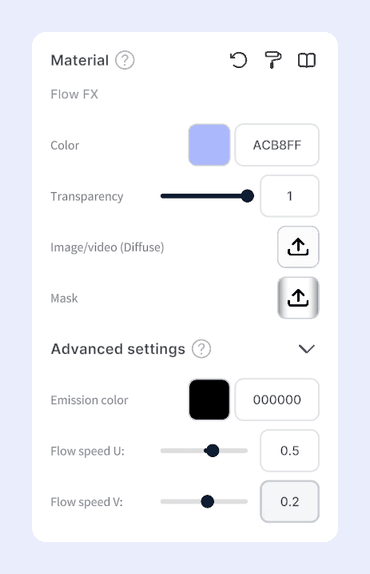
Flow effects use a moving texture. Select the effect, then in Object properties, open Advanced settings under Material. Flow speed U and Flow speed V set how fast the texture moves in each direction across the surface. Use a positive number to flow forward, or a negative number to flow in reverse. In the same panel, you can change the color and transparency, or upload your own image or video as the texture.
Other effects point viewers to the right spot, like cursors, pointers, spinning arrows, loaders, tunnels, and signal circles. You'll also find flames, sparks, and info, question, and exclamation icons.
See Effects library for how to add and edit an effect, or follow the Effects tutorial to learn more.
Shapes & Symbols
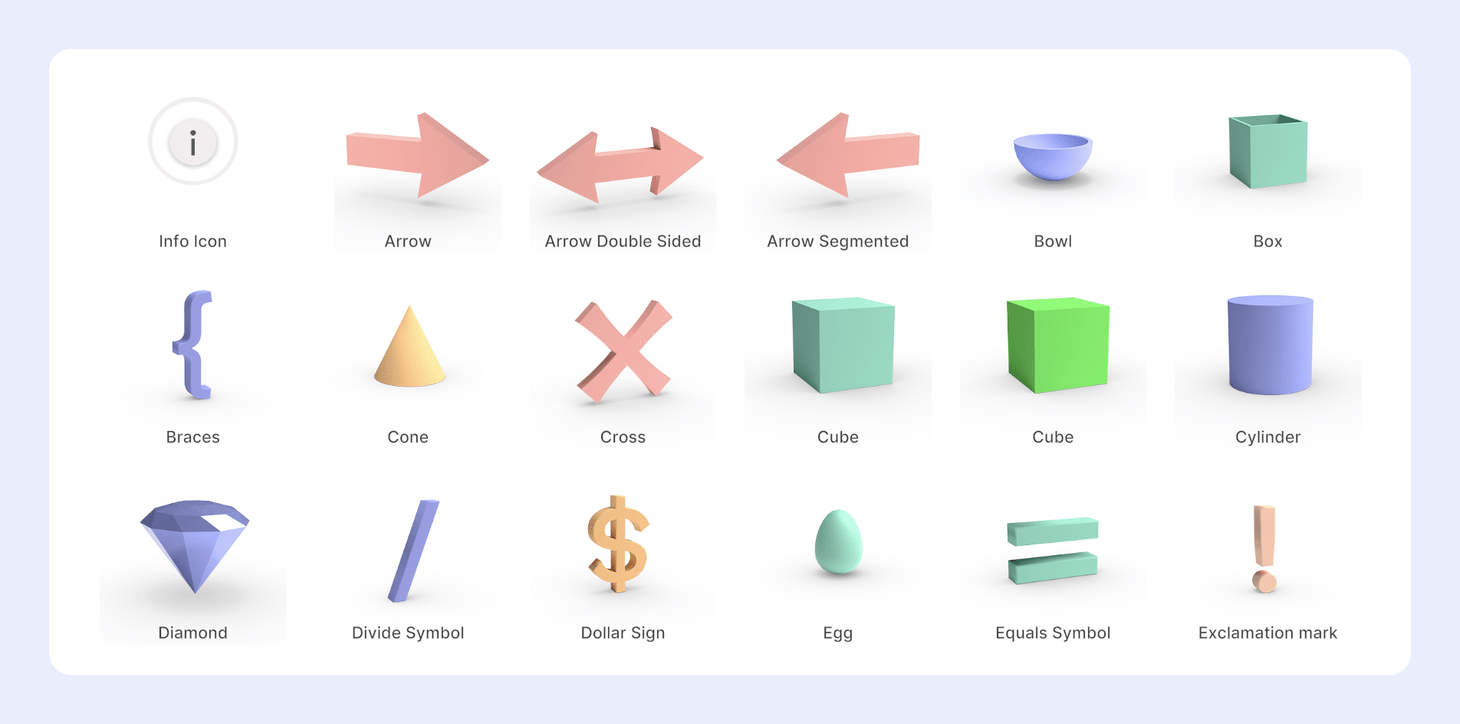
Shapes & Symbols has 3D models of arrows, ticks, and crosses, plus simple 3D shapes like cubes, cylinders, boxes, bowls, hearts, and stars. Use ticks and crosses to mark correct and incorrect answers, or the right and wrong way to do a task. Use arrows to show which way to look or which way a part moves. Scale and color the simple shapes to build a floor, a wall, or a backdrop for your scene.
Buttons
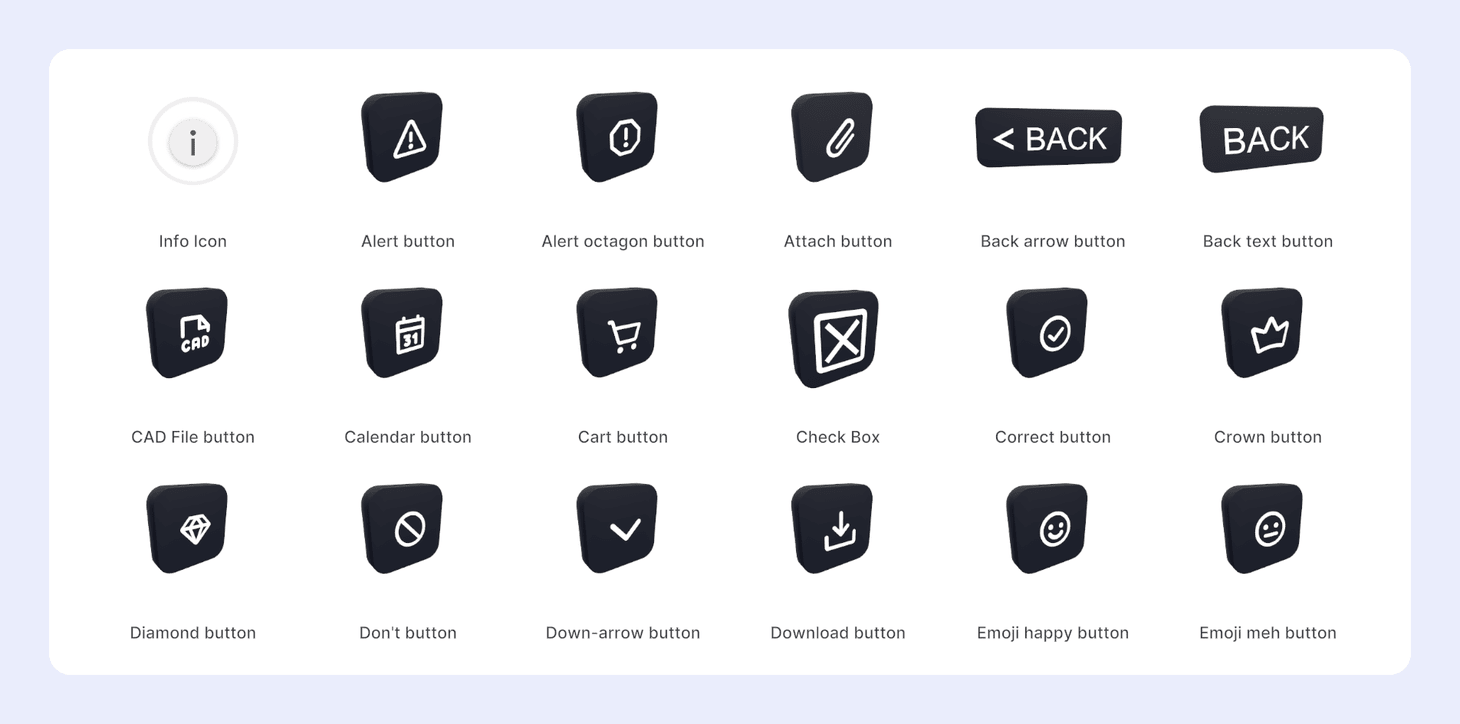
Buttons are 3D icons for interactive Jigs. Add an interactive action to a button so viewers can select it to jump to another step, open another Jig, or open a website. The set includes forward and back arrows, alerts, attachments, do and don't icons, smiley faces, and other common interface icons. Open Buttons in the library to see the full range.
Opening a website uses the Go to URL action, which needs a paid plan.
Frames
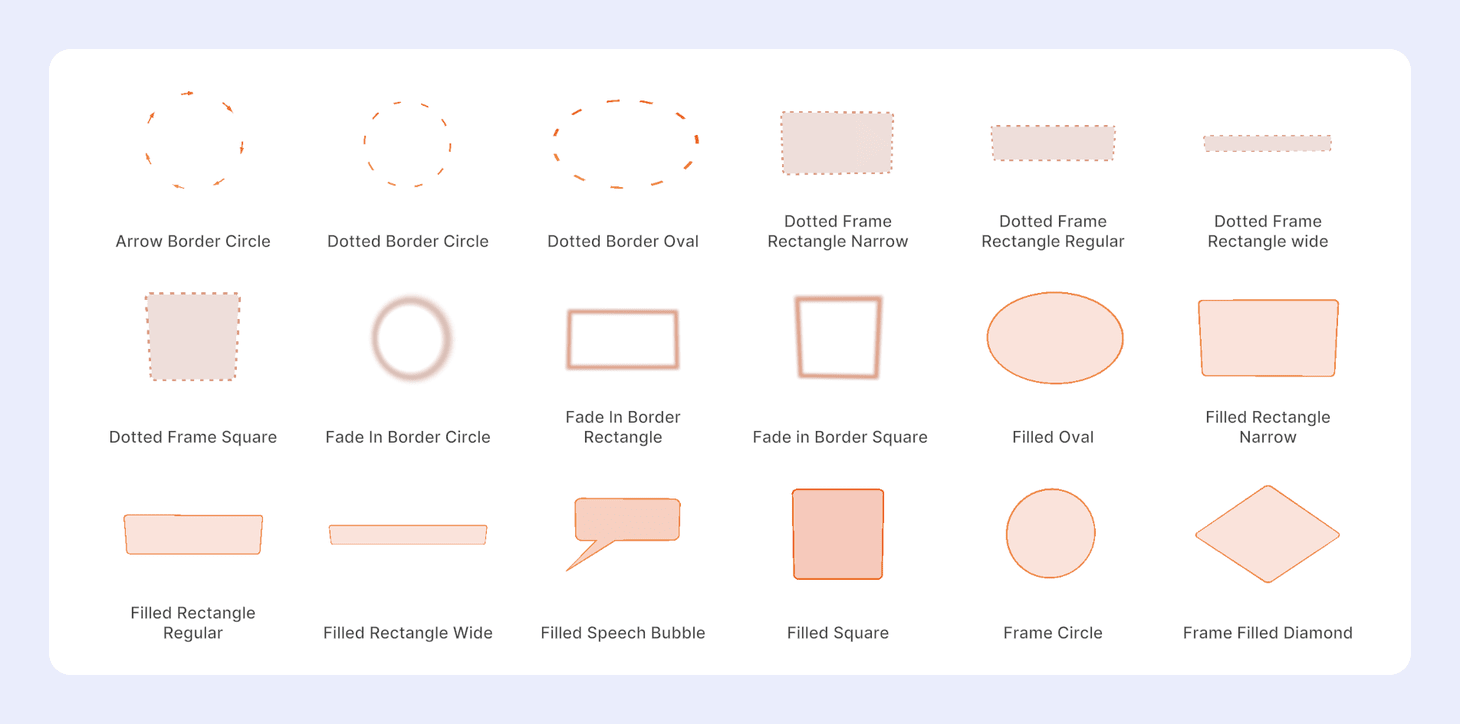
Frames work like the shapes in a slide deck. Put a dotted square, rectangle, or circle around part of your model, or around part of an image, to show viewers where to look. Filled frames, like speech bubbles, rectangles, squares, and circles, give you a panel to hold content. Add a text box on top to write inside one. You can change a frame's color, stretch it to any size, or make it semi-transparent so the model behind it still shows.
Tools
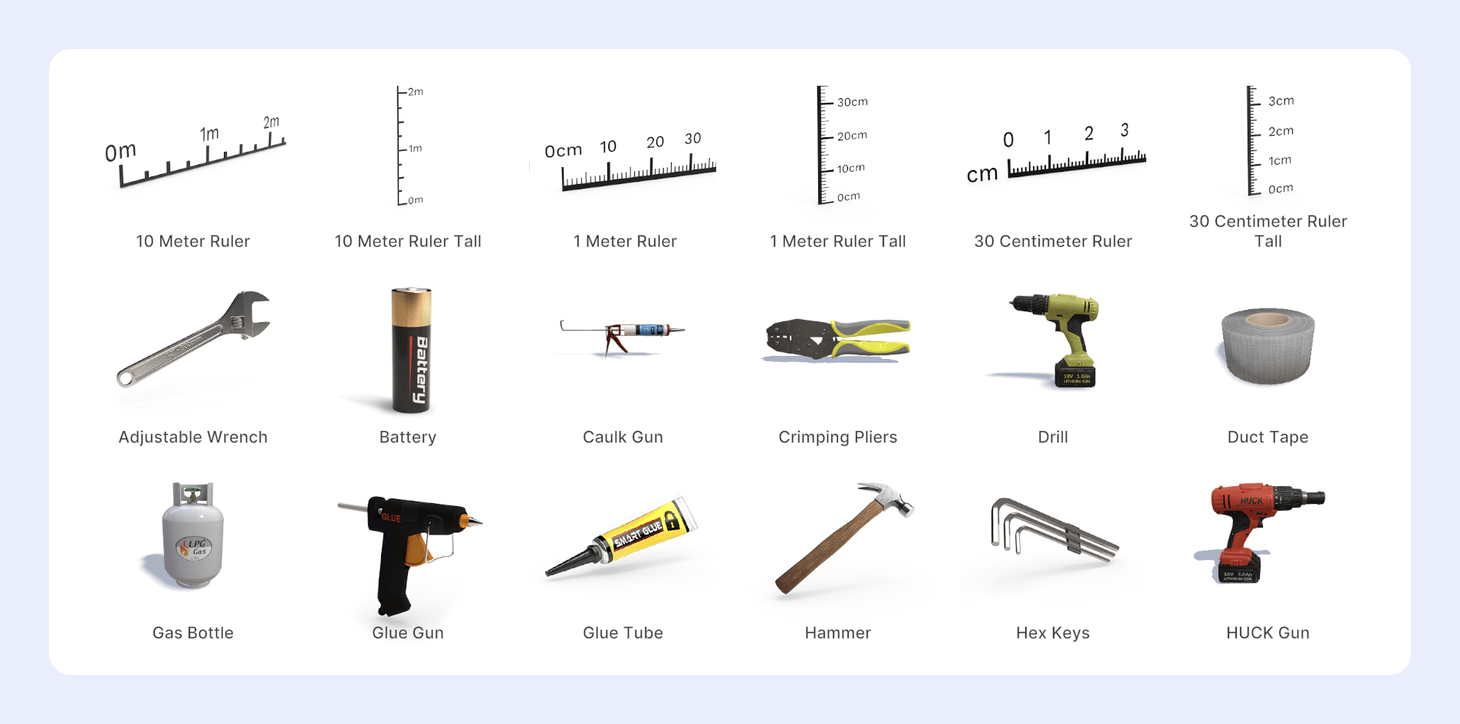
Tools has 3D models of the hand tools you'd find in a workshop or on a factory floor: adjustable and socket wrenches, drills, hammers, hex keys, screwdrivers, pliers, glue guns, scissors, and safety goggles. Add them to instructions and training Jigs to show which tool each step needs.
Tools category also has 3D rulers, from 30 centimeters to 10 meters in true-scale. Place one next to your model so viewers can see how big it really is, or to calibrate with real-world scale in augmented reality.
ISO Symbols
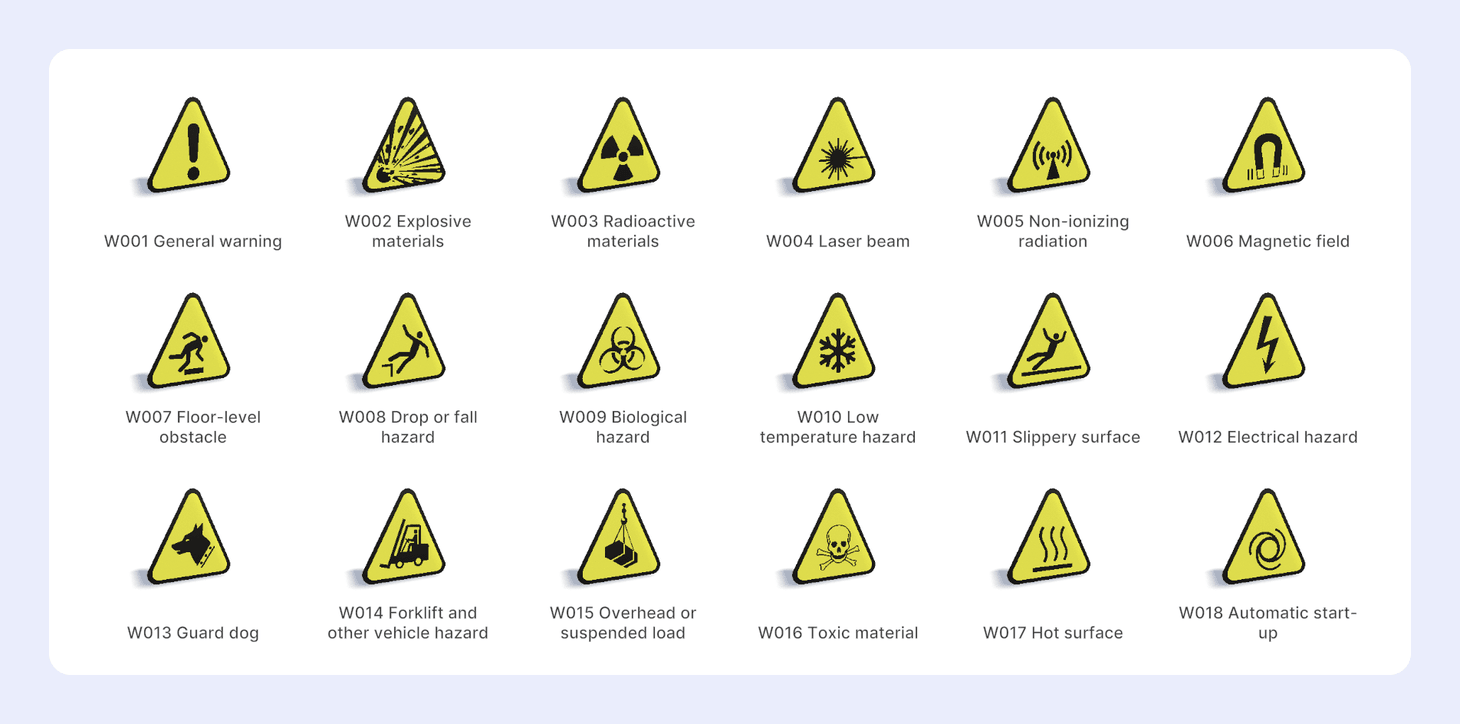
3D objects of ISO Symbols has the yellow warning signs from ISO 7010, the standard used worldwide on packaging, in instructions, and on workplace signs. Each name starts with its ISO code. The most common in manufacturing include:
- W001 General warning
- W009 Biological hazard
- W012 Electrical hazard
- W014 Forklift and other vehicle hazard
- W015 Overhead or suspended load
- W016 Toxic material
- W017 Hot surface
- W021 Flammable material
- W023 Corrosive substance
- W024 Crushing of hands
There are also signs for beach and water safety. Add them to a Jig as instructions in their own right, or place them on your product where they'd normally be printed, if they aren't already in your CAD files.
Categories for demos and teaching
These categories cover specific subjects and settings. Use them to build a realistic demo, or add them to Jigs for teaching and learning.
Manufacturing
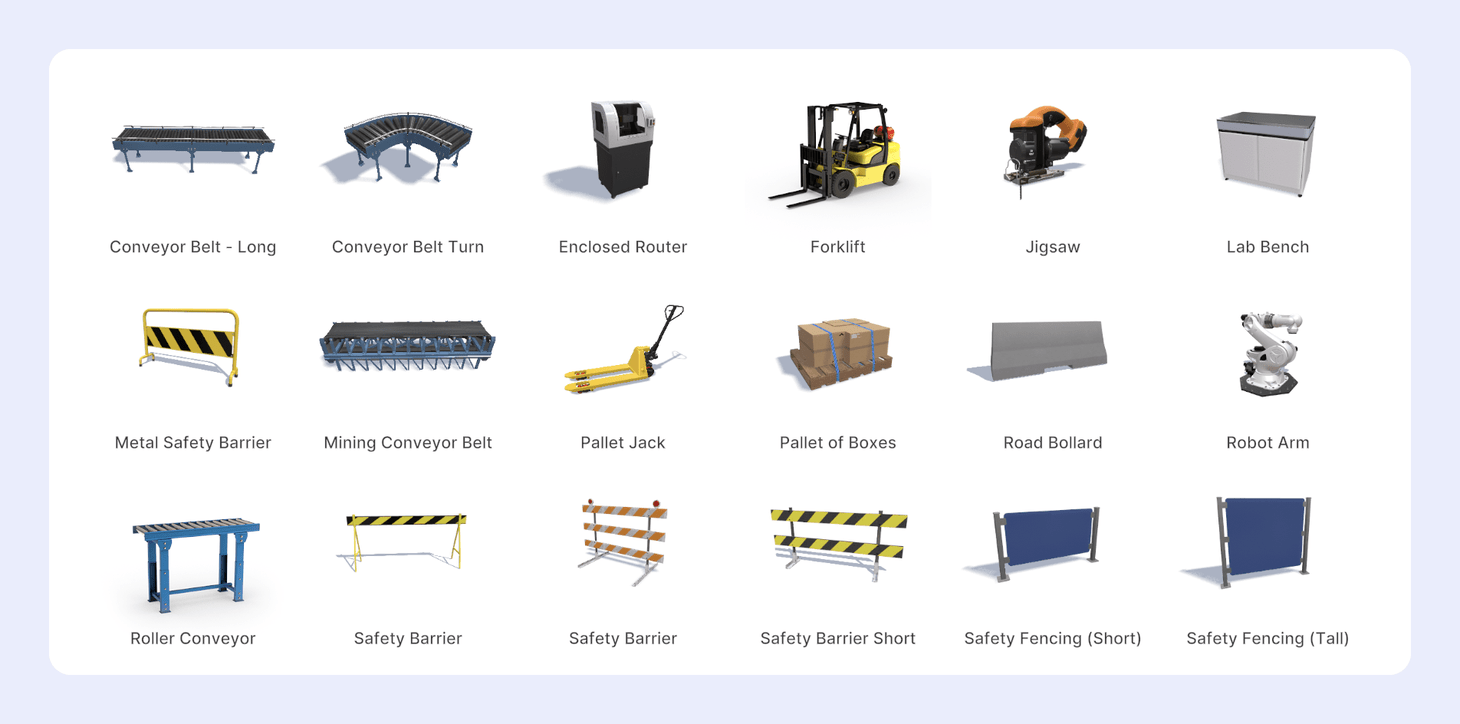
3D models of conveyor belts, machines, workbenches, safety cabinets, and chairs. It's a sample of a factory, not a full catalog, with enough to set up a quick demo or a simple learning exercise.
People
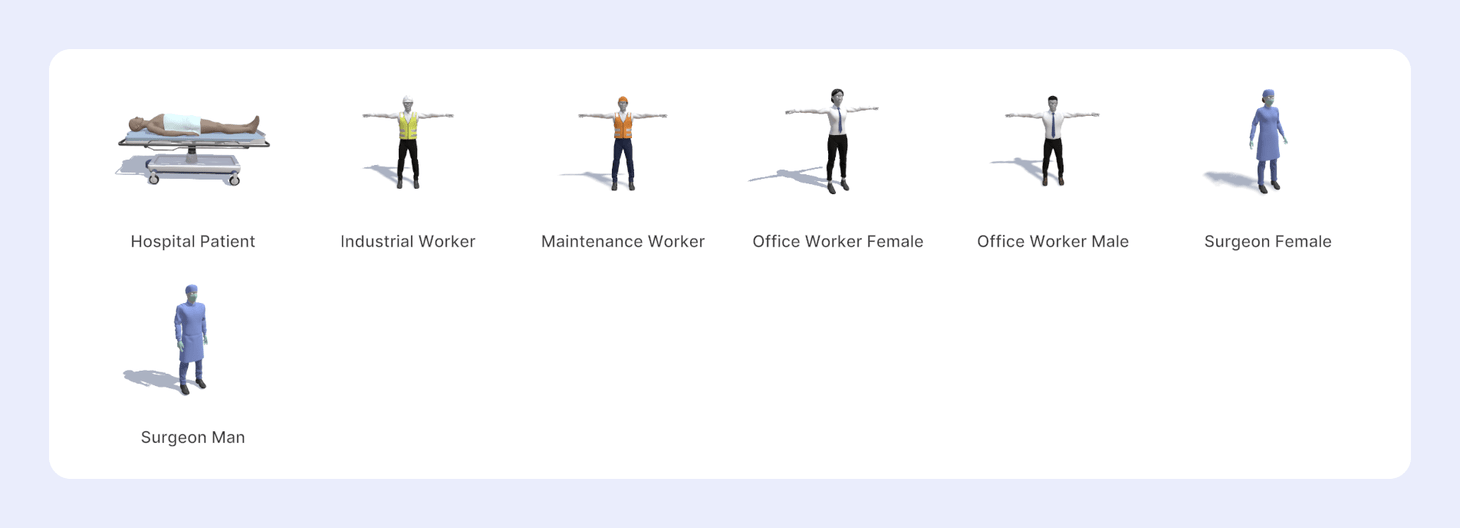
Some 3D models of industrial workers, office workers, and healthcare workers. Stand a person next to your machine 3D models so viewers can see its size at human scale, or add a few people to make a scene or simulation look lived in.
Transport
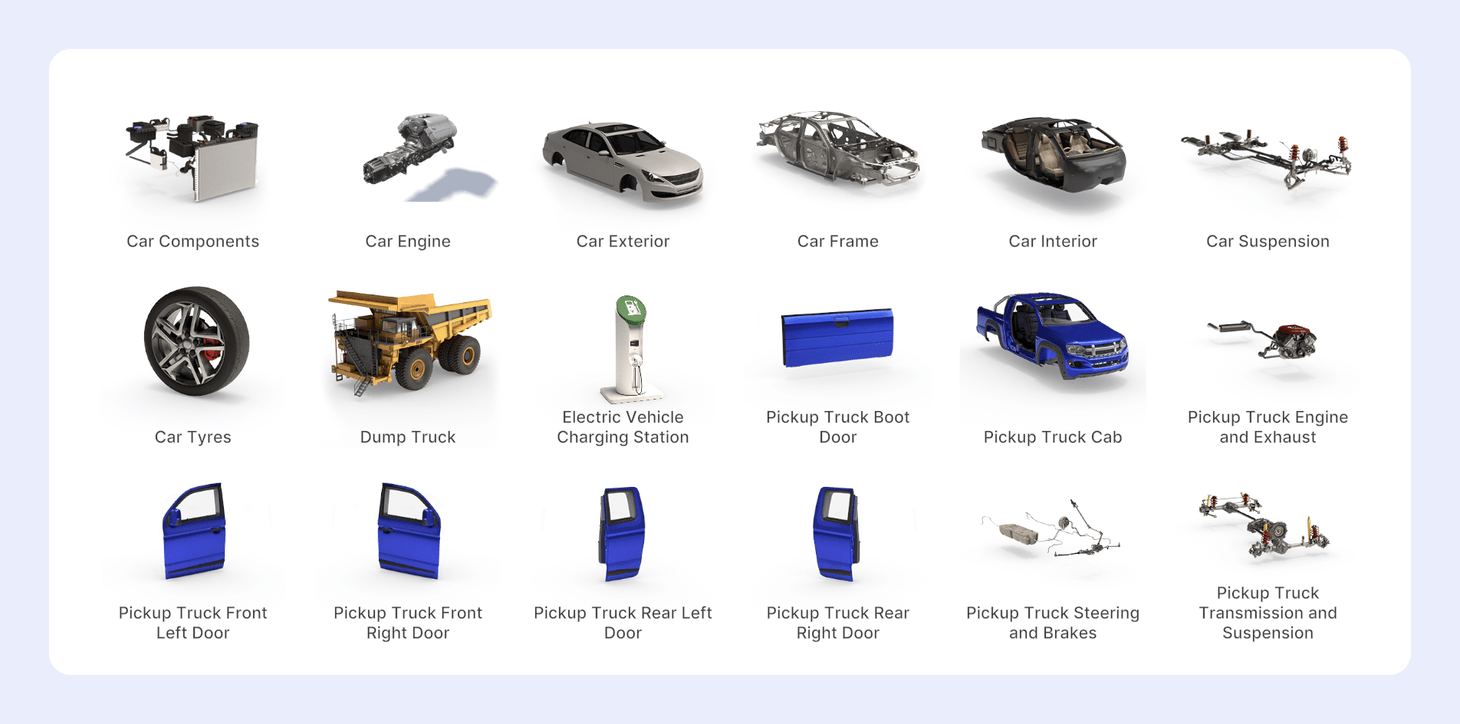
Cars, pickup trucks, and other vehicles. They split into separate assemblies, like the frame, tires, and suspension, so you can build a detailed Jig about a car or truck, or use one to explain an automotive or transport idea.
Biology
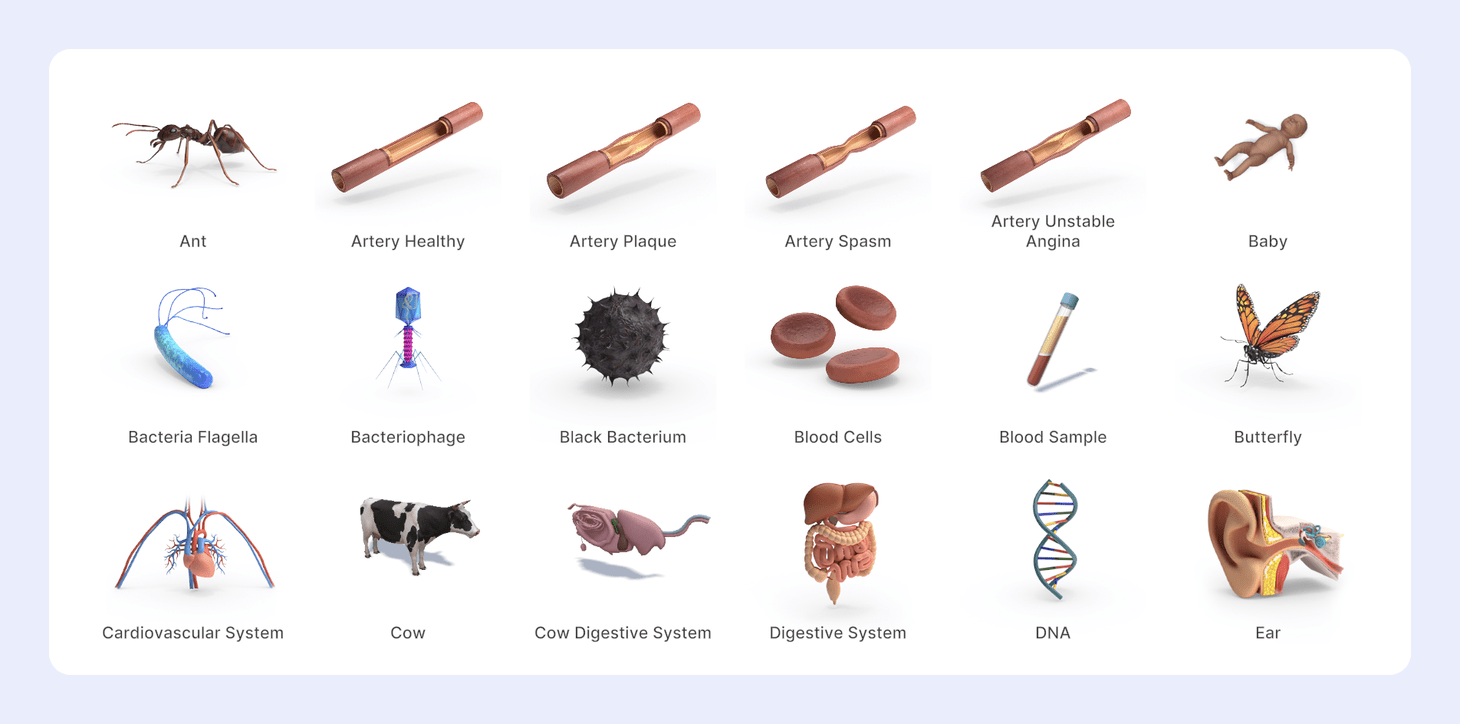
Human anatomy and nature 3D models. The human 3D models cover the digestive, cardiovascular, nervous, and respiratory systems, plus blood, DNA, RNA, cell structures, and detailed bones, arteries, and the inner ear. Use them to teach biology, or to demo a life sciences device or procedure.
Chemistry
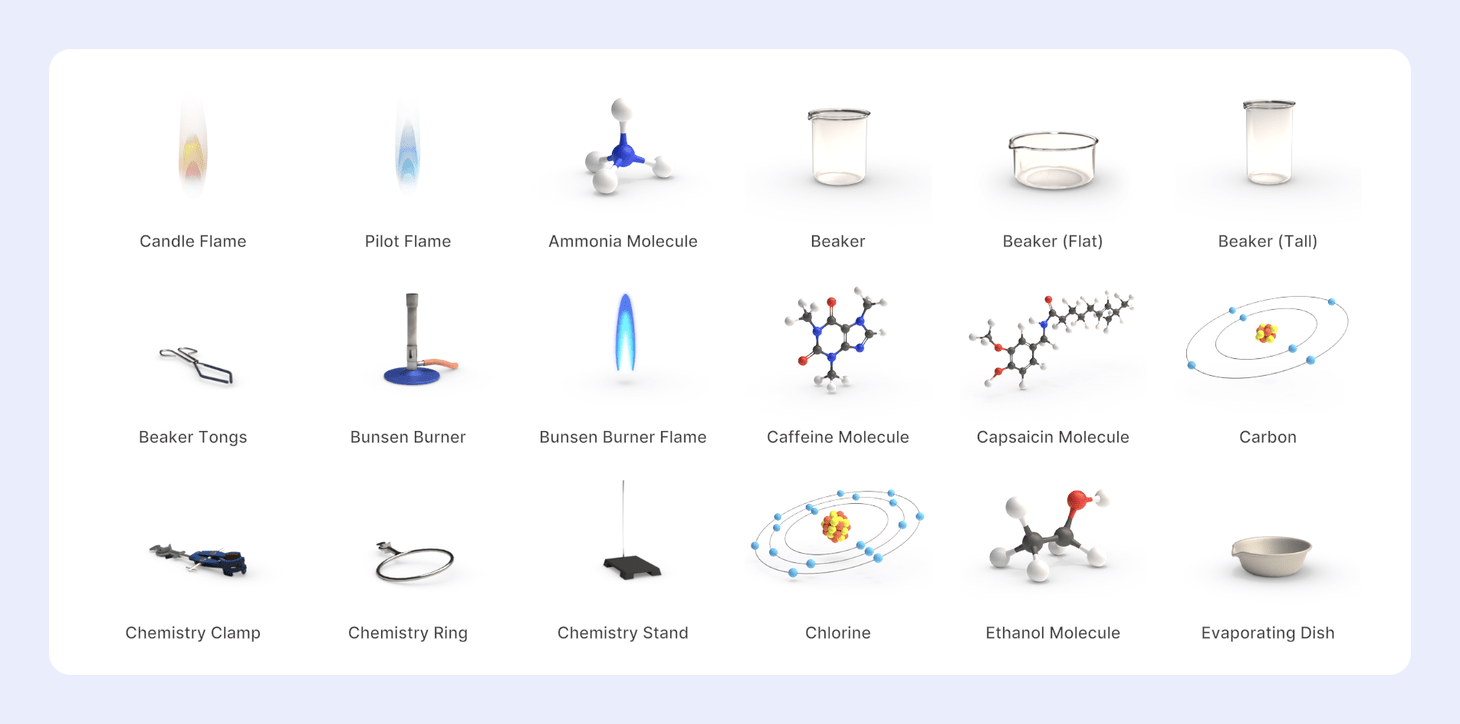
Equipment from a typical school lab, like beakers, flasks, and Bunsen burners, plus ready-made molecules and elements: carbon, hydrogen, chlorine, mercury, water, methane, ethanol, potassium nitrate, and polyethylene. Students can use them as they are, or change them with the move and rotate tools.
IT (Information technology)
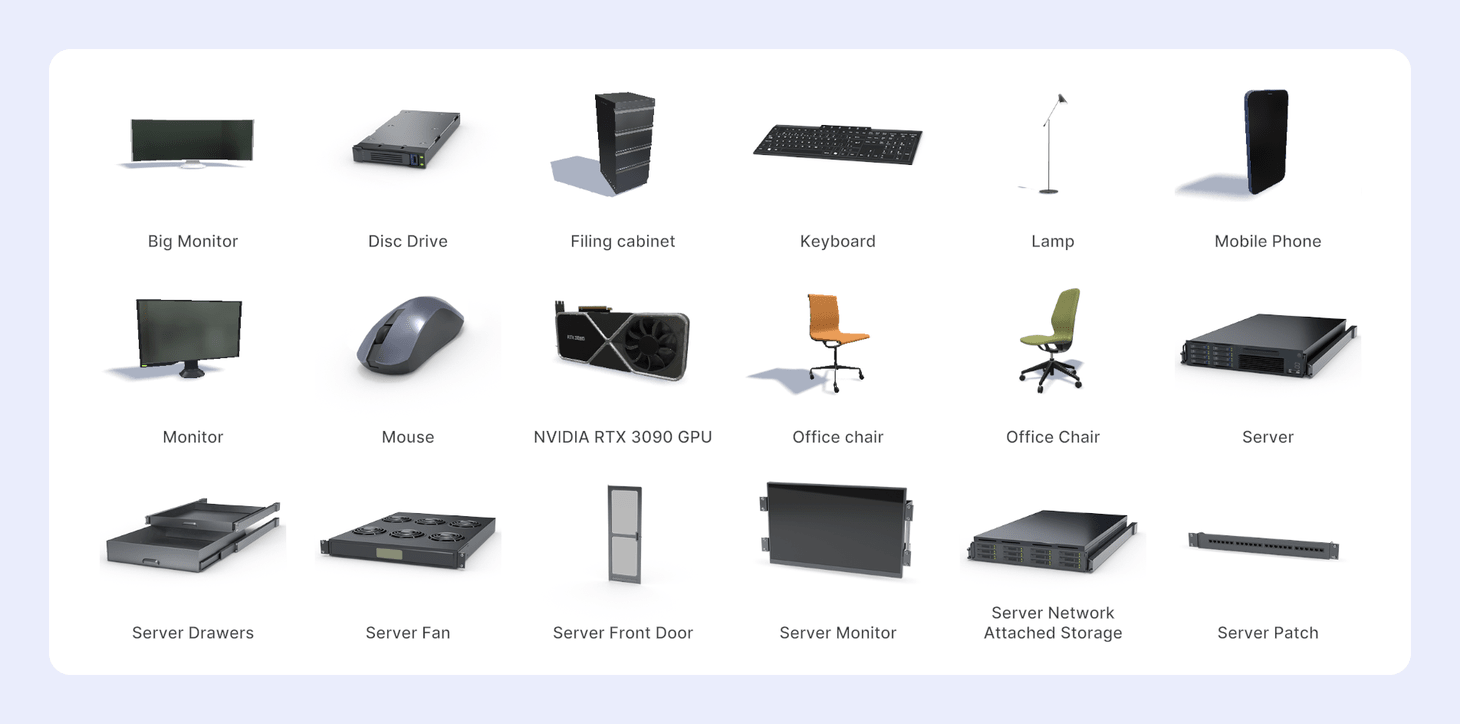
3D models of keyboards, computers, monitors and components, server racks and drawers, mobile phones, transformers, GPUs, and Raspberry Pi boards. Use them for IT training, or to set up a desk or server room scene.
Inventions
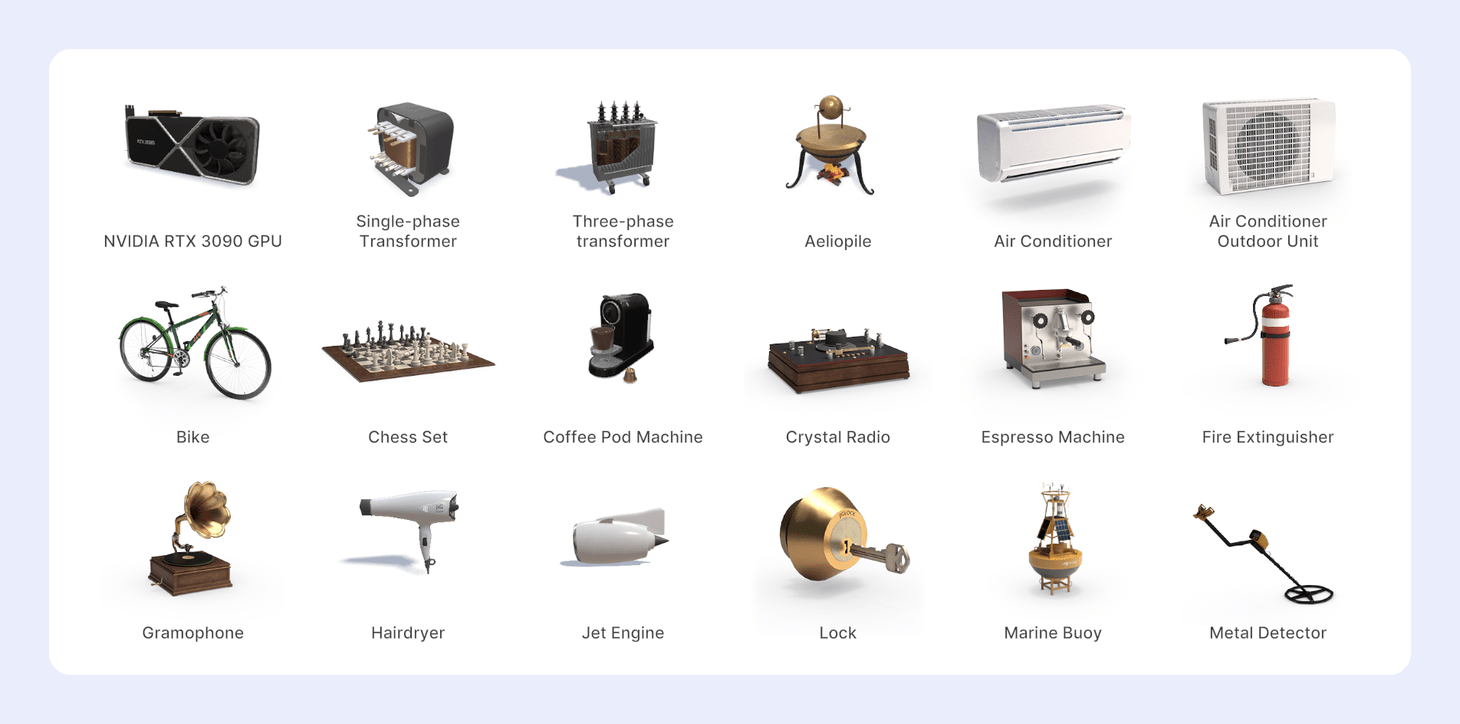
3D models of inventions from across history: an aeolipile (an early steam turbine), the printing press, typewriters, gramophones, jet engines, and an NVIDIA GPU. There's also a bicycle, locks, a fire extinguisher, a metal detector, centrifuges, marine buoys, ultrasound machines, noise-canceling headphones, coffee machines, an air conditioner, and a three-phase transformer.
Use them in primary and secondary school science to show how engineering and manufacturing have changed over time, in 3D and augmented reality.
History
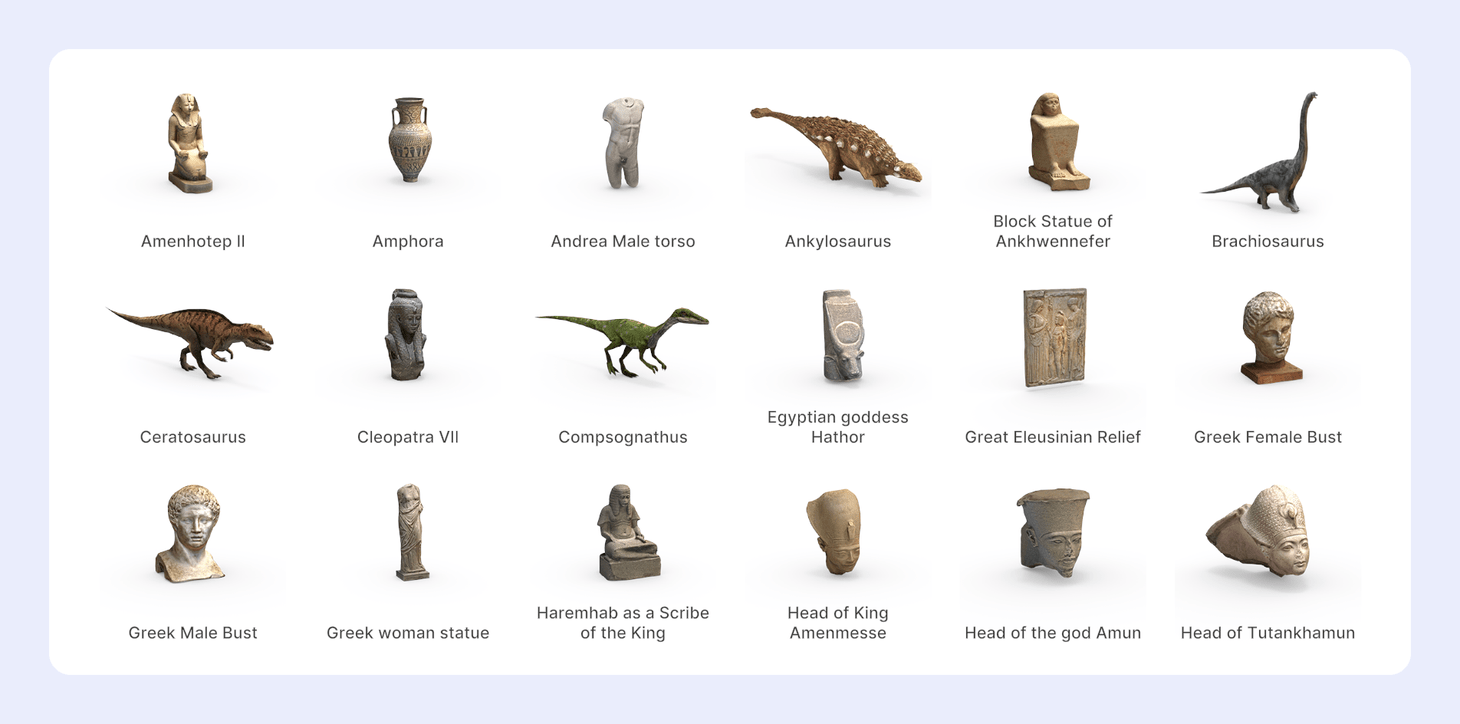
A museum-style collection of 3D model busts and statues of famous figures from ancient Egypt, Greece, and Rome, plus a few dinosaurs. Teachers can use them in 3D and augmented reality lessons and class activities. For more models like these, see our guide to sourcing 3D files.
Space
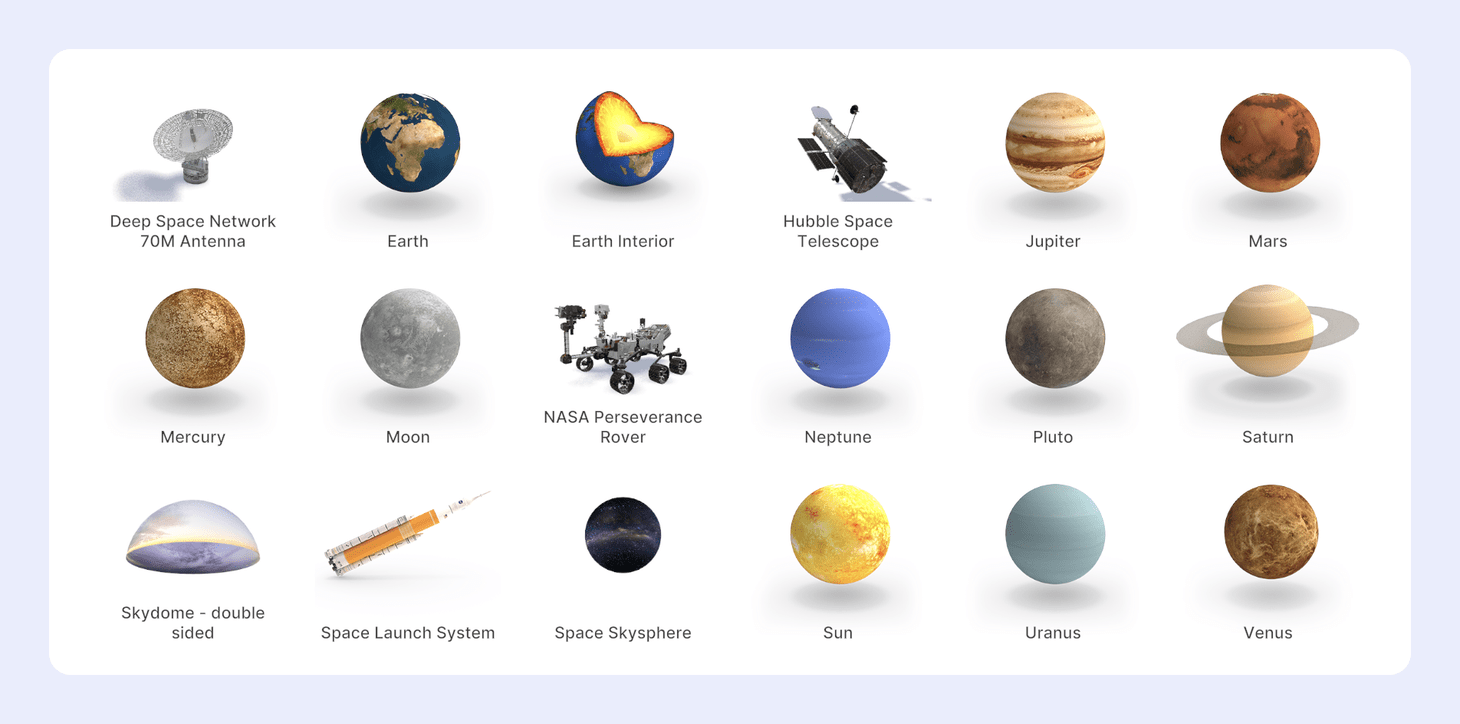
3D models of the planets of our solar system and the Sun, plus NASA 3D models including the Hubble Space Telescope and the Perseverance rover. Made for primary and secondary school classes.
More for the classroom
Sports, Home & Furniture, Food, Coral Reef, Plants, Letters & Numbers, Geography, Flags, and Miscellaneous have more models for school lessons. Open each one in the JigSpace app free library to see what's inside.
Find more 3D models
Can't find the model you need? Our guide to sourcing 3D files to use in JigSpace lists free and paid websites where you can download 3D models, and the technical and license details to check before you use one.
Download a model, then import it into your Jig like any other CAD file or 3D model.
Save a customized model to your team library
Any model you add from Free objects is yours to change. Adjust its color, material, texture, or scale, then save your version to Team objects so everyone on your team can reuse it. This keeps shared details consistent across Jigs, like buttons in your brand colors or a custom arrow that appears in all your training Jigs.
- Add a model from Free objects and change it how you like.
- Select the whole model in Object Mode.
- Click +, then click Save 3D object.
- Name the model, and turn the preview to the angle you want for its thumbnail.
- Choose a Category (optional), then click Save.
Your model appears in Team objects, ready for any Jig your team makes. To save a copy or replace a model you saved before, see Save 3D object to library.
Saving to Team objects works on every plan, including the free plan, so you can try a shared library with your team before you choose a paid plan.

