


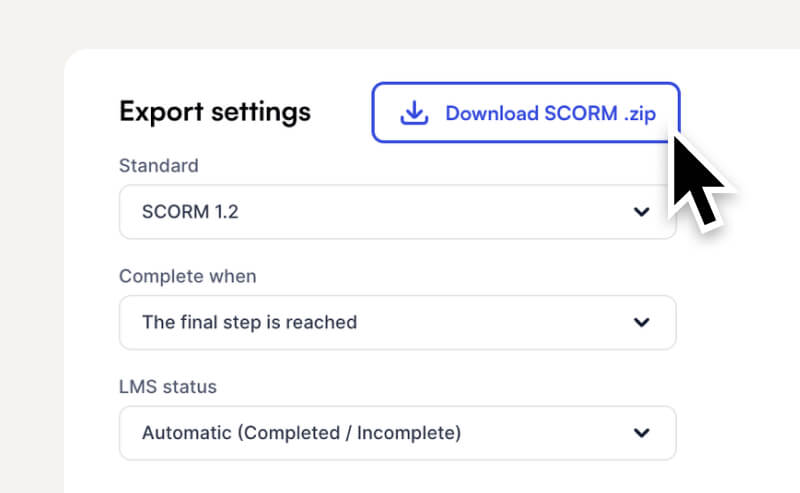
SCORM is the standard most learning management systems (LMS) use to track training. A SCORM package is a .zip file that your LMS imports as a course. You can download any Jig as a SCORM 1.2 or SCORM 2004 package from the Share panel in the admin dashboard, so your LMS records each learner's completion, score, and time.
SCORM export is available as an add-on in Starter and Enterprise plans.

Download a SCORM package
- In the admin dashboard, open your Jig and select the Share tab.
- Select LMS export.
- Choose your export settings. The defaults work for most courses.
- Select Download SCORM .zip.
You can also export from My Jigs or Team Jigs. Select Share link on the Jig, then select the SCORM tab. It has the same settings.

Before you download, check the Jig is set to Anyone with link can view or Password protected.
Export settings
As you change a setting, Package details updates to show what your LMS will track, the score it records, and the result it shows.
Standard
Choose the SCORM version your LMS accepts. If you're not sure, use SCORM 1.2. Almost every LMS supports it.
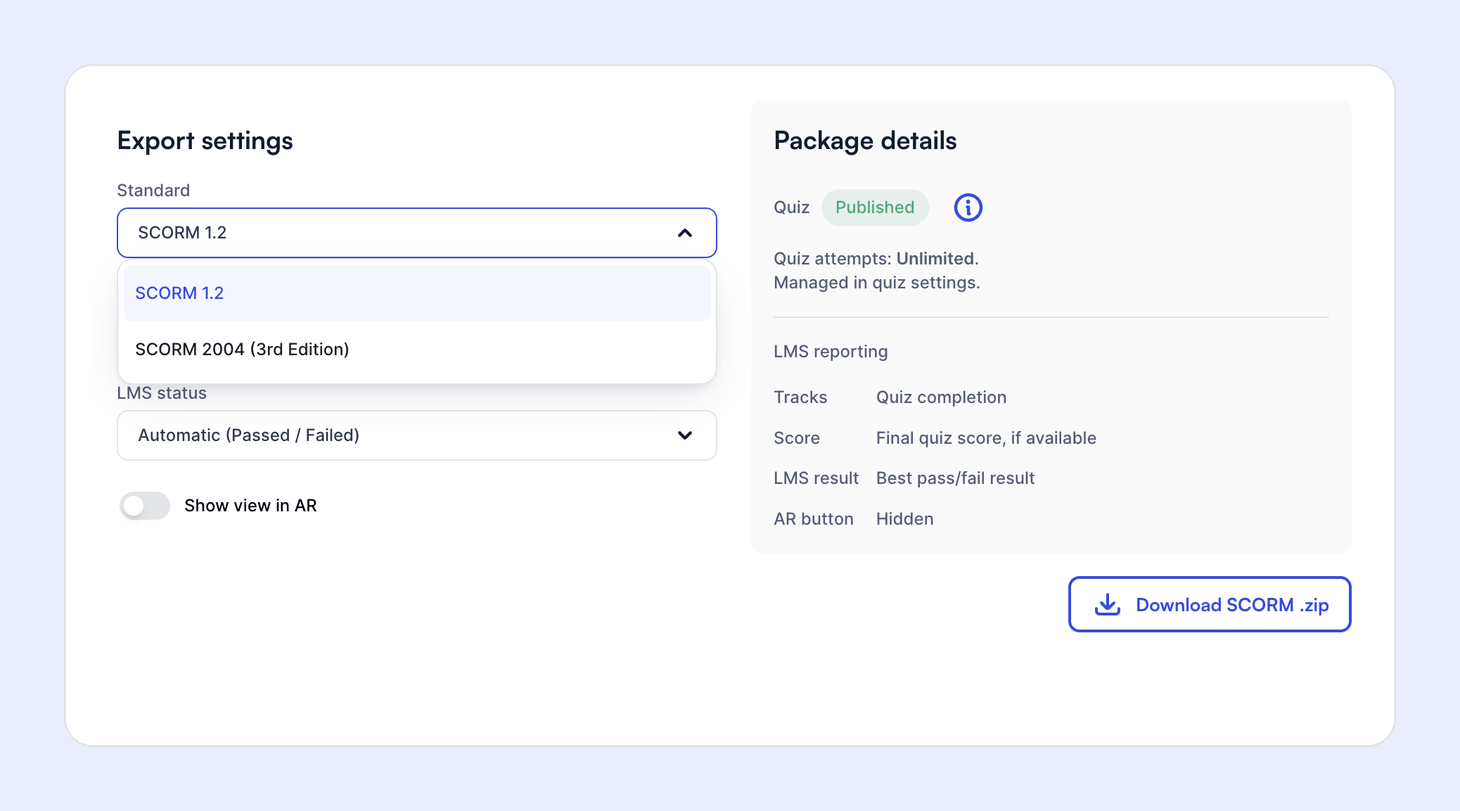
If you choose SCORM 2004 (3rd Edition), check your LMS supports it first. An LMS without SCORM 2004 support rejects the package when you upload it.
Complete when
Choose what marks the course complete in your LMS:
- The quiz is finished: the course completes when the learner finishes the Jig's quiz, and your LMS records their quiz score.
- The final step is reached: the course completes when the learner reaches the Jig's last step, and your LMS records how far through the steps they got.

If your Jig doesn't have a published quiz, The quiz is finished is unavailable, and the course completes on the final step.
LMS status
LMS status sets the result your LMS shows for each learner. Leave it on Automatic and JigSpace picks one for you: Passed / Failed for a Jig with a published quiz, or Completed / Incomplete for a Jig without one.
- Passed / Failed: the learner passes or fails, using the best result from their quiz attempts. This requires a published quiz.
- Passed / Incomplete: the learner passes when they're successful in a quiz. Until then, the course stays incomplete, so it never shows a fail.
- Completed / Incomplete: the learner completes the course when they finish it. Until then, it stays incomplete.

Some LMSs won't let a learner relaunch a course once it records a fail. If you want learners to keep trying until they pass, choose Passed / Incomplete.
Show view in AR (augmented reality)
Jig SCORM packages in LMS always default to non-AR views. However, you can optionally toggle on to show the 'View in AR' option as well, if viewed on mobile and it is a critical feature of the course.
Show view in AR is off by default

Jigs SCORM packages with a quiz
If your Jig has a published quiz, Package details shows Quiz: Published. A published quiz plays in every share link, embed, and SCORM package, so it's always part of the course.
Package details also shows how many quiz attempts each learner gets. To change it, open the Jig's Quiz settings tab and use Allow to retry the quiz under Quiz behaviour. Attempt limits include the first attempt, and they count across every launch of the course in your LMS. If a learner runs out of attempts, an LMS admin can reset their course record so they can try again.

Keep your Jig shareable
Your LMS doesn't sign learners in to JigSpace, so the Jig has to be set to Anyone with link can view or Password protected. You can change it from the menu next to Share link.
- Anyone with link can view is best for quiz and LMS courses.
- Password protected asks every learner for the password inside the course. Only use it when the content needs an extra layer of security.
- Private (Invite only) Jigs don't open inside an LMS.

Upload the package to your LMS
- Open your LMS's course or content admin area.
- Create a course, or add content to an existing course.
- Upload the
.zipfile. Don't unzip it first. - Publish or assign the course to your learners.
Every LMS labels these steps differently. Check your LMS's help for its SCORM upload steps.
Test the course
- Open the course as a test learner, or use your LMS's preview.
- Finish the quiz, or step through the Jig to the last step.
- Check that your LMS shows the result you expect.
What your LMS records
Things to consider
- Edits to the Jig itself, like its steps, content, and 3D models, show up in the course automatically. You don't need to export a new package.
- Your export settings are saved into the package. To change a setting, download a new
.zip. - Replacing a package in your LMS resets the progress of every learner who has already started the course. Once a course is live, only replace its package for a major change, or for a new year or cohort.
- Your LMS records the overall quiz score, not each answer per learner.
- The package streams your Jig from JigSpace, so learners need an internet connection. It doesn't run offline.
- To show a Jig on a course page without tracking, embed it via iframe instead. See Moodle and TalentLMS examples
Related articles